
Ask for help
This page explains how to report a problem or ask a question on the project's site, and what to write so that whoever answers can understand what happened. It is for everyone who uses BiblioViva, after trying the solutions in Common problems.
Where to write
Reports are written on the project's issues page on GitHub: github.com/itotm/biblioviva/issues. A free GitHub account is needed (sign up). Before writing, search the list: the same problem may already have been reported.
What to write
A useful report contains four things.
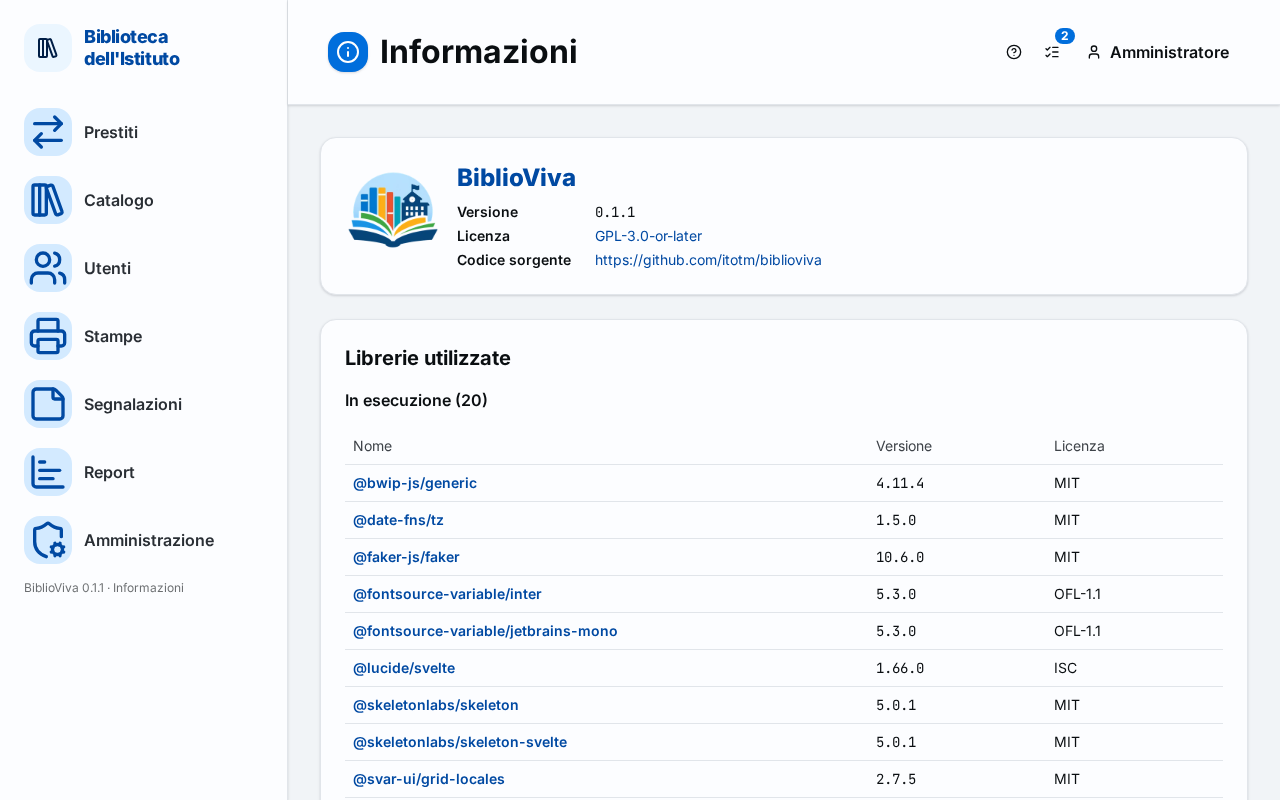
- The version of BiblioViva. It is read on the About page, at the Version row: the page opens from the account menu, at the top, or from the version number at the bottom of the sidebar.
- What was being done, step by step, starting from the page where it began.
- What appeared: the exact text of the message, copied or photographed, or a description of what was seen.
- What was expected.
The type of computer (PC, Raspberry Pi), the way chosen for the installation (Tailscale or local network) and the browser used also help.
Important. A report is public: do not write or attach the names, surnames, photos or card numbers of patrons, nor any password
or key (for example the Tailscale key or the content of the .env file). In photos of the screen, cover the names.
To describe a case, words such as "a student" or "a copy" are enough.
The diagnostic log
When the problem stays unclear, whoever installed BiblioViva can turn on the diagnostic log, which writes step by step what the application does. The log contains no names, photos or card numbers, only codes, sizes and outcomes. The procedure uses the terminal of the BiblioViva computer (Connect to the computer).
-
Open the settings file with the terminal editor.
nano ~/biblioviva/.env -
Change the line
LOG_LEVEL=infotoLOG_LEVEL=debug. Save with Ctrl+O and Enter, then exit with Ctrl+X. -
Restart BiblioViva with the new setting.
cd ~/biblioviva && docker compose up -d -
Repeat the operation that causes the problem.
-
Read the log lines that carry the word
debug.cd ~/biblioviva && docker compose logs app | grep debug -
Copy into the report the lines that concern the moment of the problem, and no others.
-
Put
LOG_LEVEL=infoback and repeat the command of step 3.
The areas of the log and the commands to read it are described in the technical page Deployment notes (technical).