
- 1 · Prepare the computer
- 2 · Connect to the computer
- 3 · Prepare the network
- 4 · Install BiblioViva
- 5 · First run
- 6 · Connect the devices
- 7 · Test the scanner and the printer
- 8 · Backups
Prepare the computer
This step prepares the computer BiblioViva will run on: a PC with Linux, or a Raspberry Pi with its microSD card. It takes about 20 minutes for a PC that already has Debian or Ubuntu (if the system has to be installed, the time depends on the PC) and about 30 minutes with the Raspberry Pi. It is the first of the steps of every installation path.
- Raspberry Pi with the local network
Requirements
- A Raspberry Pi 4 or 5 with at least 2 GB of memory, with its power supply.
- A 32 GB microSD card.
- Another computer (Windows, macOS or Linux) with a microSD card reader, connected to the internet.
- A network cable between the Raspberry Pi and the school's router. A Wi-Fi connection is possible, but the cable is more reliable.
- A sheet of paper and a pen: the user name and the password chosen in this step are needed in the following steps.
Procedure
The microSD card is written with Raspberry Pi Imager, the official Raspberry Pi program, on another computer. The personal settings (computer name, user, network, access from another computer) are given to the program before writing: the card starts already configured. The program changes its look from one version to the next; the official guide describes its screens.
-
On the other computer, download and install Raspberry Pi Imager from the official download page.
-
Insert the microSD card in the other computer's reader.
Warning. Writing erases the whole content of the card.
-
Start Raspberry Pi Imager.
-
On the device screen, choose the model of the Raspberry Pi (4 or 5) and go on with "Next".
-
On the operating system screen, open the entry "Raspberry Pi OS (other)" and choose "Raspberry Pi OS Lite (64-bit)". The Lite system has no graphical environment: BiblioViva does not need one. [VERIFY: names of the entries in Imager's list of systems in the current version]
-
On the storage screen, choose the microSD card. Check that the capacity shown is that of the card and that the computer's disk is not chosen.
-
On the customisation screen, open the "Hostname" tab and set the computer's name:
biblioviva. -
In the "Localisation" tab choose the city (for Italy, Rome): Imager derives the time zone and the keyboard layout from it.
-
In the "User" tab set a user name (for example
biblioviva; lowercase letters, digits, hyphens) and a password. Write both on a sheet of paper.Important. The user name and the password are needed at every following step and cannot be recovered from BiblioViva. Keep the sheet in a safe place.
-
In the "Wi-Fi" tab, if the Raspberry Pi is connected with the network cable, leave the settings empty. If instead it uses Wi-Fi, enter the network name and its password.
-
In the "Remote Access" tab turn on "Enable SSH" and choose password authentication.
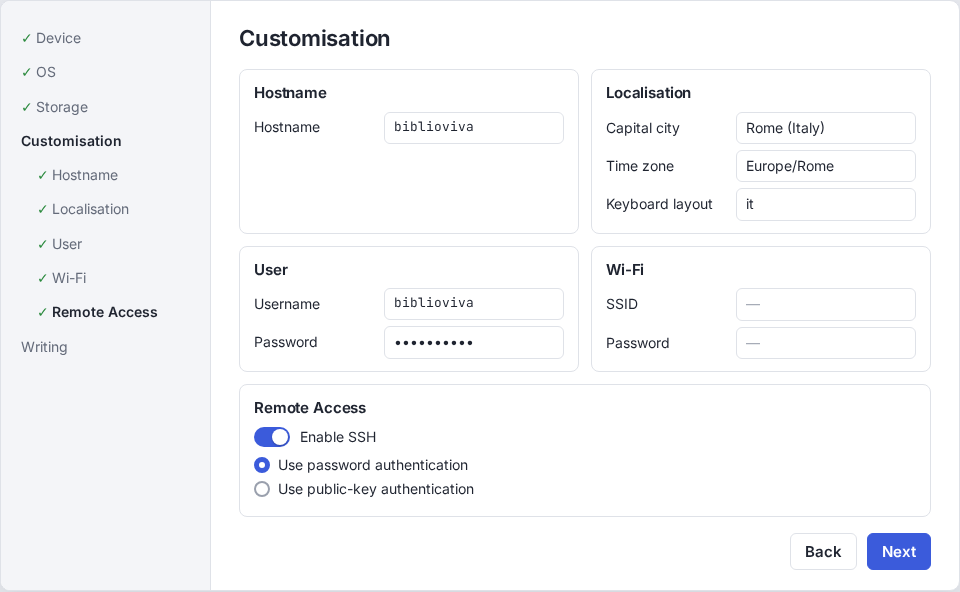
Figure 1. The customisation tabs of Raspberry Pi Imager filled in -
Confirm and start the writing. Wait for the end of the writing and of the verification; the program says when the card can be removed.
-
Remove the card from the other computer and insert it in the Raspberry Pi.
-
Connect the network cable to the Raspberry Pi and to the router.
-
Connect the power supply. The Raspberry Pi starts by itself: the first start takes a few minutes, because the system prepares itself. Wait at least five minutes before going on.
Check before going on
- The Raspberry Pi is on and its green light blinks or comes on intermittently (this is normal).
- The Raspberry Pi appears in the router's list of devices with the name
biblioviva. The router's page usually opens at the address shown on the router's label; the list is generally called "connected devices" or "clients", but the name depends on the router.
When the name does not appear, the next step, Connect to the computer, also serves as a test: if the connection succeeds, the Raspberry Pi is on the network.
Possible problems
- The Raspberry Pi does not turn on (no light): check the power supply. A phone charger often is not enough: use a power supply suited to the model.
- After ten minutes the Raspberry Pi does not appear in the router's list: check the network cable (the lights of the socket come on), then repeat the writing of the card, checking the settings.
- Forgotten user name or password: repeat the writing of the card with Raspberry Pi Imager.