
- 1 · Prepare the computer
- 2 · Connect to the computer
- 3 · Prepare the network
- 4 · Install BiblioViva
- 5 · First run
- 6 · Connect the devices
- 7 · Test the scanner and the printer
- 8 · Backups
First run
The first run is the guided setup that BiblioViva offers in the browser as soon as it is installed: language, colours,
school, barcodes and the passwords of the shared accounts. This page is for whoever has finished the step Install
BiblioViva and has in front of them the address that setup.sh printed. The step takes about 10 minutes.
- Raspberry Pi with the local network
Requirements
- The address of BiblioViva printed by
setup.shat the end of step 4. - A computer with an up-to-date browser (Firefox, Chrome or Edge): normally the circulation desk computer.
- With Tailscale: the Tailscale application on that computer, signed in to the school's account; the first point of the procedure installs it, if it is missing.
- On the local network: that computer connected to the same school network as the BiblioViva computer.
- A sheet of paper and a pen, or a password manager, to note down the account passwords.
Procedure
The guided setup has eight steps, shown at the top as "Step 1 of 8". In every step the Next button stays off until the required data are valid; the Back button returns to the previous step without losing what was already written. Almost every choice can be changed later from Administration: when unsure, leave the choices as BiblioViva proposes them.
Open the address
- Connect the computer to the school network, by cable or Wi-Fi, the same one the BiblioViva computer is connected to.
- Open in the browser the first address printed by
setup.sh, in the formhttp://biblioviva.local:8080. - If the page does not open, open the second address printed, the numeric one, in the form
http://<computer address>:8080(for examplehttp://192.168.1.50:8080).
The page First-time setup opens on the first step. The guided setup appears only until it is completed and asks for no password: complete it right away, without leaving the page open and unattended.
Language
The first screen may appear in English. BiblioViva speaks one language per installation, valid for all the staff.
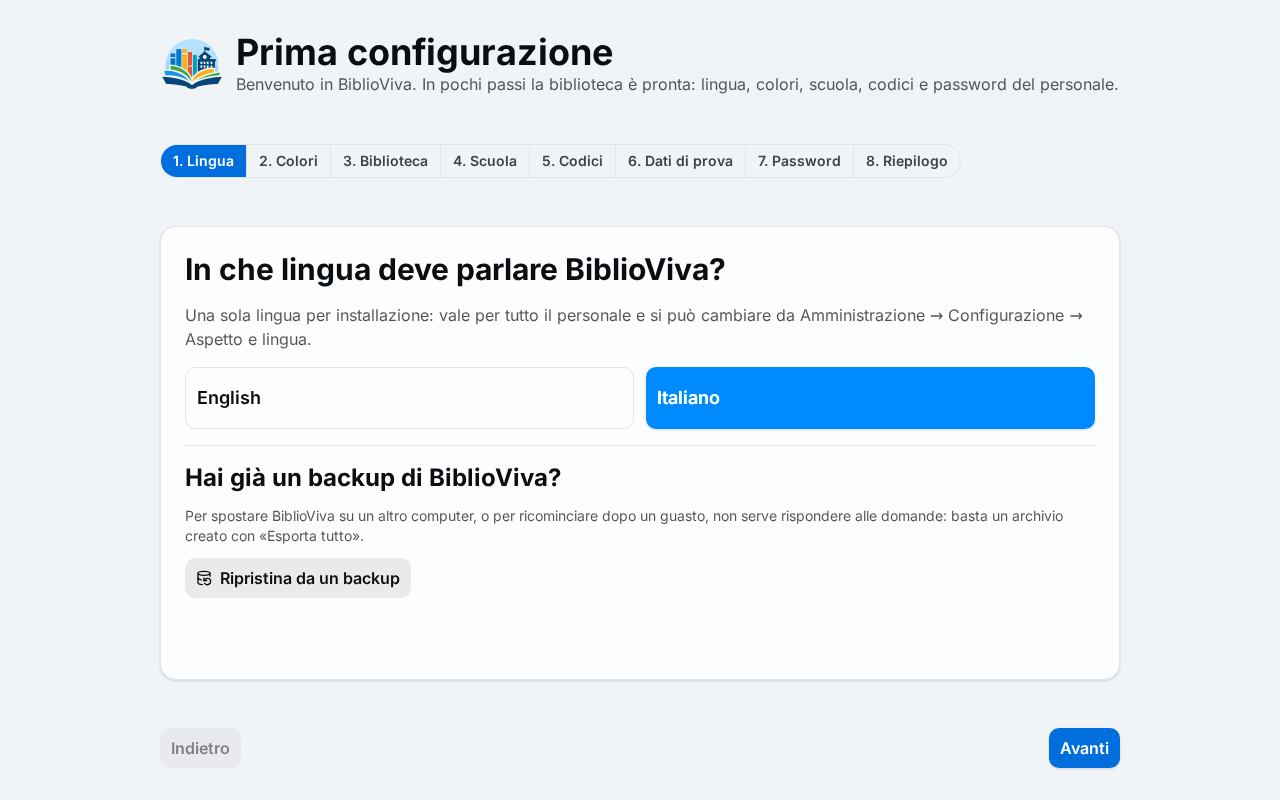
- Choose "English". The guided setup switches to English at once.
- Press Next.
The language can also be changed later, from Administration → Configuration → Appearance and language.
Whoever moves BiblioViva to another computer, or starts again after a failure, does not answer the questions of the guided procedure: under the choice of language they press Restore from a backup and choose the archive made with Export everything. The procedure is in the section From the first run of Restart from a backup.
Colours
BiblioViva offers fifteen colour sets. Only the colours change, never the shape, and they stay readable in black and white too.
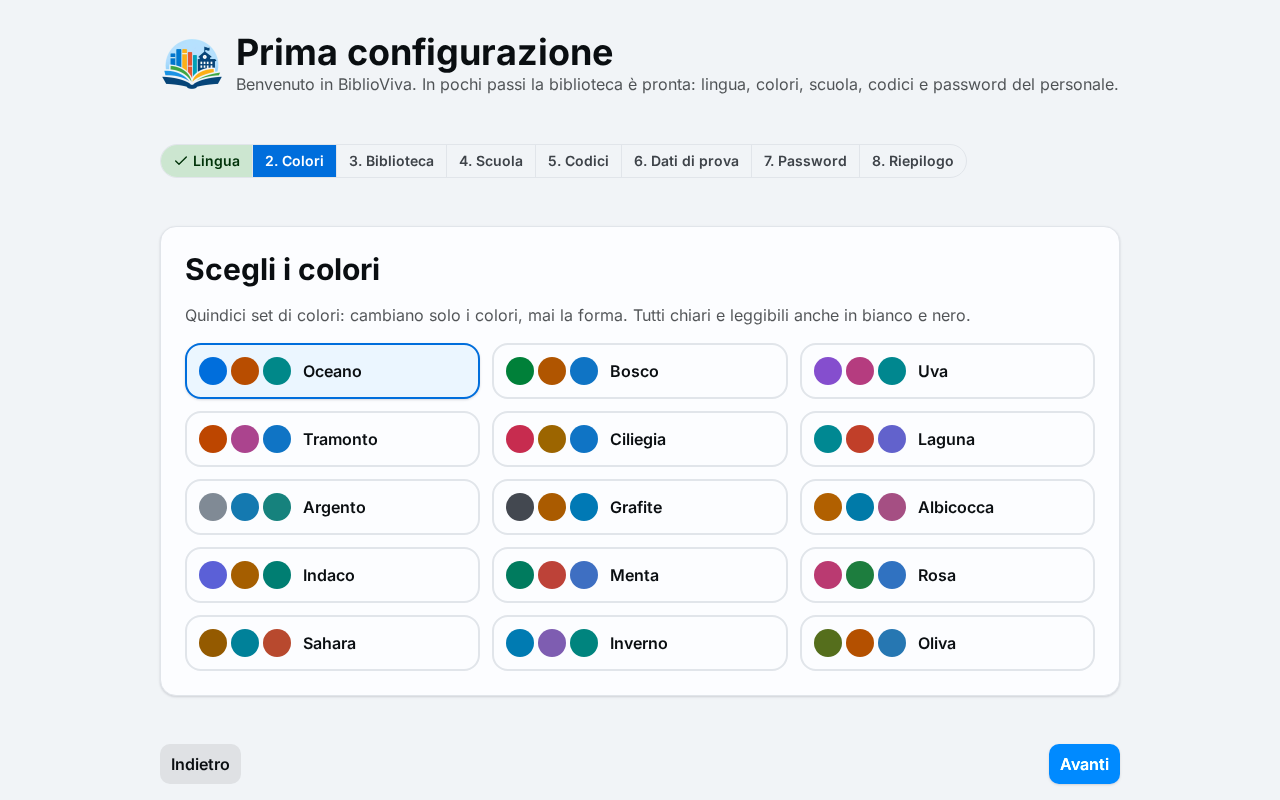
- Choose a colour set. The preview shows at once on the page. The proposed set is Ocean.
- Press Next.
The colours can also be changed later, from Administration → Configuration → Appearance and language.
Library
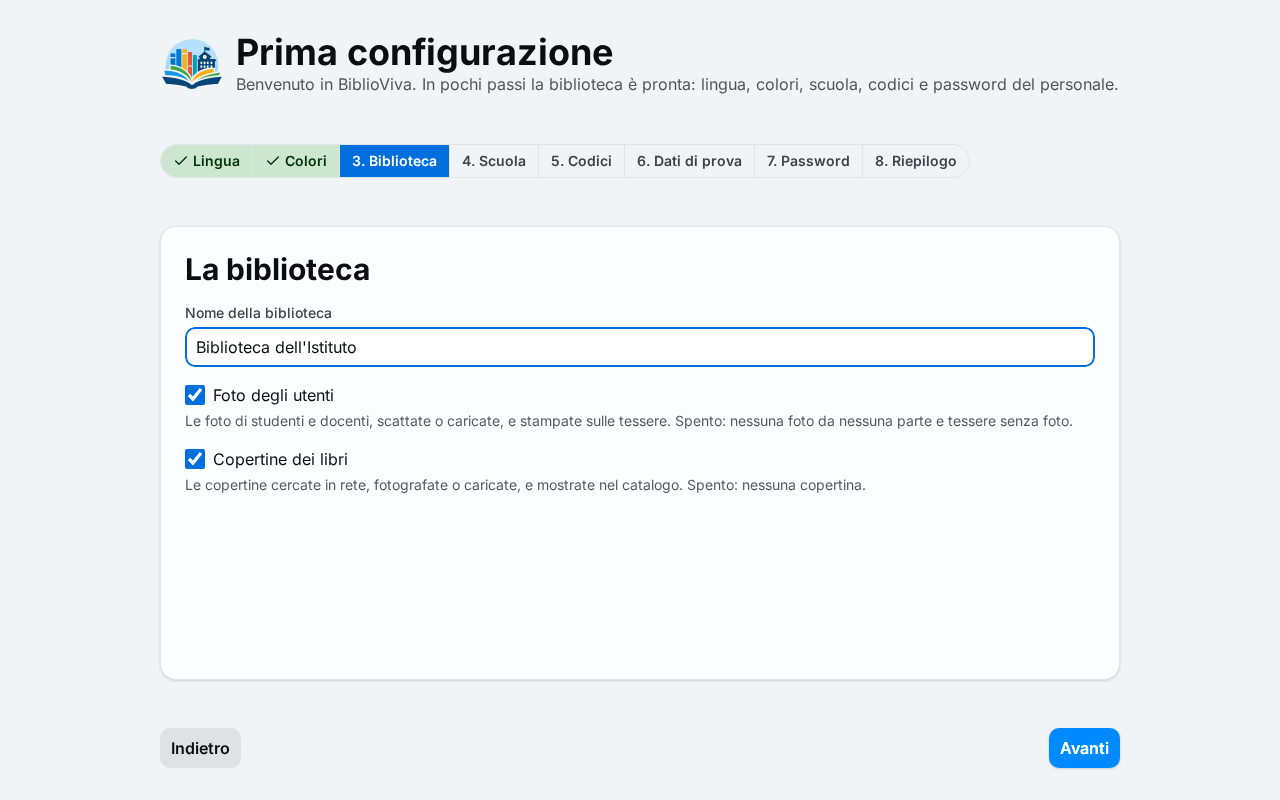
- Write in the Library name field the name that must appear at the top left, on the cards and on the printouts, for example the name of the school preceded by "Library". The field is required.
- Leave the Patron photos box ticked if the cards must carry the photo of students and teachers. Clear the tick if the school prefers not to keep photos: then there is no photo on any page and the cards come out without a photo.
- Leave the Book covers box ticked if the catalogue must show covers, looked up online, photographed or uploaded. Clear the tick to have no covers at all.
- Press Next.
The two boxes can be changed later in Administration → Configuration → Patron photos and in Administration → Configuration → Covers; switching them off deletes nothing of what is already saved.
School
The school type proposes the years, the classes and the reading levels. The classes are made right away.
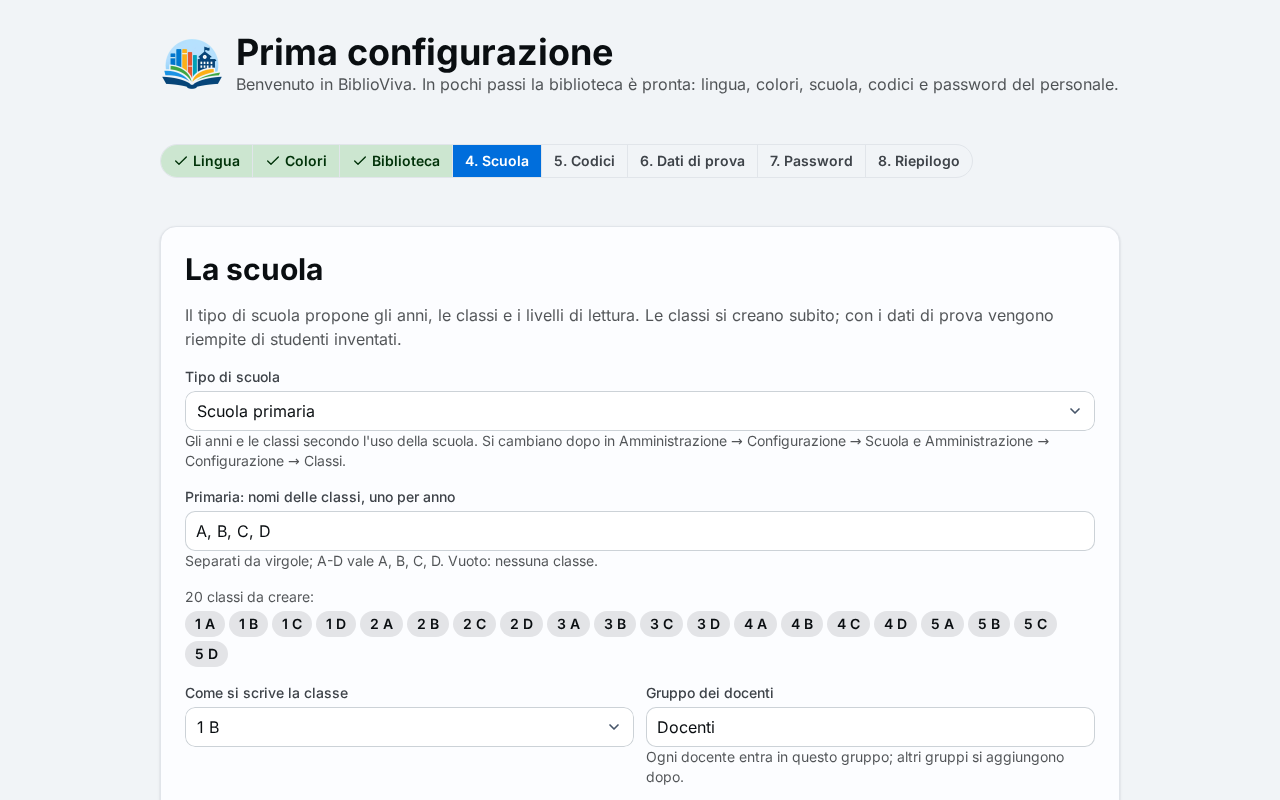
- Choose from the School type list the one of the school, looking under "Italy". If the school combines several levels, choose the comprehensive school. The proposed type is the primary school.
- Check the class names. For every school level there is a field (for example "Primaria: names of the classes, one per
year") with the names of the sections, separated by commas:
A-Dstands for A, B, C, D. The names repeat for every year. An empty field makes no classes. - Check the list of the classes that will be made, below the fields.
- Leave the choice of How a class is written as it is, unless the school writes the classes in another way. The entries show an example, such as "1 B".
- Check the Teachers group field: the teachers join this group and other groups are added later.
- Check Start of the school year, written as month and day in the form
MM-DD, for example09-01. - Choose in Name of the school year whether the year is written with two years, as "2026/2027", or with the year it starts, as "2026". In Italy two years are used.
- Leave the Fiction shelved by reading level box ticked if the library arranges novels by level. Below the box appear the levels that will be created.
- Press Next.
Years, classes and reading levels can be changed later in Administration → Configuration → School and in Administration → Configuration → Classes.
Codes
The Codes step sets the barcode format of new copies and the one of new cards, each chosen on its own. The two formats cannot be confused: whoever reads a code knows at once whether it is a book or a card.
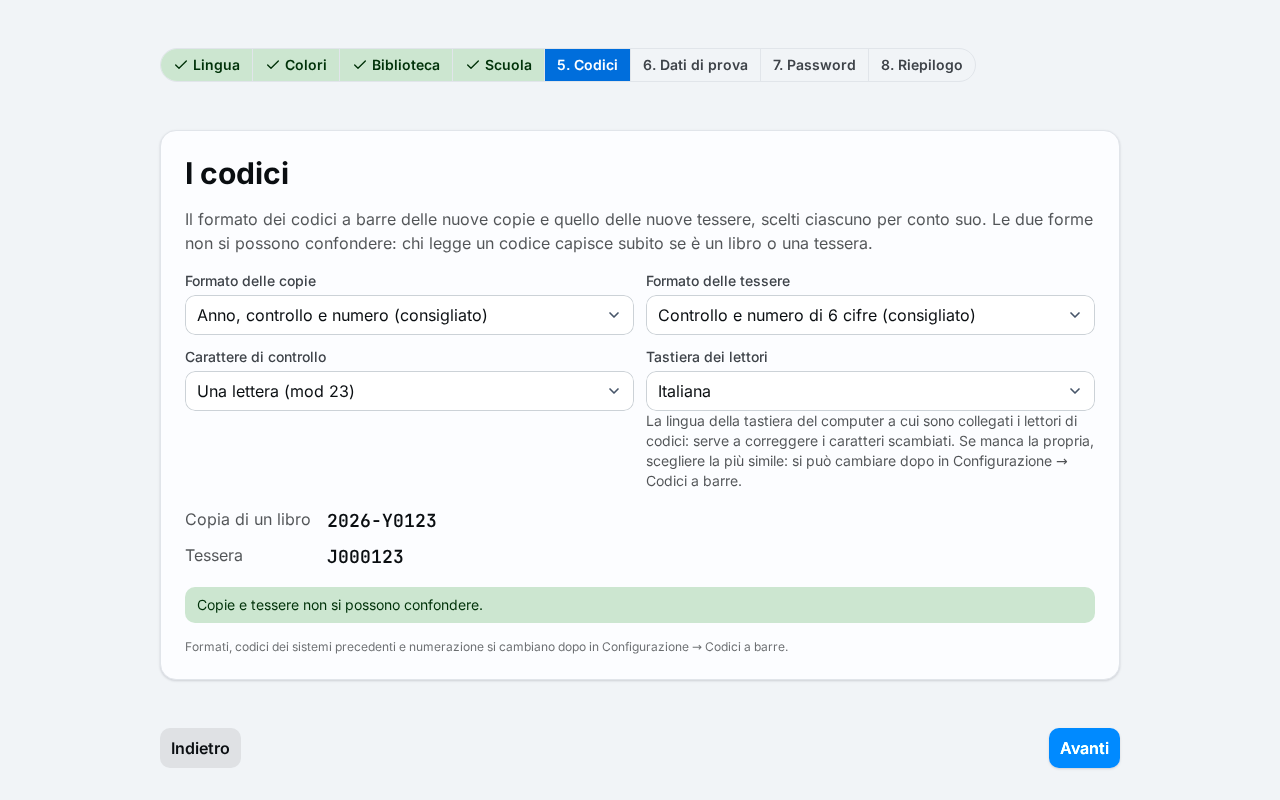
- Leave in Format of the copies the proposed entry, "Year, check and number (recommended)", or choose another one.
- Leave in Format of the cards the proposed entry, "Check and a 6-digit number (recommended)", or choose another one.
- Leave in Check character the proposed entry, "A letter (mod 23)".
- Check Scanner keyboard: it must be the language of the keyboard of the computer the barcode scanner is plugged into. In Italy it is "Italian". The value serves to repair the characters that a scanner set for another keyboard writes wrongly; the step Test the scanner and the printer checks it.
- Check the examples below the fields, for the Copy of a book and for the Card.
- Verify that the message "Copies and cards can never be confused." appears. If a refusal warning appears instead, choose another format.
- Press Next.
The formats, the codes of earlier systems and the numbering can be changed later in Administration → Configuration → Barcodes. A library that already has books and cards with codes printed by another system leaves the proposed choices here: the existing codes are added afterwards, and keep working.
Sample data
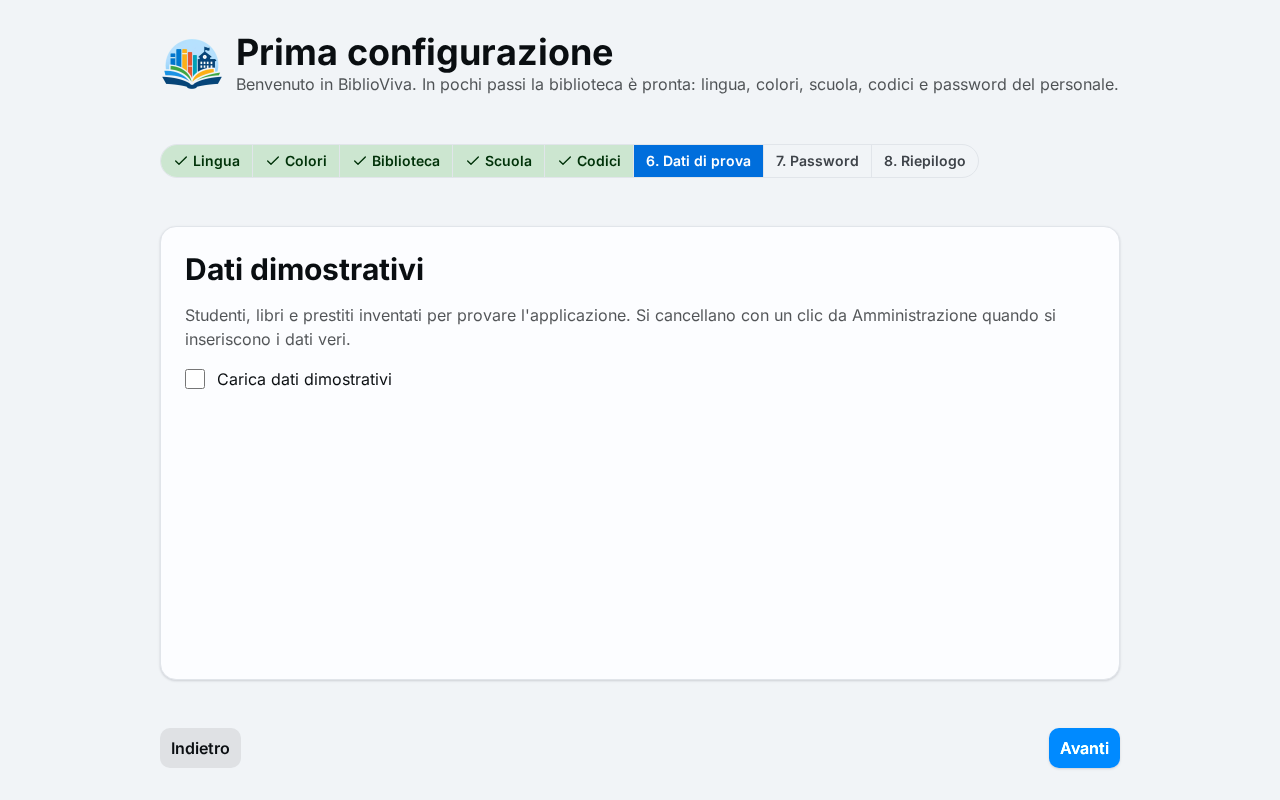
The sample data are made-up students, books and loans, generated according to the chosen school and codes: they serve to try BiblioViva before entering the real data. They match no real person.
- To try BiblioViva before real use, tick the Load sample data box. To start at once with the real data, leave it off.
- Press Next.
With the sample data every account uses the same password, easy to remember. The sample data are removed when ready, with a single button:
- Sign in as
adminand open Administration. - Press Clear sample data and confirm.
The deletion empties the database and the photos and logs out all the operators; the configuration and the accounts stay. After the deletion change the passwords at once from Administration → Staff accounts, because those of the sample data are known to everyone.
If the database already contains data, the step says so and the sample data are not loaded.
Passwords
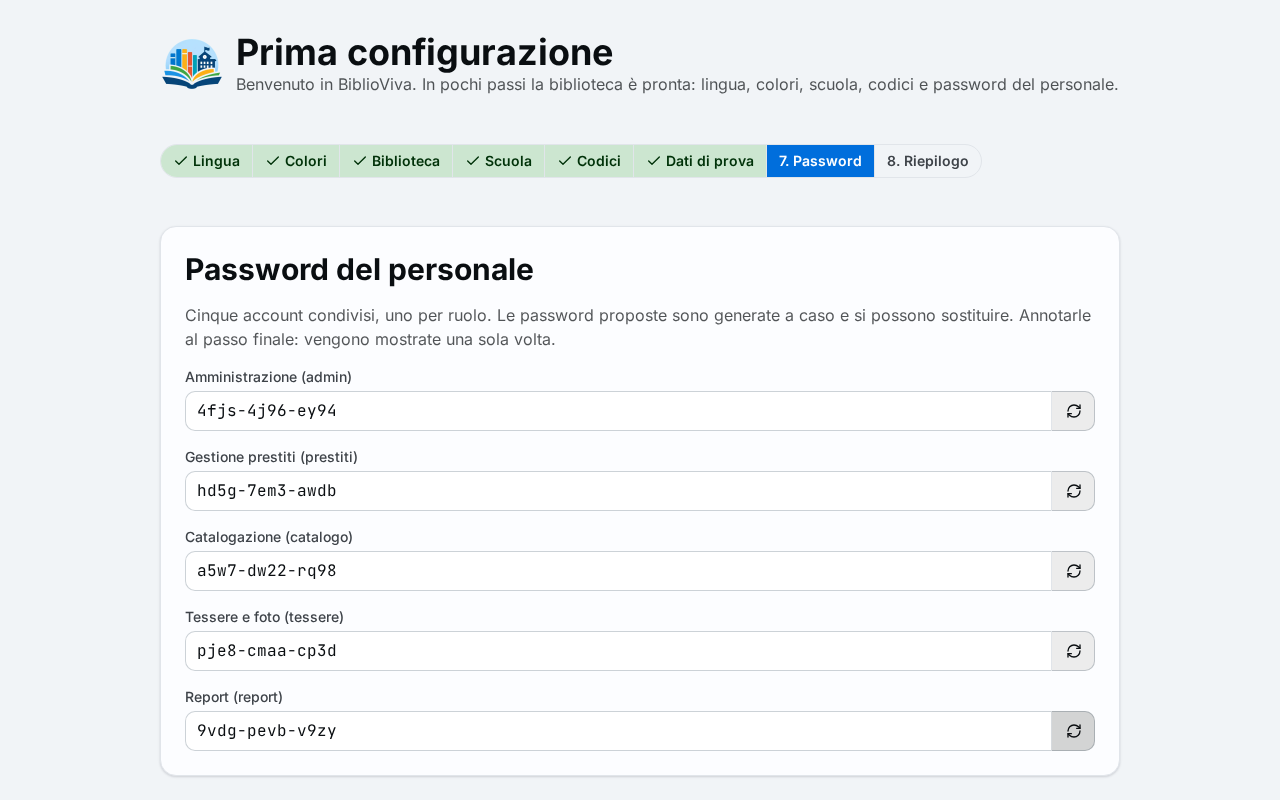
BiblioViva has five shared accounts, one per role. Each signs in with its own username and password.
| Account | Username | Used for |
|---|---|---|
| Administration (admin) | admin | everything: settings, backups, imports, accounts |
| Loan management (prestiti) | prestiti | the circulation desk: loans and returns |
| Cataloguing (catalogo) | catalogo | the catalogue: books, copies, labels |
| Cards and photos (tessere) | tessere | the patrons and the cards |
| Reports (report) | report | the reports and the statistics |
- Read the proposed passwords: they are generated at random and are fine as they are. To change one, write another in the field, of at least 8 characters.
- To get another random password, press the Regenerate button next to the field.
- Press Next.
With the sample data on, the fields cannot be edited: all the accounts use the password biblioviva.
Important. The passwords appear only in the summary and on the final screen: they are not shown again. Copy them and keep them in a safe place before going on.
Summary
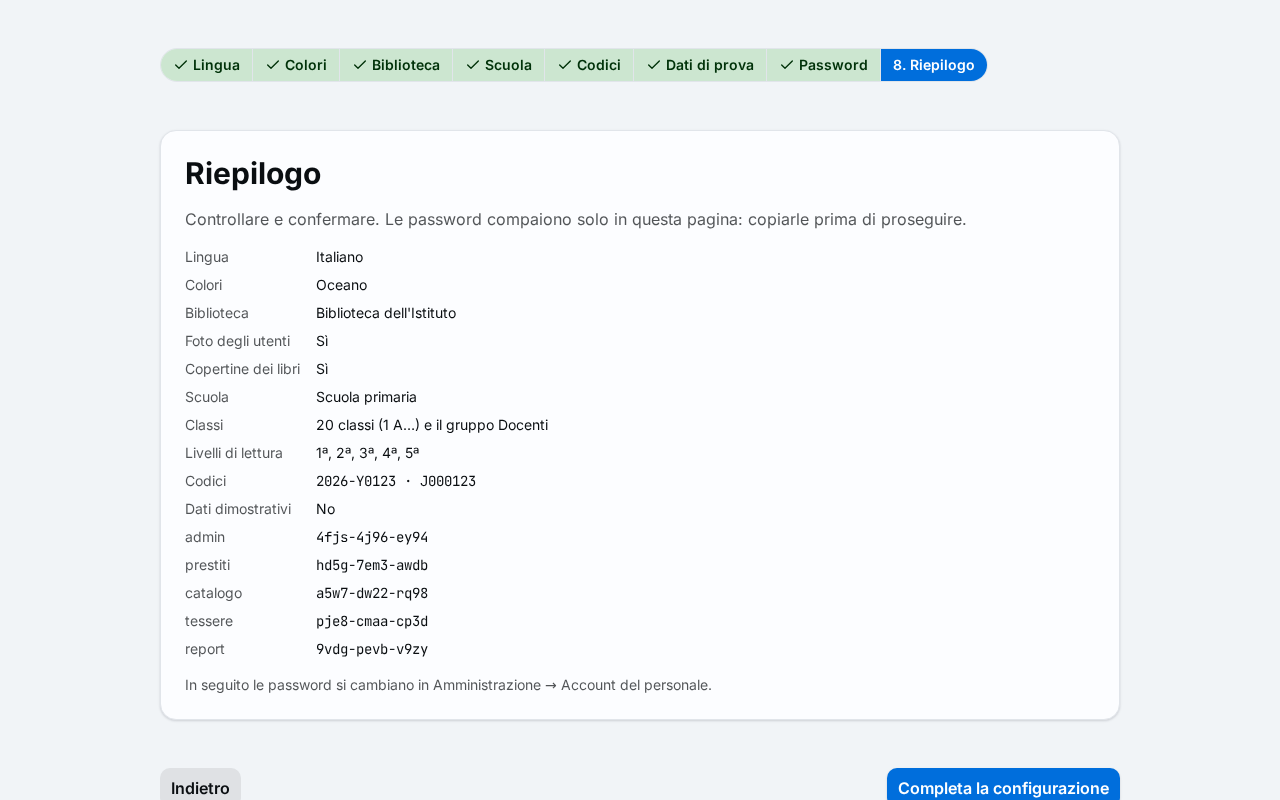
- Check the summary: language, colours, library, classes, codes and sample data.
- Copy the passwords of all the accounts, for example on a sheet of paper kept safe.
- Press Complete the setup. While saving, the button shows "Saving…".
If an error message appears, reread the steps with Back and try again. After saving, the Setup completed screen appears.
Setup completed
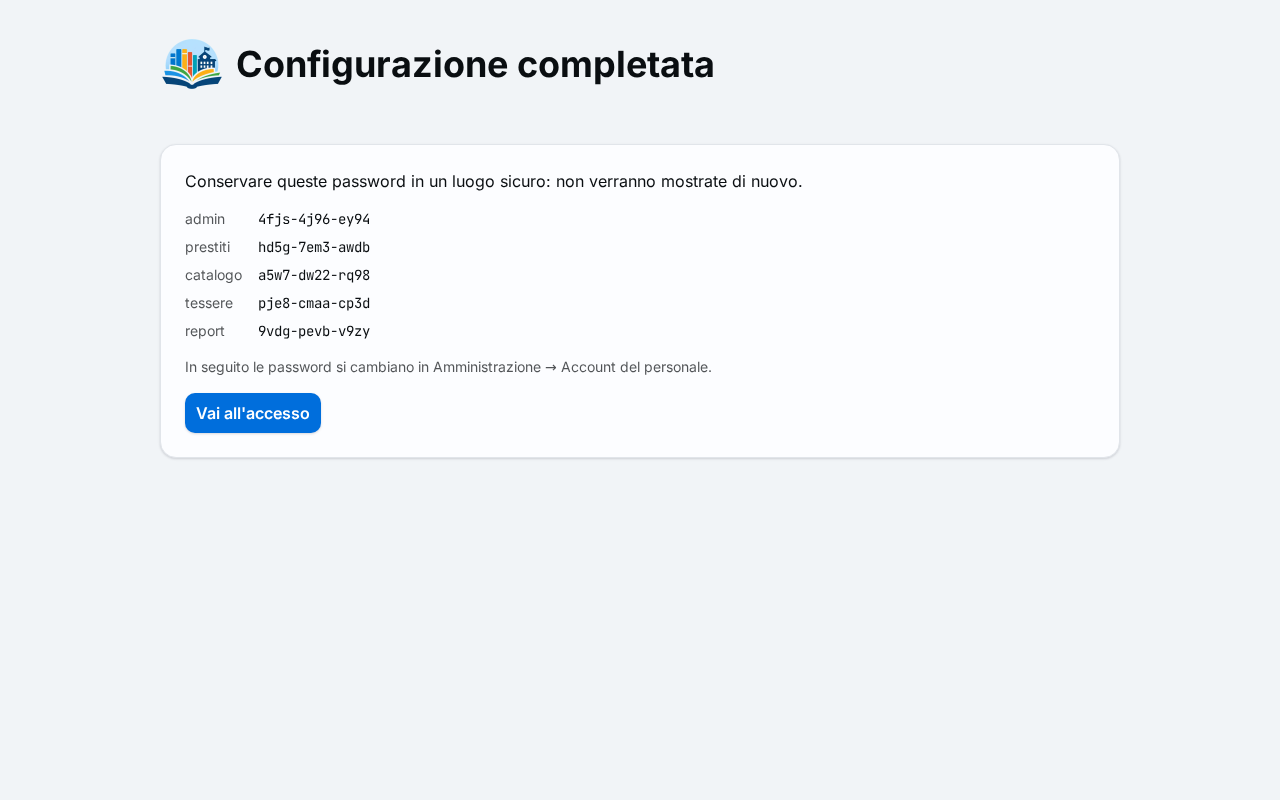
- Check that the passwords noted down match those shown. If the sample data were loaded, the number of patrons, titles, copies and loans created also appears.
- Press Go to the login.
- Write
adminin the Username field. - Write the password of the
adminaccount in the Password field. - Press Log in.
Check before going on
- After signing in, the Dashboard opens, titled with the library name chosen in the Library step. With the sample data, a notice at the top of the page reminds that the installation contains them.
- The passwords of the five accounts are noted down in a safe place.
When the guided setup does not open, see the possible problems below and the page Common problems. If instead the login page opens, the setup had already been completed: signing in requires the passwords chosen then. To start again from scratch, the section "Resetting an installation" of the technical page Deployment notes (technical) explains how.
Possible problems
- The page does not open with Tailscale: the computer does not have Tailscale switched on and connected to the school's account, or the names feature (MagicDNS) or the HTTPS certificates are not on in the Tailscale console. The step Prepare the network describes both checks.
- The page does not open on the local network: the computer is not on the same network as BiblioViva, or the name
biblioviva.localis not recognised. Use the numeric address of the computer, as indicated above. - A password was lost: passwords cannot be seen again. Signing in with
admin, the others are changed from Administration → Staff accounts. For the password ofadminthe technical procedure "Forgotten admin password" of the page Deployment notes (technical) is needed. - The Next button does not switch on: a field of the step is empty or not valid. The field to correct shows a
warning: for example the password of at least 8 characters or the start of the year in the form
MM-DD.
Related pages
- Previous step: Install BiblioViva
- Next step: Connect the devices
- Common problems