
- 1 · Prepare the computer
- 2 · Connect to the computer
- 3 · Prepare the network
- 4 · Install BiblioViva
- 5 · First run
- 6 · Connect the devices
- 7 · Test the scanner and the printer
- 8 · Backups
Connect the devices
This step, to be done after the first run in the browser (step 5), connects to BiblioViva the circulation desk computer and, if needed, the other computers, tablets and phones, and gives the staff the accounts to sign in. The circulation desk computer takes about 10 minutes; every other device about 5 minutes.
- Raspberry Pi with the local network
Requirements
- The address reserved for the BiblioViva computer, noted down at step 3 (for example
192.168.1.50), or the one printed bysetup.shat step 4. - The passwords of the BiblioViva accounts, noted down at the end of step 5.
- Every computer connected to the school network, with a browser.
Procedure
The desk computer
-
Open in the browser the address
http://biblioviva.local:8080. The Log in page of BiblioViva opens.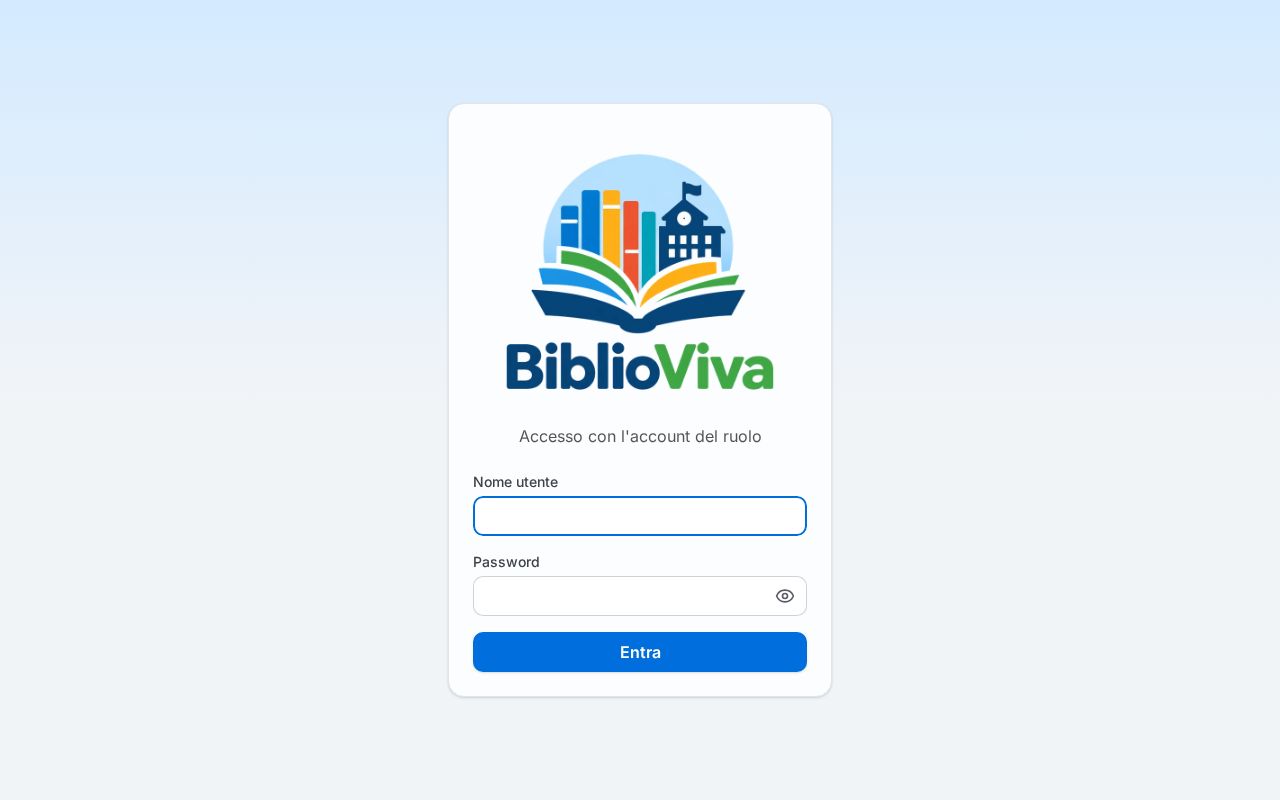
Figure 1. The BiblioViva login page -
If it does not open, open instead
http://<address>:8080, replacing<address>with the one noted down at step 3 (for examplehttp://192.168.1.50:8080). -
Add the address that works to the browser's bookmarks.
Other computers
- Open the address that worked on the desk computer from every other computer connected to the school network. A computer outside the school network cannot reach it.
- Add the address to the bookmarks.
Note. On the local network the browser does not allow the camera nor the installation of BiblioViva as an application on the phone: the reason is the address without a padlock. It is possible to switch to Tailscale later; see Choose the network.
The staff accounts
The devices of both ways use the same accounts: one per role, shared, each with only the work of its role. The accounts and the passwords are those chosen or generated at step 5; the table is in the section Passwords of that step.
- Give each colleague in person the password of the account of their role, by voice or on a sheet of paper. Do not send it by email or in a chat.
- Sign in with the account of the role: on the Log in page write the Username and the Password, then press Log in.
To change a password later, see the possible problems of the step First run.
Check before going on
- On the desk computer
http://biblioviva.local:8080orhttp://<address>:8080opens the Log in page. - With the username
adminand its password one signs in and the start page of BiblioViva opens. - From the other computers of the network the same address opens.
If the address does not open, see the possible problems below and Common problems.
Possible problems
-
biblioviva.localdoes not open on a computer: use the address with the number. If it is no longer the one noted down (the address was not reserved, see step 3), read it on the BiblioViva computer with the following command, which prints the computer's addresses; the first is the same that the installation program writes at the end of step 4.hostname -I -
The address with the number does not open from the other computers: port
8080may be blocked in the network; ask whoever manages it (step 3).
Related pages
- Previous step: First run
- Next step: Test the scanner and the printer
- Common problems