
- 1 · Prepare the computer
- 2 · Connect to the computer
- 3 · Prepare the network
- 4 · Install BiblioViva
- 5 · First run
- 6 · Connect the devices
- 7 · Test the scanner and the printer
- 8 · Backups
Prepare the network
This step prepares what is needed outside the BiblioViva computer so that the school's other devices can reach it: with Tailscale a school account and an access key, with the local network an address that does not change. It takes about 15 minutes with Tailscale and about 10 minutes with the local network, plus the wait for whoever manages the school's network. The choice between the two ways is explained in Choose the network.
- Raspberry Pi with Tailscale
Requirements
- A Google, Microsoft, GitHub or Apple account with which to open the Tailscale account. The Tailscale account is a single one for the whole school, not one per person: a school account is better than a personal one.
- Any computer with a browser, connected to the internet.
- A safe place where to write down the access key until step 4 (a sheet in a locked drawer, a password manager).
Procedure
Account
- Open the sign-up page of Tailscale.
- Choose how to log in: "Google", "Microsoft", "GitHub" or "Apple". Tailscale has no passwords of its own: one always logs in with one of these accounts. To choose, the Tailscale page Supported SSO identity providers can be read.
- Follow Tailscale's questions up to the admin console. The Tailscale application is not to be installed in this step: it is installed at step 5, on the computer of the first run, and at step 6, on the other devices.
Important. The school's Tailscale account is a single one and serves every device that uses BiblioViva (the desk computer, the other computers, the tablets and the phones). The chosen account must remain in the school's hands: write down which one it is and who knows it. The comparison with personal accounts is in Choose the network.
Names and certificates
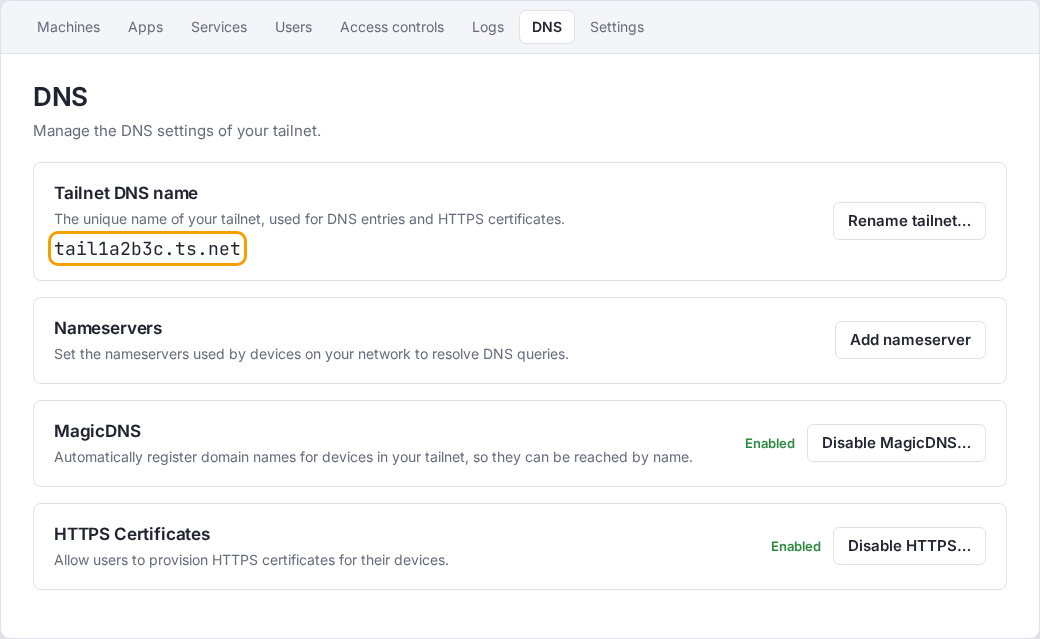
- Open the "DNS" page of Tailscale's admin console.
- Check that "MagicDNS" is on; if it is not, press "Enable MagicDNS". MagicDNS gives the devices a readable name in place of a number; it is explained in the MagicDNS page.
- In the same page, at the "HTTPS Certificates" entry, press "Enable HTTPS" and confirm the warning. Tailscale warns
that the names of the network's computers appear in the public certificate logs. The name of the BiblioViva computer
is
biblioviva, with no data of the school. The page HTTPS certificates explains the rest. This step gives BiblioViva the browser's padlock, needed by the camera. - Write down the name of the school's network (tailnet, see the glossary),
written in the "DNS" page: it ends with
.ts.net. It will be needed at steps 5 and 6.
Computer tag
-
Open the "Access controls" page of the admin console. The file of the network's access rules is shown, a text between curly braces.
-
Add to the file the
tagOwnersentry with BiblioViva's tag. The tag (tag:biblioviva) is the way Tailscale recognises the BiblioViva computer as a service of the school and not as a person's device."tagOwners": { "tag:biblioviva": ["autogroup:admin"] },The entry goes inside the outermost curly braces of the file, as a section next to those already present, with the comma that separates the sections. If the file already contains a
tagOwnerssection, add only the line"tag:biblioviva": ["autogroup:admin"]inside it, separated from the others by a comma.Warning. Do not delete or change the other sections of the file (
grants,acls,sshand the others): they govern what the network's devices can do. When in doubt, copy the whole text of the file into a document before changing it. The file's syntax is explained in the Policy syntax page. -
Save the file with the page's save button. Tailscale checks the text and reports errors before saving. [VERIFY: name of the save button in the rules editor, reachable only when logged in]
Access key
- Open the "Keys" page of the admin console.
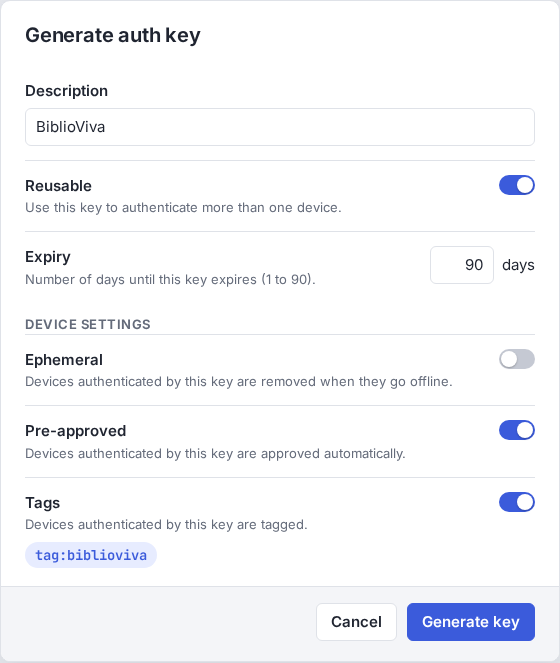
- Press "Generate auth key". Tailscale's Auth keys page describes the form.
- Write a description, for example
BiblioViva. - Turn on "Reusable" (the key can be used more than once, useful if the installation has to be redone).
- Turn on "Pre-approved". "Ephemeral" stays off: otherwise the computer would vanish from the network when it is switched off.
- At the "Tags" entry turn on the tags option and choose
tag:biblioviva. If the tag is not in the list, the rules file was not saved: go back to the "Computer tag" part. - Leave the duration ("Expiry") that Tailscale proposes, at most 90 days. The key is needed only at step 4, when the computer joins the network: afterwards the computer stays in the network even if the key expires.
- Press "Generate key" and copy the key that appears. Tailscale shows it only once.
- Paste the key in the safe place chosen. It is needed at step 4, when
setup.shasks for it.
Important. The key is a secret: whoever has it can add devices to the school's network. Do not send it by email, do not write it in a chat, do not photograph it. If it has been seen by whoever should not, revoke it from the same "Keys" page and generate another.
Check before going on
- In the console's "DNS" page, "MagicDNS" and "HTTPS Certificates" are on.
- The access rules file, in "Access controls", contains
tag:bibliovivain thetagOwnerssection and is saved. - The access key is written down in the safe place and begins with
tskey-auth-. - The network name ending in
.ts.netis written down.
If one of the points is missing, go back to the procedure before going on to step 4: the installation stops without a valid key.
Possible problems
- The tag
tag:bibliovivadoes not appear among those chosen in the key form: thetagOwnersentry was not saved or contains an error. Open "Access controls" again and check that the text is saved. - After the installation the warning "requested tags are invalid or not permitted" points to the same cause; the technical solution is in the page Deployment notes (technical).
- The network name contains the school's name: in the "DNS" page the "Rename tailnet" button allows choosing a random name among those proposed. Do it before turning on the certificates, because changing the name later breaks the connections already in use. The Tailnet name page describes the limits.
Related pages
- Previous step: Connect to the computer
- Next step: Install BiblioViva
- Choose the network
- Glossary