
- 1 · Prepare the computer
- 2 · Connect to the computer
- 3 · Prepare the network
- 4 · Install BiblioViva
- 5 · First run
- 6 · Connect the devices
- 7 · Test the scanner and the printer
- 8 · Backups
Connect the devices
This step, to be done after the first run in the browser (step 5), connects to BiblioViva the circulation desk computer and, if needed, the other computers, tablets and phones, and gives the staff the accounts to sign in. The circulation desk computer takes about 10 minutes; every other device about 5 minutes.
- Raspberry Pi with Tailscale
Requirements
- The school's Tailscale account, the one opened at step 3 (the address it signs in with and, if needed, the person who knows it).
- The name of the school's network ending in
.ts.net, noted down at step 3. - The passwords of the BiblioViva accounts, noted down at the end of step 5.
Procedure
Install Tailscale
On every device that must use BiblioViva the Tailscale application must be installed, signed in to the school's account. The computer used for the first run (step 5) already has it: for that one, go on to the next section.
- Open the download page for the device's system: Windows, macOS, Linux, Android, iPhone and iPad. For a Chromebook see the page Download. [VERIFY: the Tailscale page for ChromeOS]
- Install the application following the instructions on the page.
- Open the application and sign in with the school's Tailscale account, the same as at step 3. [VERIFY: the text of the application's sign-in button, different on Windows, macOS and Linux]
The desk computer
-
If Tailscale is not already installed on this computer, install it as described above.
-
Open in the browser the address
https://biblioviva.<tailnet>.ts.net, replacing<tailnet>with the name noted down at step 3 (the name can also be read on the "DNS" page of the Tailscale console). The Log in page of BiblioViva opens, with the browser's padlock.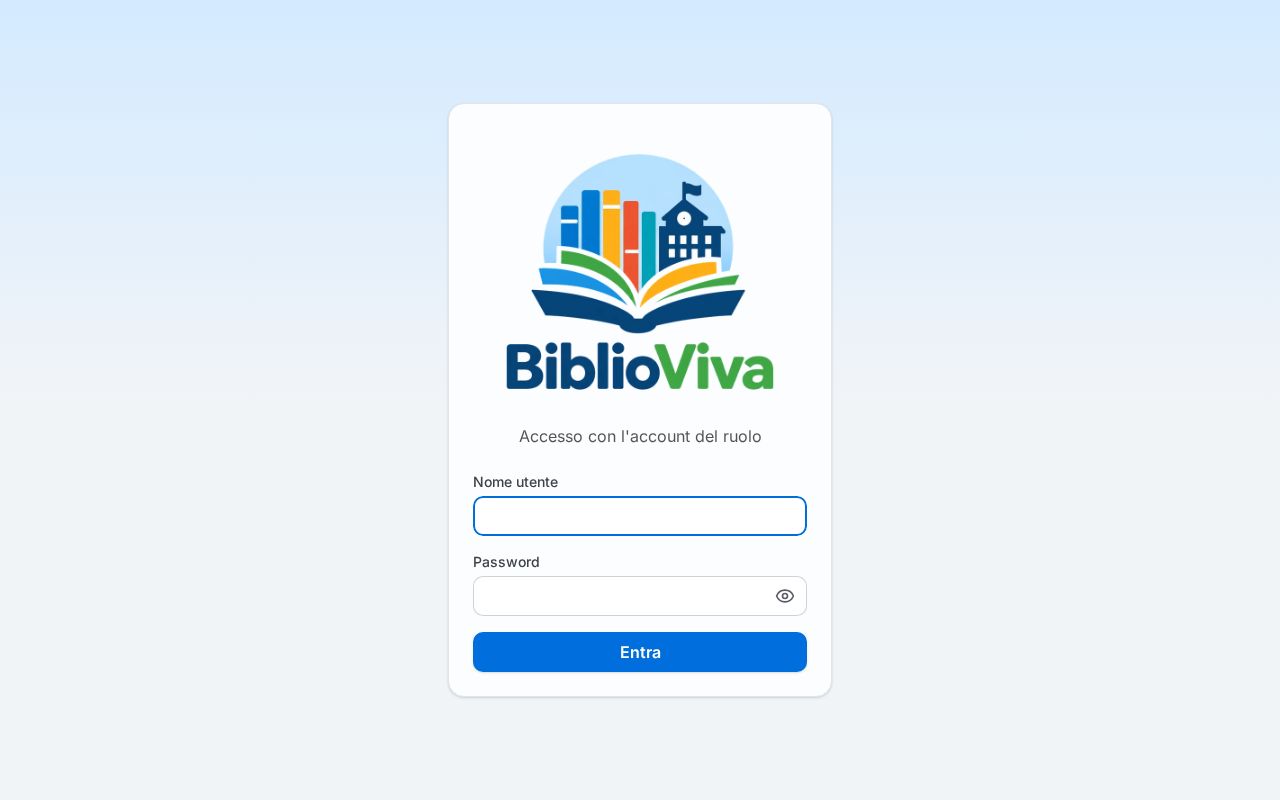
Figure 1. The BiblioViva login page -
Add the address to the browser's bookmarks.
Other computers, tablets and phones
For every other device that must use BiblioViva:
- Install Tailscale as described above.
- Open in the browser the address
https://biblioviva.<tailnet>.ts.net. - Add the address to the bookmarks.
Install BiblioViva as an app on the phone (optional)
A phone with Tailscale can have BiblioViva as an application with its own icon. It is not needed to work at the circulation desk, where the USB barcode scanner is the normal tool.
- Open the address
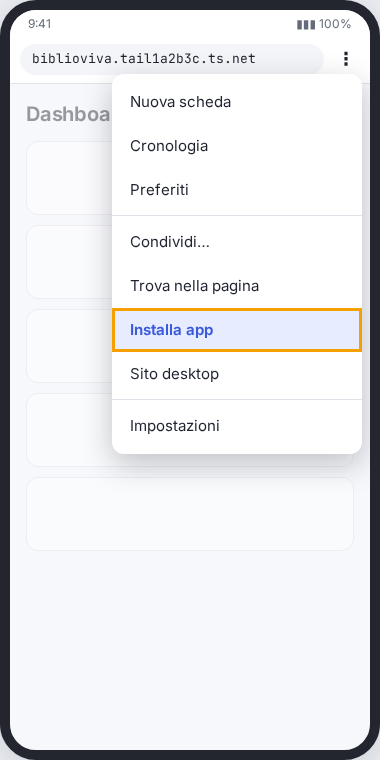
https://biblioviva.<tailnet>.ts.netin the phone's browser and sign in. - In the Dashboard press Install in the Add to the Home screen panel. If the panel does not appear, open the browser's menu and choose "Install app" or "Add to Home screen", depending on the browser. [VERIFY: the name of the menu entry in the Android and iPhone browser]
- Confirm the proposed name. The BiblioViva icon appears among the phone's applications.
The staff accounts
The devices of both ways use the same accounts: one per role, shared, each with only the work of its role. The accounts and the passwords are those chosen or generated at step 5; the table is in the section Passwords of that step.
- Give each colleague in person the password of the account of their role, by voice or on a sheet of paper. Do not send it by email or in a chat.
- Sign in with the account of the role: on the Log in page write the Username and the Password, then press Log in.
To change a password later, see the possible problems of the step First run.
Check before going on
- On the desk computer the address
https://biblioviva.<tailnet>.ts.netopens the Log in page with the padlock. - With the username
adminand its password one signs in and the start page of BiblioViva opens. - Every other device has the Tailscale application signed in and opens the same address.
If the address does not open, see the possible problems below and Common problems.
Possible problems
- The browser does not find
biblioviva.<tailnet>.ts.net: the Tailscale application is not active on the device, or it is connected to another account, or MagicDNS is off on the "DNS" page of the console (step 3). - The padlock is missing or the browser reports an invalid certificate: the HTTPS certificates are not on in the "DNS" page of the console (step 3).
Related pages
- Previous step: First run
- Next step: Test the scanner and the printer
- Common problems