
- 1 · Prepare the computer
- 2 · Connect to the computer
- 3 · Prepare the network
- 4 · Install BiblioViva
- 5 · First run
- 6 · Connect the devices
- 7 · Test the scanner and the printer
- 8 · Backups
Backups
BiblioViva makes a backup of the database by itself every night. This page explains what is saved, where the backups are, how to make one at once and how to take a copy of one outside the BiblioViva computer, on a USB drive or on a NAS. It is for whoever has finished the first run and keeps the library's data. The step takes about 20 minutes.
- Raspberry Pi with Tailscale
Requirements
- Access as
admin, the only account that sees the backups page. - A USB drive or a NAS (a network disk) to keep a copy on, with enough space: the size of the backups can be read on the Backups page. The covers weigh more than the database.
- To copy the whole backups folder: the same user and the same address of the BiblioViva computer used in the step Connect to the computer.
What BiblioViva saves
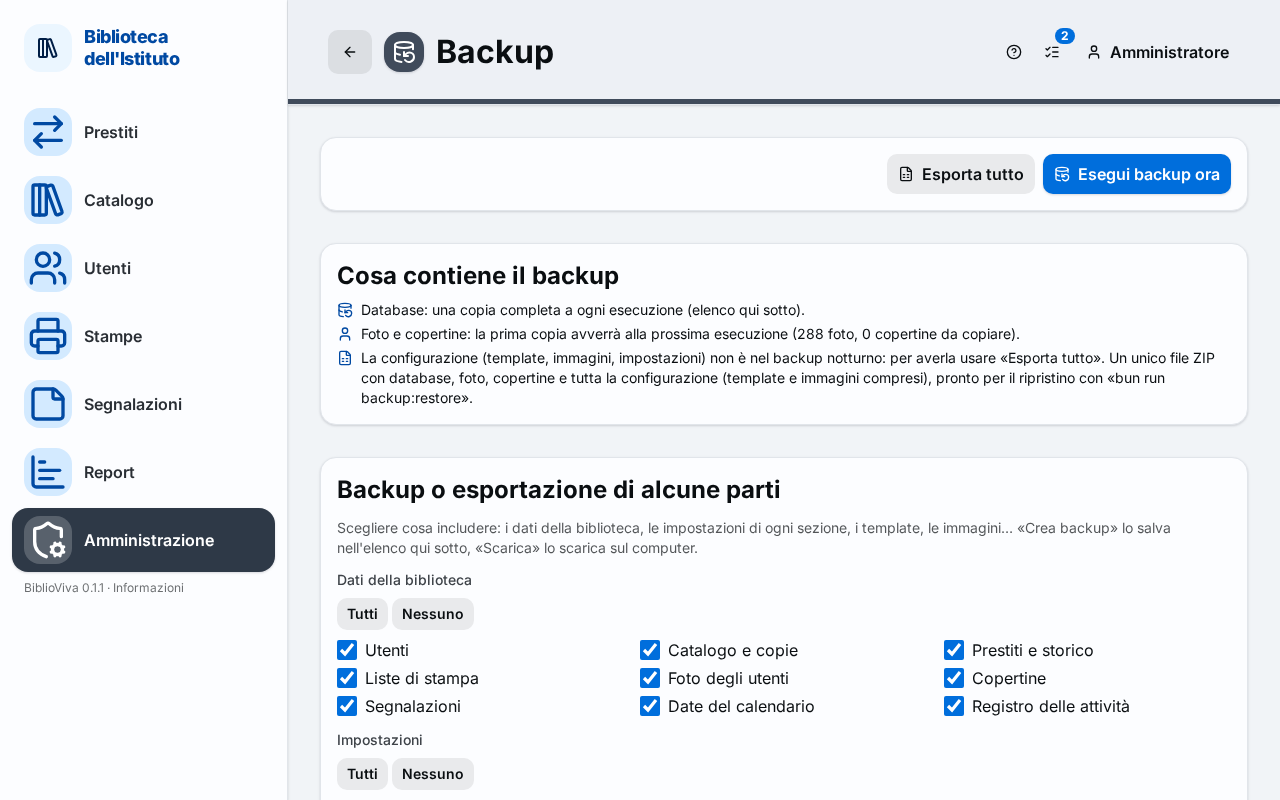
The nightly backup contains the full database (books, copies, patrons, loans, the log of operations) and a copy of the photos and the covers.
- The backup is made every night at 3:00 and is kept for 30 days. The older backups are deleted, except the most recent one. The time and the days of retention are changed from Administration → Configuration → Backup, in the Backup time and Days kept fields.
- The photos and the covers are copied into the
uploadsfolder of the backups: only new or changed files are copied. - If the computer is off in the evening, at 3:00 nobody is there to make the backup. At the next switch-on BiblioViva notices and makes it one minute after start, just one even if the computer stayed off for several days. In the list that backup carries the label Made up at start. The behaviour depends on the Backup at start if missed option, normally on.
- The configuration (the settings, the card and label templates with their images) is not part of the nightly backup: it
is in the
configfolder and rarely changes. To keep it safe, Export everything is needed, described further below.
The backups are in the ~/biblioviva/backups folder of the BiblioViva computer, next to the compose.yml and .env
files. It is an ordinary folder: it contains the biblioviva-YYYYMMDD-HHMM.db files (the backups of the database), the
uploads folder (the photos and the covers) and the .zip archives made by hand.
Procedure
Check the backups
- Sign in to BiblioViva as
admin. - Open Administration.
- Open Backups.
- Read the list: every backup has the date in Created and the Size.
Right after the installation the list may be empty, with the message "No backups yet.": the first backup is made at the scheduled time or with the button of the next point.
Make a backup now
- Press Back up now.
- Wait for the message "Backup created", with the file name. The file appears at the top of the list.
Make a backup by hand before every update of BiblioViva and before large imports or changes.
Save the configuration with everything else
- On the Backups page press Export everything.
- Wait for the browser to download the file
biblioviva-export-YYYYMMDD-HHMM.zip. The file contains the database, the photos, the covers and the whole configuration, and is enough by itself to set BiblioViva up again on another computer. - Repeat the operation after every important change of the settings or the templates.
Copy a backup to a USB drive
This is the simplest way: a backup is downloaded with the browser and put on the drive.
- Plug the USB drive into the circulation desk computer.
- On the Backups page press Download next to the most recent backup. To have the configuration and the photos too, press Export everything instead.
- Open the folder where the browser saved the file, usually the downloads one.
- Drag the file onto the drive, in the computer's file manager.
- Eject the drive with the system's "Safely remove" command, then unplug it.
Copy the whole backups folder
The downloaded file contains a single backup. To take away the whole backups folder (all the backups, the photos and the covers) it is copied from the BiblioViva computer to the circulation desk one.
-
Open the terminal on the circulation desk computer, as described in the step Connect to the computer.
-
Type the following command and press Enter, replacing
<user>and<address>with the user and the address used to connect to the BiblioViva computer.scp -r <user>@<address>:biblioviva/backups . -
Enter the user's password when asked.
-
Wait for the copy to finish. The
backupsfolder appears in the terminal's current folder. -
Copy the
backupsfolder to the USB drive or, for a NAS, into the NAS's shared folder, by dragging it in the computer's file manager. The NAS is opened with the file manager following its maker's instructions.
The scp command is included in the programs that offer ssh (Windows 10 and 11, macOS and Linux), described in the
step Connect to the computer.
Important. The backups contain the students' data. Keep the drive or the NAS in a safe place and delete the backups that are no longer needed.
Copy automatically to a second disk or outside the school
For backups that make themselves, on a second disk always connected, on another computer or on a folder in the cloud, a technical intervention on the BiblioViva computer is needed. Whoever manages it finds the steps in the technical page Deployment notes (technical): the sections Backups on a second disk or a USB drive and Off-site copies (optional, offsite compose profile).
Check now and then
- Once a week, open Administration → Backups and check that Created shows a backup from the last few days.
- Once a month, check that the USB drive or the NAS contains a recent backup and that the file opens.
- Before a long closure of the school, make a backup with Back up now and one with Export everything.
Check before going on
- On the Backups page at least one backup appears, made with Back up now.
- The file downloaded with Export everything is on the USB drive or the NAS.
- If no backup appears or the backup is not recent: check in Administration → Configuration → Backup the time and the Backup at start if missed option, then press Back up now again.
Possible problems
- The list shows no recent backups: the computer stayed off for long or the time was changed. Press Back up now and check the settings in the Backup section of the configuration.
- The
scpcommand does not find the folder: check the user and the address, and that the~/biblioviva/backupsfolder exists on the BiblioViva computer. - The downloaded
.zipfile is very large: the covers weigh more than the database. Use a drive with more space. - The Backups page does not show a "Last off-site copy": the off-site copy is optional and not on, unless configured as described in the technical page indicated above.