
Step-by-step guide
Undo a configuration change
This guide explains how to bring the settings back as they were before a wrong change: a value changed by mistake, a deleted account, an import that should not have been done. It is for whoever administers BiblioViva.
Every change made from the administration keeps the previous version of the files it touches, for the last 50 changes. The restore concerns only the configuration. The library's data (books, patrons, loans) is put back with a backup.
- Time: about 3 minutes.
- Account:
admin. - Requirements: knowing which change to undo and roughly when it was made.
Procedure
- Log in to BiblioViva as
admin. - Open Administration.
- Open Configuration.
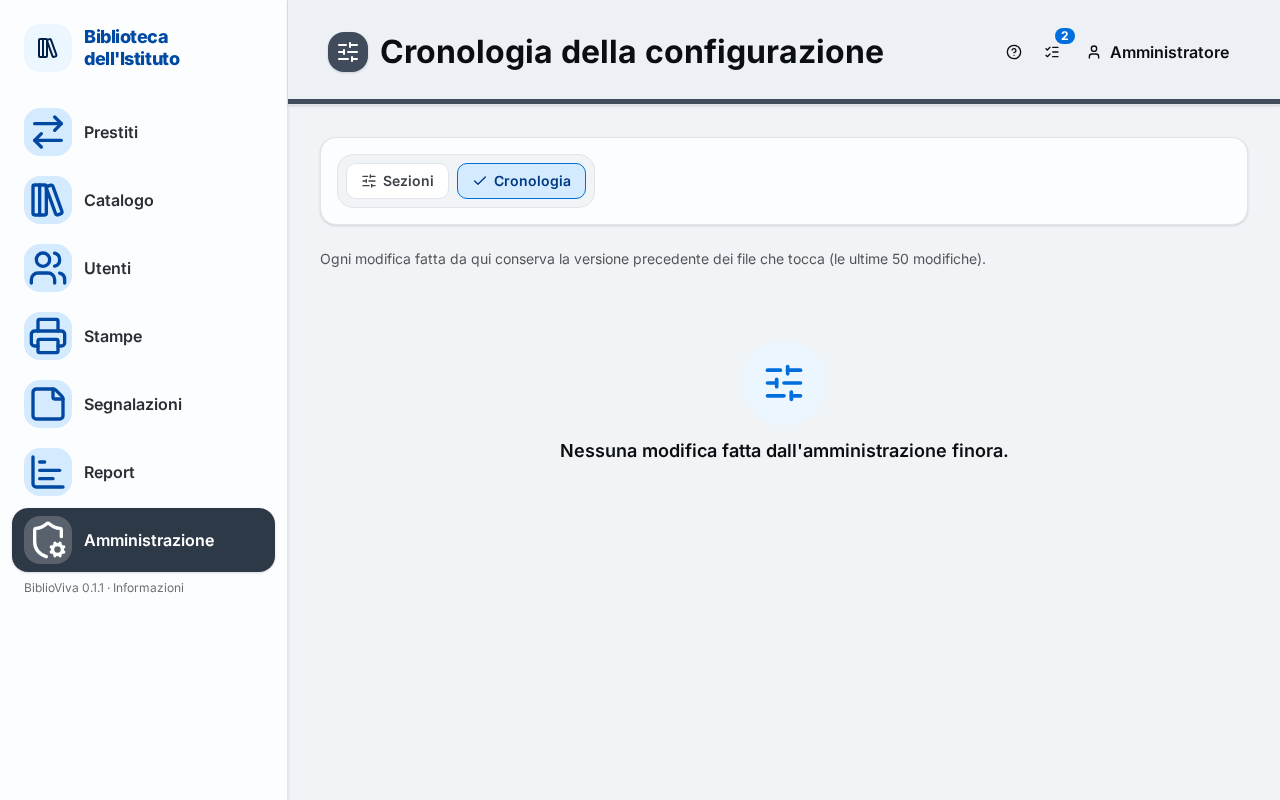
- Open History, the second tab at the top, next to Sections.
- Find the change in the list. Each row has the date in When, the description in What (for example the section changed, the colours or the language) and the files touched in Files.
- Press Restore on the change's row.
- At the question "Restore the files as they were before this change?" press Restore. The message "Previous version restored" appears.
Only the values changed by that change go back as they were; later changes to other values stay. The restore too is a change: it appears in the history and can itself be undone.
Result
- The values of that change return to the previous ones.
- The history shows a new row "Restore of the change of" followed by the date.
Possible problems
- "It cannot be restored: after this change" followed by the names of the values and "changed again" appears: those same values were changed again. First undo the more recent changes, from the top down.
- "This change created config.json: it cannot be undone." appears: it is the first configuration, written by the first run.
- "The change is no longer in the history." appears: the history keeps the last 50 changes and this one has been passed. If a configuration archive exists, see Export and import the configuration.
- The list shows "No change made from the administration yet.": there is nothing to undo.
- A setting was changed by editing the configuration files by hand: that change is not in the history.