
Class upgrade
The Class upgrade page is the guided end-of-year procedure: all the students move up to the next year and whoever
finishes the last year leaves the school. It is reserved for the admin account and opens from the Class upgrade tab
of Administration. The procedure has five steps, shown at the top: Backup, Classes, Leavers,
Confirm, Completed. The step-by-step procedure is in the guide Upgrade the classes.
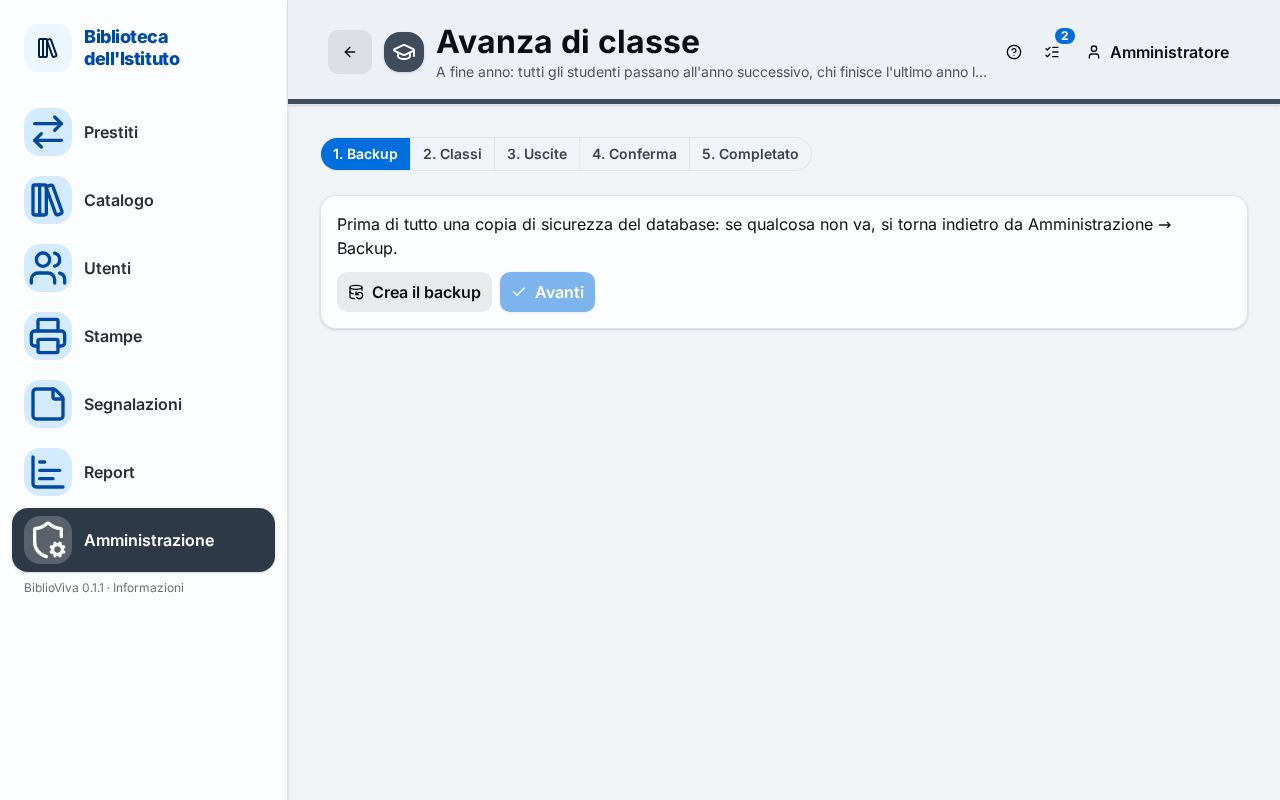
- The indicator of the five steps.
- The summary of a class: where it goes from and to, how many students, any exceptions.
- The row of a student, with Repeats, The year after and Class.
- The Back and Next buttons.
Backup step
The first step offers a safety copy of the database: if something goes wrong, the data is restored from Backups. The Create the backup button makes it and writes "Backup created" with the name of the file. Next stays off until the copy exists. Without this copy the procedure does not start.
Classes step
Every student moves up to the next year with their class; in this step who repeats the year and who changes class is marked. For each class there is a collapsible row with the title "from → to" (for example this year's class and the one of the year after) and these markers:
- Closes (the class of the last year is archived) or Stays, when the class does not move up;
- the number of students;
- the number of exceptions (students who repeat or change class);
- the number of students with books on loan.
Opening the row, each student has:
- the Repeats box: the student stays in their year;
- the The year after menu, where the path splits (for example after a school stage): it is used to choose the year to attend, or "Leaves the school";
- the Class menu, to choose the class of the year after. When the class cannot be worked out by itself the menu says "Pick the class…"; the "No class" item leaves the student without a class.
A yellow box warns when students are waiting for their class to be picked ("students wait for their class to be picked"); Next switches on only when every student has a class. With no students moving up to the next year the page says "No students moving up a year."
Leavers step
The students of the last year leave the school: their data are erased at once and for good, only the numbers of the statistics remain. Each student has the Leaves box; unticking it leaves the student in place (for example someone repeating the last year) and the menu for their class appears. Whoever still has books shows the marker with the number of books on loan.
If a leaving student still has books, a yellow box says so with the names and Next stays off: the box offers the Go to Returns link to register the returns, or the copy is marked as lost (Withdraw a lost or damaged copy), or that student is unticked. With no students in the last year the page says "No students in the last year."
Confirm step
The summary lists what will happen:
- how many students move up to the next year;
- how many repeat the year;
- how many change class;
- how many classes close and are archived (only if there are any);
- how many leave the school and have their data erased (in red).
If the last upgrade was done less than six months earlier, the summary adds a box to tick to confirm the wish to run it again; without the tick the Upgrade classes button stays off. Upgrade classes runs the procedure. A red box reports the error if the run does not succeed.
Error messages
- "Some leaving students still have books on loan.": go back to the Leavers step.
- "Confirmation needed: the last upgrade is recent.": tick the box of the Confirm step.
- "The backup was not found or is too old: take it again from the first step.": go back to the Backup step and make the copy again.
- "A chosen class does not exist or does not host the student's year.": pick the class again in the Classes step.
- "Some students have no class yet: pick it in the Classes step."
- "One of the chosen years is not among the possible ones: reload the page."
Completed step
At the end the page summarises how many students moved up, repeat or changed class, how many classes moved up and how many were archived, how many students left the school. The text recalls the next steps: create the new first-year classes, if needed (Classes), and import the new students with the Import the new students button, which opens the import of the students (Imports; guide Import the students).