
Add a label sheet
BiblioViva describes a sheet of adhesive labels with a few measures: the size of a label, how many there are per column and per row, the margins of the sheet. This guide is for the administrator who buys a type of sheet different from those already provided for and wants to print book labels on it.
- Time: about 20 minutes, plus the time for a test print.
- Account:
admin. - Requirements: a sheet of the new type of labels, a ruler (preferably a transparent one) and plain paper for the test. The measures are often written on the packaging or on the manufacturer's website.
The sheet is a separate object from the label template: the template decides what is printed inside a label, the sheet decides where the labels sit on the page. The shipped templates have two layouts, one for tall labels and one for short ones, and choose by themselves the one that suits the height of the new sheet.
Procedure
Measure the sheet
- Count the columns and rows of labels on the sheet.
- Measure the width and height of one label, in millimetres.
- Measure the distance between the top edge of the sheet and the top edge of the first label (top margin).
- Measure the distance between the left edge of the sheet and the left edge of the first label (left margin).
- Measure the empty space between two neighbouring labels, horizontally and vertically. Many sheets have none: in that case the two spaces are 0.
- If the corners of the labels are rounded, estimate the radius of the rounding. With square corners the value is 0.
Enter the sheet
- Open Administration → Configuration and choose the Labels section.
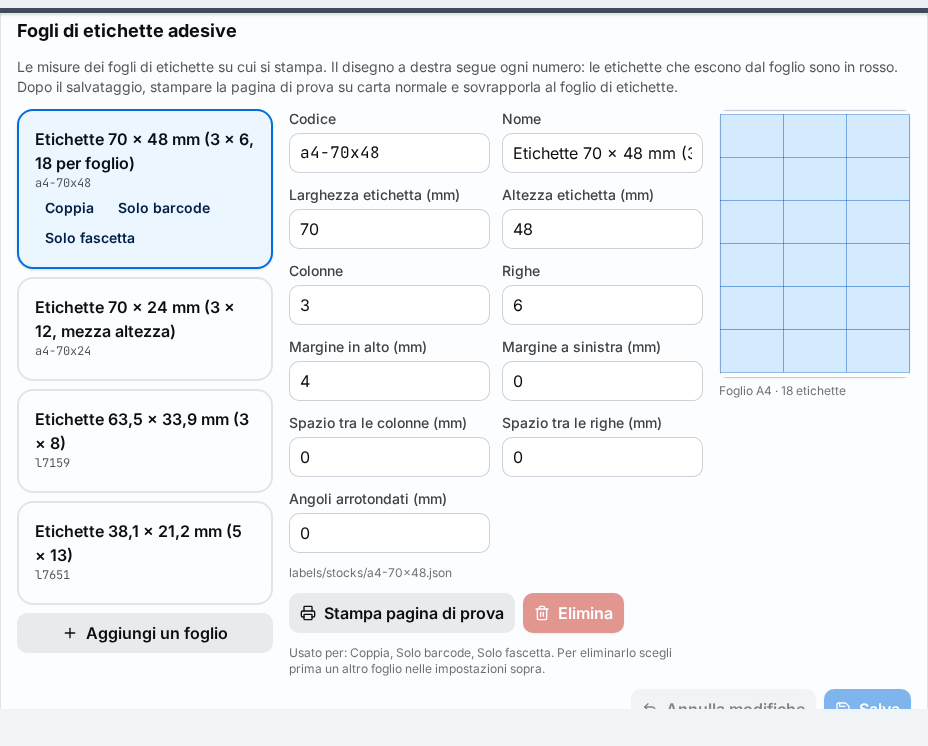
- Scroll down to the Adhesive label sheets block. On the left is the list of the sheets already provided for, each with the indication of the print jobs that use it.
- Press the sheet most similar to the new one, for example
a4-70x48. - Press Add a sheet. A new sheet appears with the New mark, a copy of the chosen one.
- Write a short code in Code: lower-case letters, digits, dashes and underscores (for example
a4-105x37). - Write an understandable name in Name, which then appears in the lists (for example "Labels 105 × 37 mm, 2 × 8").
- Write Label width (mm) and Label height (mm).
- Write Columns and Rows.
- Write Top margin (mm) and Left margin (mm).
- Write Space between columns (mm) and Space between rows (mm).
- Write Rounded corners (mm).
- Check the drawing of the A4 sheet on the right: it follows every number written and shows the labels in their places. Labels that run off the sheet are in red, and the reason appears under the fields.
- Press Save. The message "Label sheets saved" appears and the sheet loses the New mark.
Note. The pair of labels (spine band and barcode label) takes two labels one above the other: a sheet used for the pair must have an even number of rows.
Check with a test print
- Press Print test page under the measures of the sheet. The button lights up after saving. A page opens in a new tab with the outline of every label numbered.
- Print the page on plain paper, at 100% (without "fit to page"), on A4 and without margins added by the printer.
- Lay the printed paper over a real sheet of labels and check against the light: each outline must fall on the corresponding label.
- If the outlines are shifted, correct the margins and spaces in the block, press Save and print the test page again.
Use the sheet
- To print the labels of a book on the new sheet, open Print labels from a book, from a selection of the catalogue or from a print list, and choose the sheet in Label sheet. For details see Print book labels.
- To make the new sheet always used, without choosing it every time, choose Administration → Configuration → Labels; in the group of the label (Pair: spine band and label, Barcode label only or Spine band only) write the code of the new sheet in Adhesive sheet and press Save.
Result
The sheet appears in the list of sheets, in the test print and in the label print dialog. Labels print in the right places of the sheet. Every save is a configuration change and can be undone: Undo a configuration change.
Possible problems
- The Save button is off and a sheet carries the "To fix" mark. One of the measures is not valid. Read the reason under the fields: the code may have letters, digits, dashes and underscores; another sheet may already have the same code; the name is required; the measures are numbers from 0 upwards, with labels larger than zero, and columns and rows are whole numbers.
- "The labels take … mm: more than the width of an A4 sheet" appears: the columns, the width, the spaces and the left margin, added together, exceed 210 mm. Check the measures; the same applies to height with 297 mm.
- "The pair needs an even number of rows" appears: the sheet is used for the pair of labels: choose an even number of rows or use that sheet only for single labels.
- The sheet cannot be deleted: Delete is off for sheets in use: under the measures "Used for …" appears. First choose another sheet in the label settings.
- The Print test page button is off. First save the changes; the button applies to the sheet already saved.
- The printed outlines are all shifted in the same way. The margins are wrong: correct Top margin (mm) and Left margin (mm). Also check that the print is at 100%.
- A column or row of outlines is shifted more and more. The spaces between labels are wrong: correct Space between columns (mm) and Space between rows (mm).
Related pages
- Edit the labels and the spine band
- Print book labels
- Undo a configuration change
- Print templates
- Print templates: authoring guide (technical page, in English)