
Step-by-step guide
Change a password
This guide explains how to give a staff account a new password: after the first run, after removing the sample data, when a password has been lost or when a colleague leaves the school. It is for whoever administers BiblioViva.
- Time: 2 minutes per account.
- Account:
admin. The other accounts do not change their own password. - Requirements: the new password, at least 8 characters long, and a safe place to note it down.
Procedure
- Log in to BiblioViva as
admin. - Open Administration.
- Open Staff accounts.
- Find the card of the account whose password is to change.
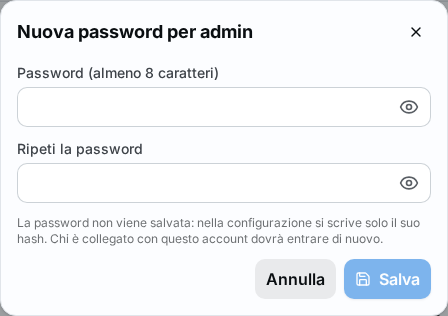
- Press New password on the card. A window opens with the title "New password for" followed by the account's name.
- Type the password in the Password (at least 8 characters) field.
- Type the same password again in the Repeat the password field.
- Press Save. The message "Password changed" appears.
Important. The password cannot be seen again: BiblioViva keeps only a protected form of it. Note it down in a safe place and hand it over in person to whoever uses the account, not by email or in a chat.
Result
- The account logs in with the new password; the old one is no longer valid.
- Whoever is logged in with that account at that moment must log in again.
Possible problems
- "The password must have at least 8 characters." appears: choose a longer password.
- "The two passwords differ." appears: retype the password in the Repeat the password field.
- The Save button stays off: one of the two fields is empty or the password is too short.
- The password of
adminhas been lost and login is impossible: a technical procedure is needed, described in the page Deployment notes, under "Forgotten admin password". For all the other accounts it is enough to log in withadminand follow the steps above. - The account card shows "Clear password in the file": the password is written by hand in the configuration files. Follow the steps above to replace it with a protected password.