
Set up the classes
This guide explains how to create the school's classes and teachers groups, and how to correct them. It is for whoever
administers BiblioViva: only the admin account can do it; whoever works with patrons just chooses a class that
already exists.
- Time: about 10 minutes.
- Account:
admin. - Requirements: the list of the school's classes (years and sections).
A BiblioViva class is a permanent group of students, for example 3 B. At the end of the year the class moves up to
the next year together with its students (3 B becomes 4 B): see Upgrade the classes. A
mixed-year class is a class that hosts several years together. Teachers do not belong to a class but to a teachers
group, which the class upgrade never touches.
Procedure
Open the classes page
- Log in to BiblioViva with the
adminaccount. - Press Administration, then Configuration.
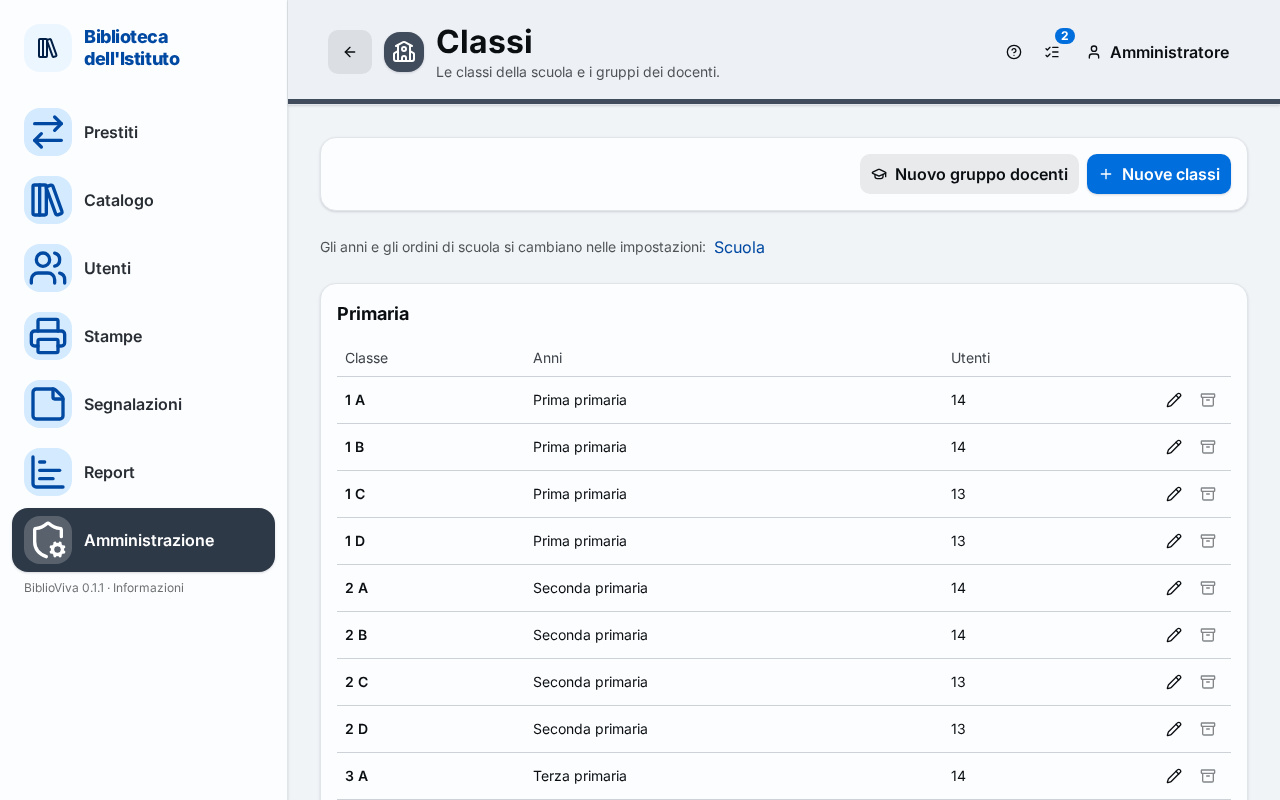
- In the group "Appearance, classes and templates" press Classes. The page lists the classes divided by school stage, with the years of each one and the number of patrons, and below them the teachers groups.
Create several classes at once
- Press New classes. The New classes window opens.
- In the Years field tick the years to which classes are to be added (in the primary school template they are "Prima primaria", "Seconda primaria" and so on).
- In the Names of the classes field write the names separated by commas. A range is written with a dash:
A-DmeansA, B, C, D. A name may contain spaces. - Check the list under the field, which begins with a sentence such as "8 classes to create:". Each class is written as
it will appear in BiblioViva (
1 A,1 B, …). - Press Save. BiblioViva creates one class for each year and each name and shows the message "8 classes created".
Create a mixed-year class
- Press New classes.
- Select at least two years. The box One mixed-year class with every year chosen appears.
- Tick the box and write the name of the class in the Names of the classes field.
- Press Save. In the list the class carries the Mixed-year class mark and the Years column lists the years it hosts.
Create a teachers group
- Press New teachers group.
- In the Name field write the name of the group, for example
Docenti primaria. A group calledDocentialready exists from the first run. - If the school has several stages, choose in the Stage field the one the group belongs to; otherwise leave All.
- Press Save. The message is "Teachers group created".
Correct or archive a class
- In the row of the class press Edit.
- Change the name, the years (for a mixed-year class) or the notes, then press Save. The message is "Class saved".
- To remove a class that is no longer needed, press Archive in its row. Archiving is possible only for a class with no patrons.
- To get an archived class back, open the "Archived classes" list at the bottom of the page and press Restore in its row.
Result
The classes created appear in the list, next to the number of patrons (zero at first). From then on they can be
chosen in a patron's record and are valid in the class or level and section columns of the student files (see
Import the students). A new teachers group is chosen in a teacher's record or in the group
column of the teachers file.
Possible problems
- "A class with this name already exists for the same year." appears: a class with the same year and the same name exists, even an archived one: open the "Archived classes" list and restore it, or choose another name.
- The Archive button is off: the class still has patrons. Move them to another class from each patron's record, or wait for the end-of-year upgrade: classes left empty are archived automatically.
- "Some students of the class are in a year that would be removed." appears: a year in which there are still students was removed from a mixed-year class. Tick the year again.
- The needed year is not among the boxes: the school's years cannot be changed from this page but from the
School link at the top of the page, in the Stages and years box. How the class is written (
3 Bor3B) is changed in the same section, in the How a class is written field.