
Set the school calendar
This guide explains how to tell BiblioViva on which days the library is closed: the closing days of each week, the national holidays, the school's holidays and the closing periods such as the Christmas break and the summer. It is for whoever administers BiblioViva. Loan due dates take these days into account.
- Time: about 15 minutes.
- Account:
admin. - Requirements: the school calendar of the year, with the school's holidays and breaks.
Procedure
Open the calendar
- Log in to BiblioViva as
admin. - Open Administration.
- Open Configuration.
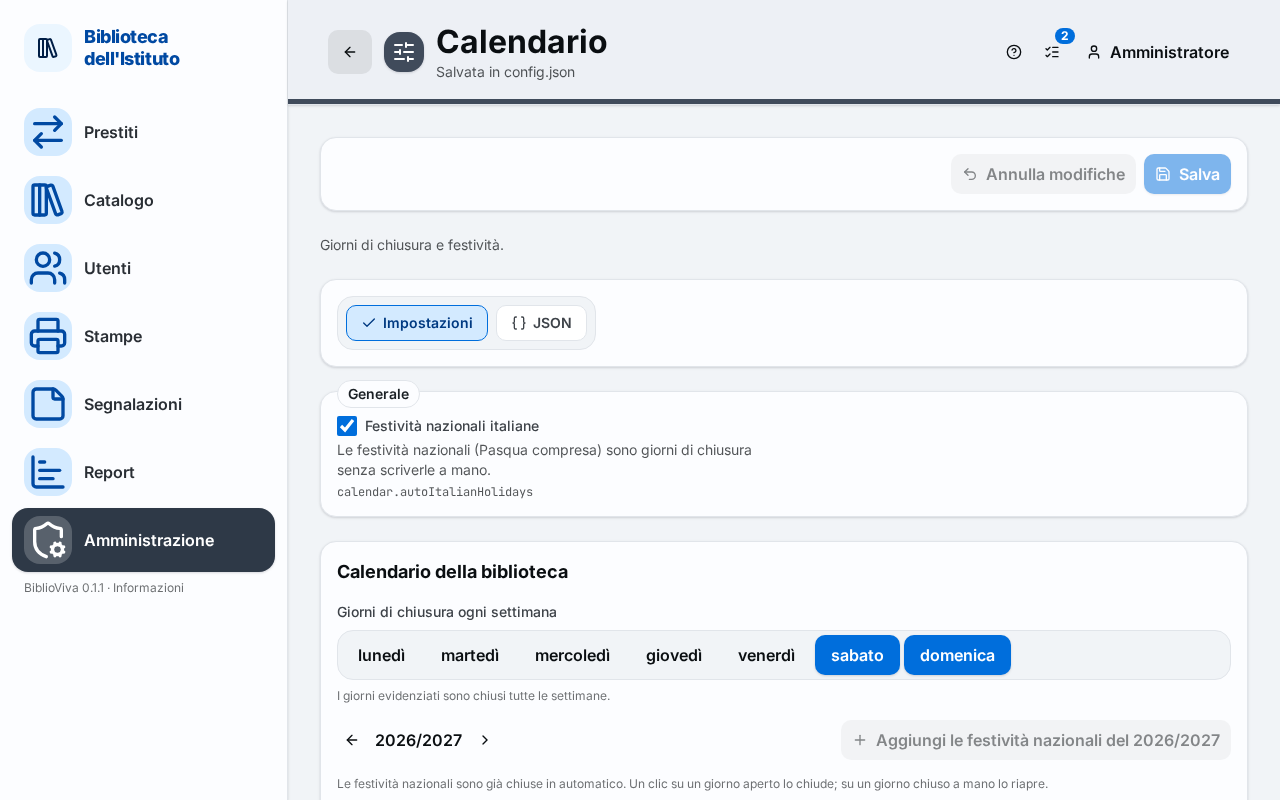
- In the Settings list open Calendar.
The national holidays
- Check the Italian national holidays box. When ticked, the national holidays, Easter included, are closing days without having to write them by hand.
- If automatic closing is not wanted, untick the box: the button "Add the national holidays of" followed by the school year turns on, and closes that year's holidays as days chosen by hand.
The closing days of each week
- In the Days closed every week group press the days on which the library is always closed, for example Saturday and Sunday. Highlighted days are closed every week. Press a day again to remove it.
The school's holidays
The months of the school year are shown one below the other. The calendar starts from the current school year; the Previous school year and Next school year arrows change the year.
- Press an open day to close it. The day becomes Closed (chosen here).
- Press a day closed by hand again to reopen it.
Weekly closing days, national holidays and days inside a closing period cannot be changed with a click on the day. The legend below the months explains the colours: Open, Weekly closing, National holiday, Closed (chosen here) and Closed period.
The closing periods
- Press Add a period. A row appears with the current day's dates.
- Choose the start date in From and the end date in To.
- Type the cause in Reason, for example "Christmas break".
- Repeat the three steps for each period, for example for the summer.
- To remove a period press the Delete button on its row.
Save
- Press Save in the Library calendar panel. The message "Calendar saved" appears.
- If the Italian national holidays box was changed, also press Save, at the top right.
To withdraw the panel's changes not yet saved, press Discard changes.
Check the result
- Open Loans, then Calendar. The page shows the months of the school year with the closing days and the reason for each.
Result
- A due date that falls on a closing day moves to the next open day, with the computation BiblioViva proposes. The computation is changed in Due date computation, in the Loans section (see Set the loan rules).
- The Latest due date setting of the Loans section fixes a last day after which no loan falls due, for example the end of the school term.
- The closings stay in the settings and can be brought back from the configuration history.
Possible problems
- "The end is before the start." appears on a period: correct the From and To dates. The Save button stays off until the period is valid.
- A day cannot be closed with a click: it is already closed for the week, because it is a national holiday or because it falls in a closing period.
- The desk's dates to remember, such as a reading in class, are not closing days and do not change due dates: see Calendar.