
Appearance and language
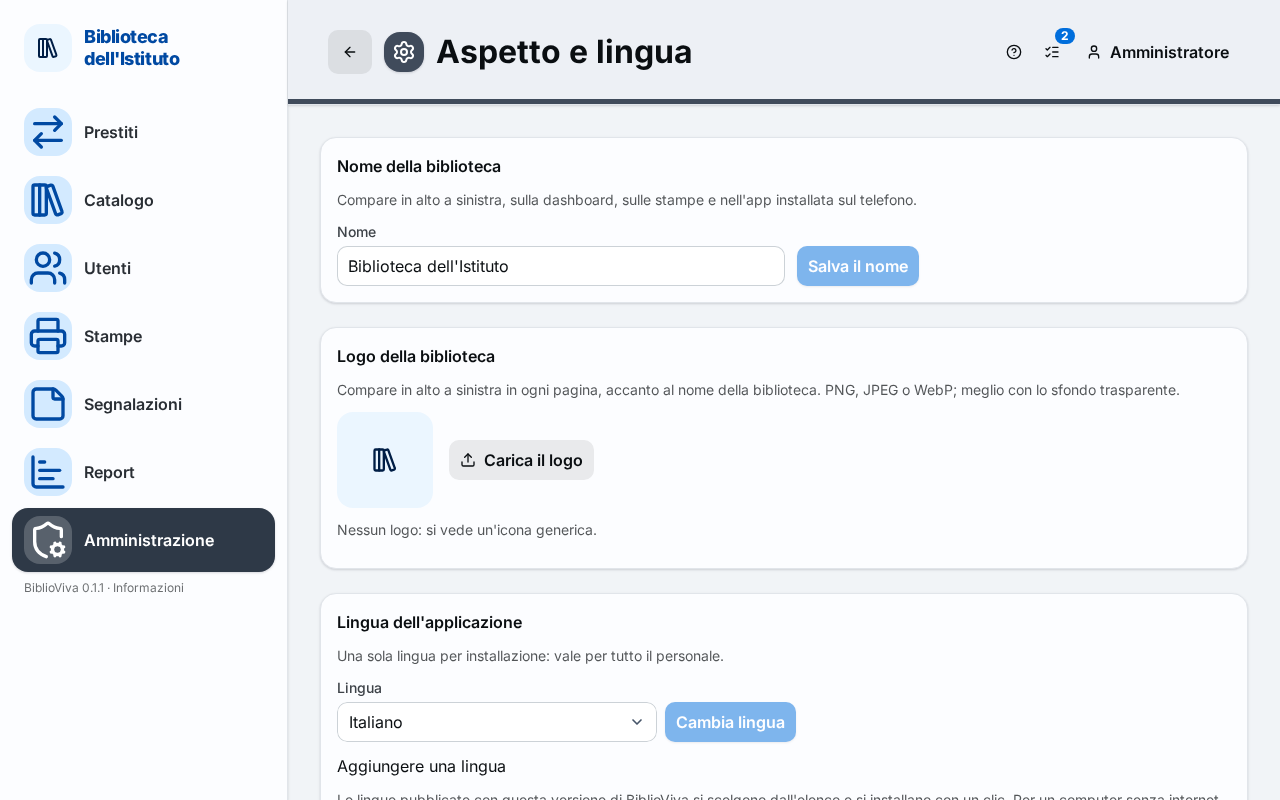
The Appearance and language page changes what the staff see of the library: the name, the logo, the language, the
colours and the dashboard sections. It is reserved for the admin account and opens from the Appearance and language
tab of the Configuration. Every change is recorded in the History and can be
undone. The procedure is in the guide Set up the library.
- Library name.
- Library logo.
- Application language.
- Area style.
- Colour set.
- Dashboard.
Library name
The Name field holds the name shown at the top left, on the dashboard, on printouts and in the app installed on the phone. The name is required ("Type the library's name."). Save the name records it; it stays off until the name changes.
Library logo
The logo appears at the top left of every page, next to the name. Accepted formats: PNG, JPEG or WebP, preferably with a transparent background. The tab shows the logo in use; with no logo it says "No logo: a generic icon is shown."
- Upload the logo chooses a file (when a logo is already present the button is called Change the logo).
- Remove the logo takes it away.
A file that is empty, too large (there is a limit in MB, written in the message), not an image or in a format that is not accepted is rejected with a message under the button.
Application language
One language per installation: it applies to all staff. The Language menu lists the languages of BiblioViva and the installed language packs (see Interface and the guide Add a language). Change language applies the choice and reloads the page.
Under the menu, Add a language installs a new language without leaving the page:
- the Languages available on GitHub list shows the languages published with the installed version of BiblioViva that are not installed yet; Install downloads the pack, checks it and installs it, and the language is at once chosen in the Language menu;
- Upload a pack (zip) installs a ZIP downloaded by hand or prepared yourself (for a computer without internet);
- the Release page on GitHub, to download the zips link opens the page the packs can be downloaded from.
If the list cannot be reached (no internet) a warning appears and uploading the ZIP works all the same.
Area style
The top bar takes the colour of the area being worked in (Loans, Catalogue, Patrons…), in the tones of the chosen colour set. The area's icon and name always stay visible. Four choices, each with a preview:
- Tinted bar (recommended);
- Filled bar;
- Accents only;
- No colour.
The choice applies at once, on clicking the preview, and "Area style saved" appears.
Colour set
Fifteen colour sets (Ocean, Forest, Grape, Sunset, Cherry, Lagoon, Silver, Graphite, Apricot, Indigo, Mint, Rose, Sahara, Wintry, Olive): they change only the colours, never the shape. The set in use is marked "Current set". Save the colours applies the chosen set; with no change "Nothing to save." appears.
Dashboard
The sections of the start page, for the whole library. The quick actions, when active, always come first. Each section is switched on or off with its own box:
- Quick actions;
- The library today (tiles with the numbers);
- Stocktaking in progress;
- Invitation to add the app to the Home screen (phones);
- Due this week;
- Upcoming dates of the calendar;
- Today's loans.
Inside each section every account sees only what it may do. Save the dashboard records the choice.