
Step-by-step guide
Set up the library
This guide explains how to give BiblioViva the library's name, logo, colours and language. It is for whoever administers BiblioViva, usually right after the first run, where the name, colours and language were already chosen once.
- Time: about 10 minutes.
- Account:
admin, the only one that sees Administration. - Requirements: the library's logo, if there is one, in a PNG, JPEG or WebP file. A PNG with a transparent background is best.
Procedure
Open the page
- Log in to BiblioViva as
admin. - Open Administration.
- Open Configuration.
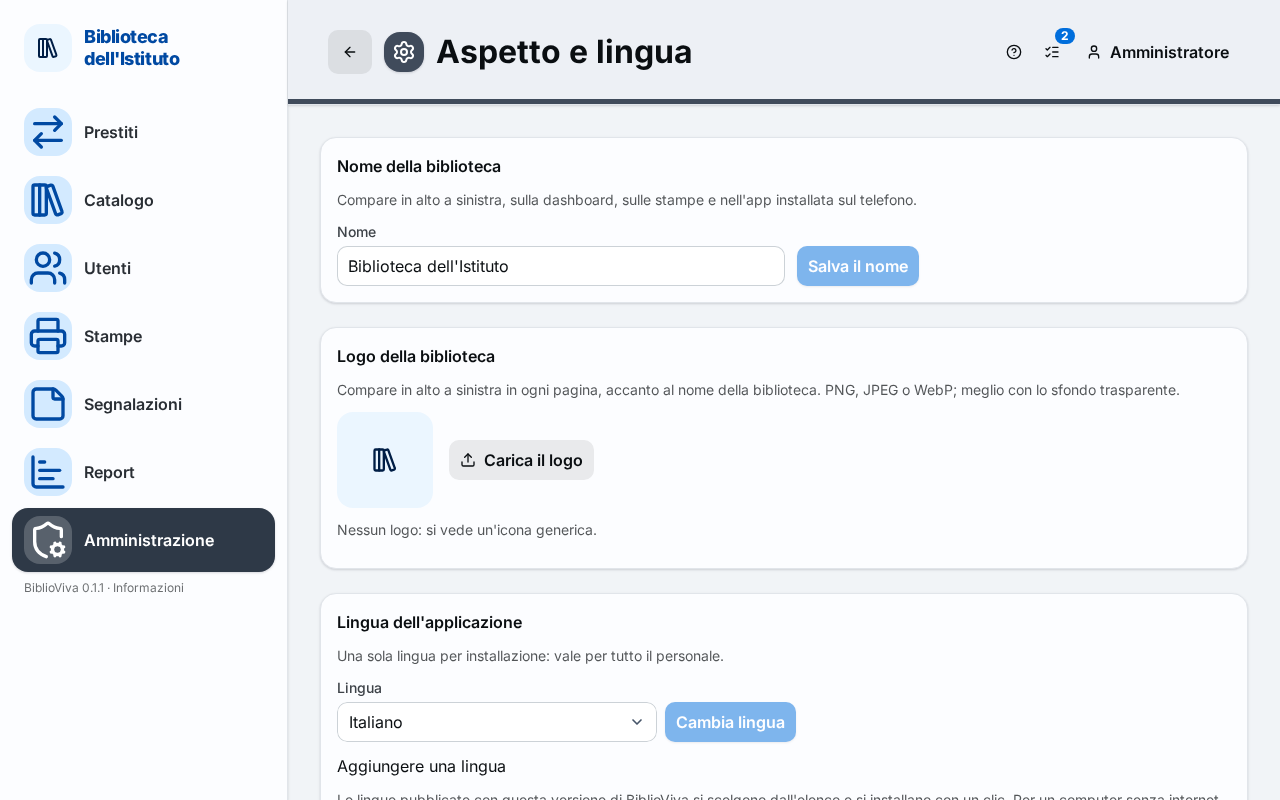
- Open Appearance and language. The page shows, one below the other, the name, the logo, the language, the area style, the colours and the dashboard.
Change the name
- Type the library's name in the Name field. It appears at the top left, on the dashboard, on the printouts and in the application installed on the phone. The field is required.
- Press Save the name. The message "Library name saved" appears.
Add the logo
- In the Library logo panel press Upload the logo.
- Choose the image file. The logo appears at once at the top left of every page, next to the library's name.
- To replace it, press Change the logo and choose another file.
- To remove it, press Remove the logo. A generic icon takes its place.
The logo is stored in the configuration: it is part of the configuration export. The name and logo of BiblioViva appear only on the dashboard.
Choose the colours
- In the Colour set panel choose a set. The preview shows at once on the page and the "Current set" label above the sets marks the one in use.
- Press Save the colours. The message "Colours saved" appears.
The colours change only the look, not the layout of the pages, and stay legible in black and white. The style of the band at the top is chosen in the Area style panel: the choice applies at once.
Change the language
BiblioViva uses one language for the whole installation: the choice applies to all the staff.
- In the Application language panel choose the language in the Language list.
- Press Change language. The page reloads in the new language.
For a language that is not in the list see Add a language.
Result
- The name and logo appear at the top left of every page.
- The chosen colours apply to all the accounts.
- The chosen language applies to all the staff.
Possible problems
- The Save the name button stays off: the name is empty or the same as the one already saved. The message "Type the library's name." appears when the field is empty.
- The logo is rejected with "Format not accepted: use PNG, JPEG or WebP.": convert the image to one of these formats.
- The logo is rejected with "The file is too large": reduce the size of the image with a photo-editing program and try again.
- Other library settings, such as the contact email, the time zone and the start of the school year, are in the Library and school section of the configuration.