
Make and download a backup
This guide explains how to make a backup right now, without waiting for the night one, and how to download it to the computer. It is for whoever administers BiblioViva, before an update, a large import or a class upgrade, and at every important change.
BiblioViva makes a backup of the database by itself every night. What the nightly backup contains, where it is and how to keep a copy outside the BiblioViva computer is explained in the installation step Backups.
- Time: 2 to 5 minutes, depending on the size of the data.
- Account:
admin, the only one that sees the Backups page. - Requirements: space on the computer for the downloaded file. Covers weigh more than the database.
Procedure
Make a backup now
- Log in to BiblioViva as
admin. - Open Administration.
- Open Backups.
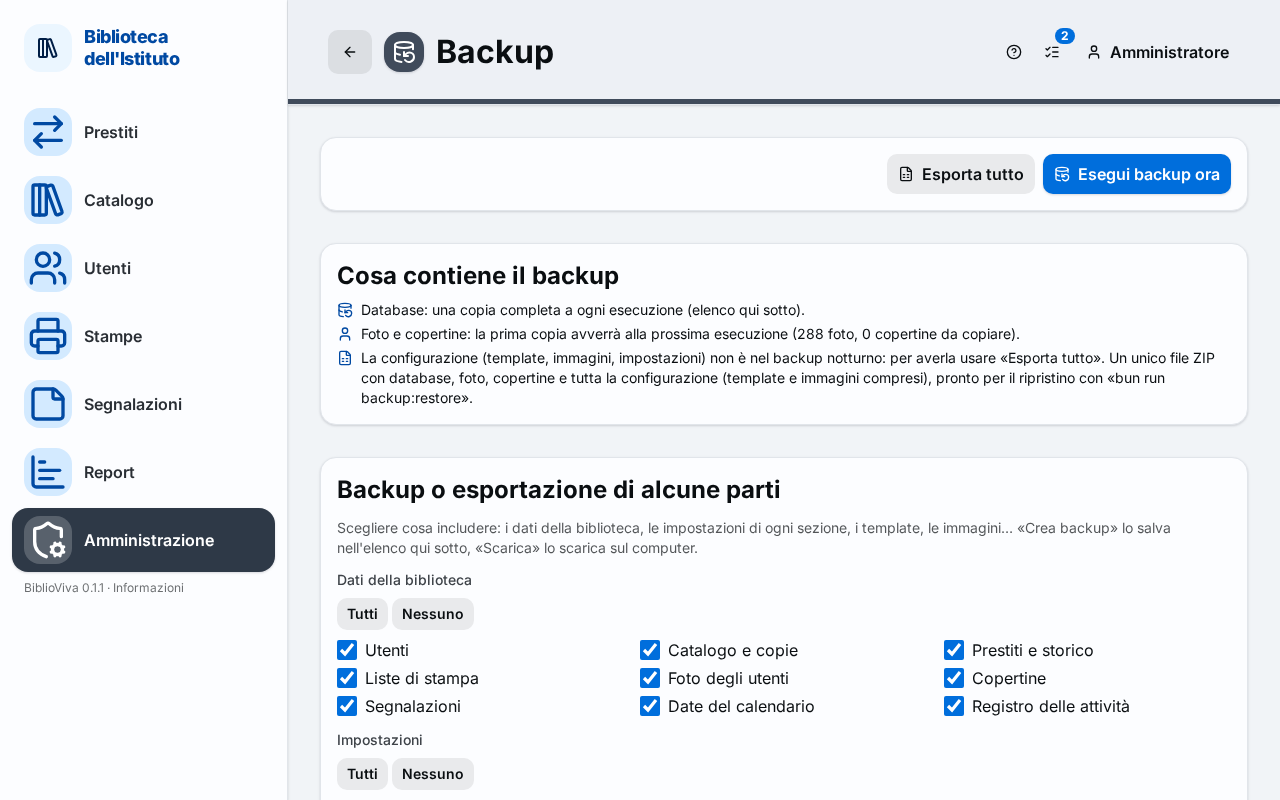
- Press Back up now.
- Wait for the message "Backup created:" followed by the file name. The file appears at the top of the list, with the date in Created and the Size.
Download a backup
- In the list press Download next to the backup to take away. The browser saves a file
biblioviva-YYYYMMDD-HHMM.dbin the downloads folder.
The file contains only the database. Photos and covers are copied to the uploads folder of the backups and the
configuration is not part of the nightly backup.
Download everything in a single file
- Press Export everything.
- Wait for the browser to save the file
biblioviva-export-YYYYMMDD-HHMM.zip. It contains the database, the photos, the covers and the whole configuration, and is enough on its own to put BiblioViva back on another computer.
Copy only some parts
The Backup or export of some parts panel allows saving only what is needed.
- Tick the parts in the Library data, Settings and Classification, templates and more groups. The All and None buttons tick or untick everything. Some parts require others: the page says so.
- Press Create backup to save the archive in the list, or Download to save it on the computer.
Keep the file
- Copy the downloaded file to a USB stick or another medium that is not in the BiblioViva computer. The steps are in the Backups step.
- Delete the copies that are no longer needed.
Important. The backups contain the students' data. Keep them in a safe place.
Result
- A recent backup appears in the list of the Backups page.
- The downloaded file is on the computer, and then on a stick or another medium.
Possible problems
- The list shows "No backups yet.": the first one is made at the scheduled time or with Back up now.
- A backup carries the label Made up at start: it was scheduled for the night, the computer was off and BiblioViva made it at the next start-up.
- The
.zipfile is very large: covers weigh more than the database. Use a medium with more space. - The time and the duration of the backups are changed in Administration, Configuration, Backup, in the Backup time and Days kept fields.
- To put the data of a backup back into BiblioViva see Restart from a backup.