
Add a language
This guide explains how to use BiblioViva in a language other than Italian and English, which are already included. It is for whoever administers BiblioViva. Languages that are already translated are installed from a list with one button; for a language that is not in the list, or for an installation without internet, a translation pack is uploaded. In neither case is the program touched.
BiblioViva uses one language for the whole installation. A pack is a folder of .json files with the interface texts:
start from a copy of English or Italian and translate the texts.
- Time: installing from the list takes a few minutes; translating a new language takes a few hours to a few days, depending on how much is translated. Untranslated texts stay in English.
- Account:
admin. - Requirements for installing from the list: the internet connection of the computer that runs BiblioViva.
- Requirements for translating and uploading a pack: a program to write plain text (for example Windows Notepad or a text editor) and a program to compress and extract ZIP files, already present on the computer.
Procedure
Install a language from the list
The list holds the languages published with the installed version of BiblioViva. Every pack is checked before it is installed.
- Log in to BiblioViva as
admin. - Open Administration.
- Open Configuration.
- Open Appearance and language.
- In the Application language panel, under Add a language, open the Languages available on GitHub list and choose the language wanted. The list holds only the languages not installed yet; under it you see the percentage of texts translated and the kind of translation.
- Press Install.
- Wait for the message "Language installed:" followed by the name. The language is already chosen in the Language list of the panel.
- To use the language, follow the steps of "Use the language" further down in this guide.
If "Automatic translation, not read by a native speaker" appears, the translation was made by a program and nobody who speaks that language has read it yet: it may contain mistakes or unnatural wording. It can be used all the same, and the texts can be corrected as described further on.
To replace a language that is already installed with the version in the list, open Configuration, Interface, scroll down to Language packs and press Install again in the Languages to install section.
To replace an installed language with the version in the list, press Install again.
Download an example
- Log in to BiblioViva as
admin. - Open Administration.
- Open Configuration.
- In the Settings list open Interface.
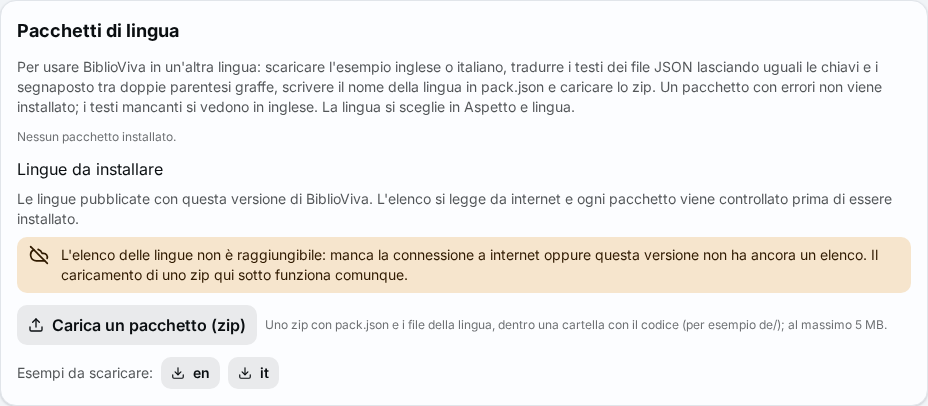
- Scroll down to the Language packs panel.
- Under Examples to download: press
enfor English oritfor Italian. The browser saves a filebiblioviva-language-en.zip(or-it).
Prepare the folder
- Extract the ZIP file. Inside is a folder with the language code and the
.jsonfiles. - Rename the folder with the new language's code: two lowercase letters, possibly followed by the country, for example
defor German,frfor French orpt-BRfor Brazilian Portuguese.enanditcannot be used, as they are already included. - Open the
pack.jsonfile of the folder with the text editor. - After
"name"write the language's name in English, for example"German". - After
"nativeName"write the language's name in the language itself, for example"Deutsch": this is what appears in the menus. - Save the file.
Translate
- Open the other
.jsonfiles one at a time with the text editor. - Change only what is to the right of the colon. Never change the names to the left of the colon.
- Leave untouched the parts between double braces, such as
{{name}}: BiblioViva replaces them with the real values. - Save each file. The translation can be done a little at a time: whatever is missing stays in English.
Upload the pack
- Compress the language folder into a ZIP file, so that the file contains the folder and, inside it, the
.jsonfiles. The system command is in the right-click menu on the folder [VERIFY: name of the compression command in the school's systems]. - In Appearance and language, under Add a language, press Upload a pack (zip) and choose the file. The same button is in Configuration, Interface, in the Language packs panel. The pack cannot exceed 5 MB.
- Wait for the message "Language installed:" followed by the name. In Language packs the pack is listed with Valid. If texts are missing, the number of "missing or extra texts" appears next to it.
If the pack has errors it is not installed: the message says which file and which key to correct. After the correction, compress and upload the folder again: a pack with the same code replaces the previous one.
Use the language
- Open Administration, Configuration, Appearance and language.
- In the Application language panel choose the new language in the Language list (after an installation it is already chosen).
- Press Change language. The page reloads in the new language.
Result
- The language appears in the Language list of Appearance and language and in the guided setup of a new installation.
- All the staff see BiblioViva in the new language; untranslated texts are in English.
Possible problems
- "The list of languages cannot be reached" appears: the computer that runs BiblioViva is not connected to the internet,
or the installed version has no list yet. Uploading a ZIP pack, described further on, works all the same: download the
language's file from the BiblioViva release page (the Release page on GitHub, to download the zips link under the list, or the address
https://github.com/itotm/biblioviva/releases) on a computer with internet and upload it with Upload a pack (zip). - "The downloaded pack is damaged and was not installed" appears: the file did not arrive whole. Press Install again.
- "The zip must hold only the language's .json files, inside one folder named after the language code." appears: compress the renamed folder, not the single files, and with no other folders or files inside.
- "Invalid language code" followed by the code appears: the folder name is not in the form
de,frorpt-BR. - "English and Italian are built in and are not replaced." appears: the folder is still named
enorit. - "The pack has errors and was not installed:" appears with a list: a file is missing, a file is not valid JSON or a translation has lost a part between braces. Correct the file indicated.
- The Delete button of a pack is off: it is the language in use. First choose another language in Appearance and language.
- The pack can be downloaded again with the Download button on its row, to keep a copy or to continue the translation.
- Deleting a pack can be undone from the configuration history.
Related pages
- Set up the library
- Appearance and language
- Export and import the configuration: the languages are part of the archive
- Administrator first steps