
Set the loan rules
This guide explains how to set how long a loan lasts, how many books can be out together, how many times a loan can be renewed and what happens when a book is late. It is for whoever administers BiblioViva and wants to adapt the rules to those of the library.
There are two rules, one for students and one for teachers. For one copy type (for example DVDs) a single rule can be changed without touching the others.
- Time: about 10 minutes.
- Account:
admin. - Requirements: the rules decided by the library, that is the days, the number of books and the number of renewals for students and teachers.
Procedure
Open the settings
- Log in to BiblioViva as
admin. - Open Administration.
- Open Configuration.
- In the Settings list open Loans.
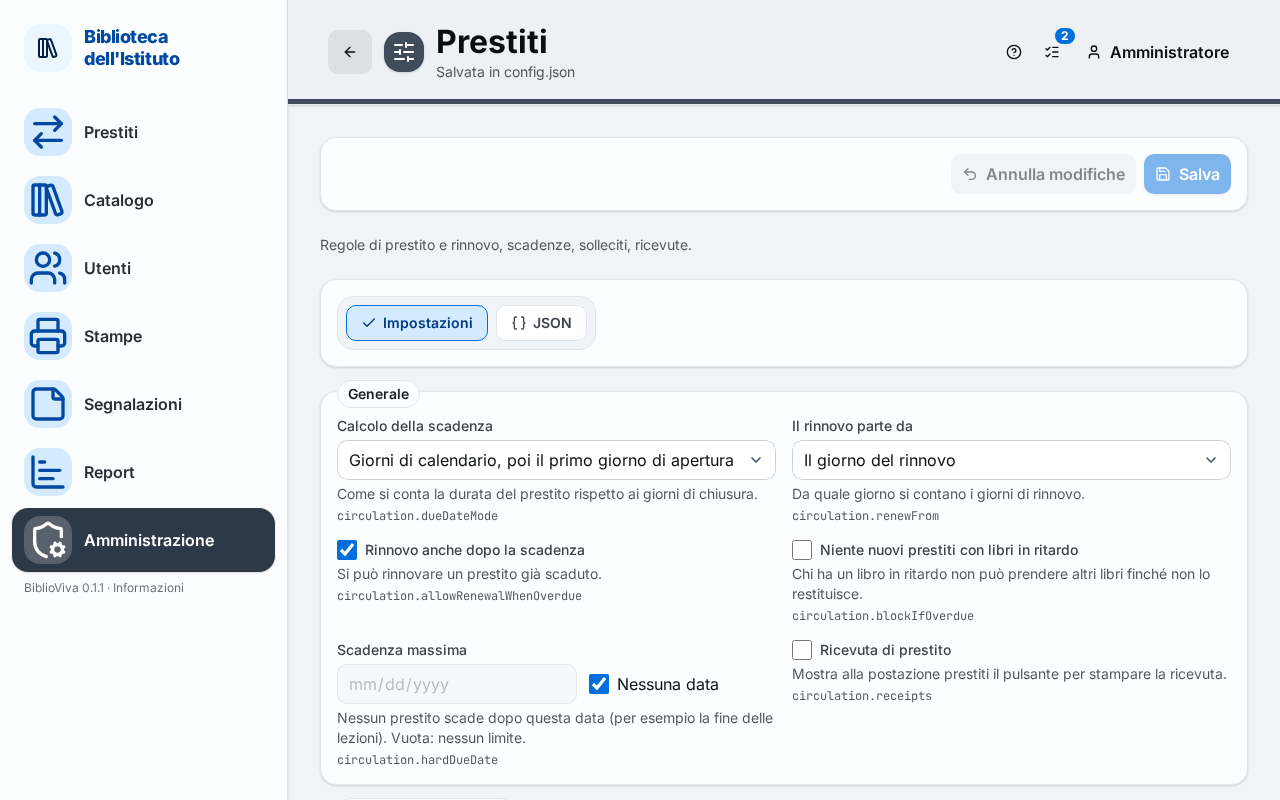
Rules for students and teachers
The Rules for students and Rules for teachers groups have the same four fields.
- Type in Loan days how many days a loan lasts.
- Type in Most books on loan how many books can be out together.
- Type in Most renewals how many times the same loan can be renewed. The value 0 means never.
- Type in Renewal days by how many days the loan is extended at each renewal.
The proposed values for students are 15 days, 1 book, 5 renewals and 15 renewal days; for teachers 15 days, 4 books, 5 renewals and 15 renewal days. Under each field, Default shows the proposed value and Back to the default restores it.
Due dates and renewals
- In Due date computation choose how the length is counted with respect to the closing days:
- Calendar days, then the first open day: a due date that falls on a closing day moves to the next open day;
- Open days only: only the days on which the library is open are counted;
- Calendar days, ignoring closures: the due date may fall on a closing day too.
- In Renewals start from choose whether the renewal days are counted from the day of the renewal (The day of the renewal) or from the current due date (The current due date).
- Tick Renew after the due date too if a loan that is already overdue can also be renewed.
- Tick No new loans with overdue books if whoever has an overdue book must not be able to borrow others until it is returned.
- In Latest due date choose a date after which no loan falls due, for example the end of the school term. Leave it empty for no limit.
- Tick Loan receipt to show at the circulation desk the button that prints the receipt.
The closing days are set in the calendar: see Set the school calendar.
Overdue notices
The Overdue notices group governs the sheets for overdue books.
- In Days late before a notice type after how many days late a loan appears in the notices. The proposed value is 5; 0 means at once.
- Tick One page per class to print each class on its own sheet, to hand to the teacher. The choice can also be changed at print time.
- In Notice template normally leave the proposed template as it is.
Save the general rules
- Press Save, at the top right. The message "Settings saved" appears.
Wrong values are marked in red and Save waits until they are corrected. To withdraw the changes not yet saved, press Discard changes.
Change a rule for one copy type
The Rules per copy type panel is at the bottom of the same page. It has a row for each copy type (for example Book and DVD) and the same four columns. The rules apply to both students and teachers.
- Type a value in the column to change, on the row of the copy type. For DVDs, for example, 5 in Loan days.
- Leave empty whatever does not change: the rule for students and teachers applies, which the field shows in grey.
- Press Save in the panel. The message "Rules per copy type saved" appears.
Copy types are added and renamed in the Library and school section, in the Copy types panel.
Result
- At the circulation desk each new loan takes the length and the book limit of the rule for the patron and the copy type.
- Loans already out keep the due date they had.
Possible problems
- "Fix the marked values before saving." appears: a field has an invalid value, for example text instead of a number. Correct the field marked in red.
- "The save did not succeed:" appears with a list: the items say which key to correct.
- The values of the rules per copy type show the message "At least 1.": days and books must be at least 1; only renewals can be 0.
- The page is left with unsaved changes: BiblioViva asks for confirmation before losing them.