
Create a report
A report is a table, with an optional chart, that answers a question about the library: how many loans per class, which books have never been lent, how many patrons have a photo. This guide is for the administrator who wants a report different from those shipped with BiblioViva, and builds it by choosing items in the guided editor, without writing code.
- Time: about 15 minutes.
- Account:
admin, the only one who sees the Reports library and the editor. Once saved, reports are also consulted by thereportaccount. - Requirements: know which question the report must answer (what is counted and what it is divided by).
The guided report is built from three data sources: loans, copies and patrons. For a report that needs something else, or one written by hand, there is the SQL editor, described in the technical page Reports: authoring guide.
Procedure
Start from a new report or from a copy
- Open Administration and press Configuration.
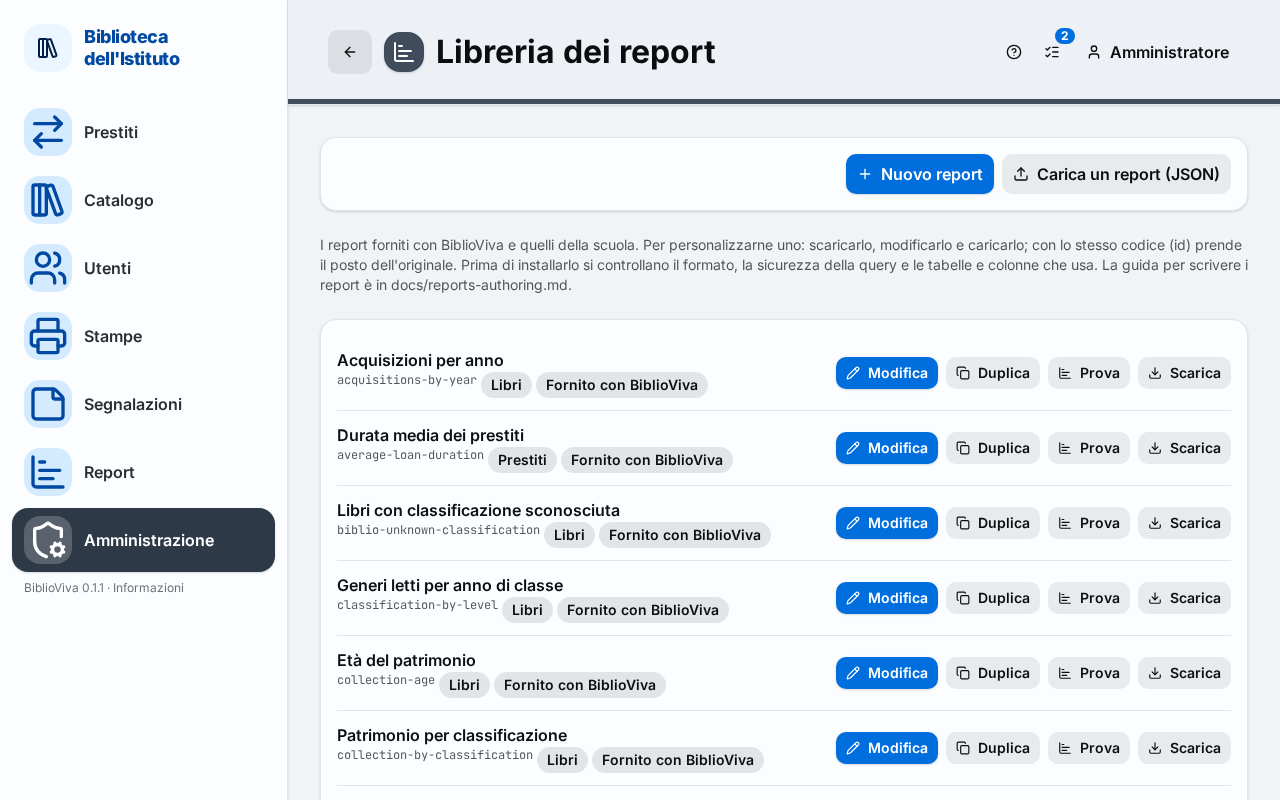
- Press the Reports library box, in the Appearance, classes and templates group. The list shows each report with its title, code, category and origin (Shipped with BiblioViva, Customised or Added).
- For a report from scratch, press New report. The editor opens with a sample report (loans per class year, with the period asked when opened) to change.
- To start from a similar report, press Duplicate on the chosen report instead. The editor opens with a copy, whose code and title end with "copy".
Give the report a name
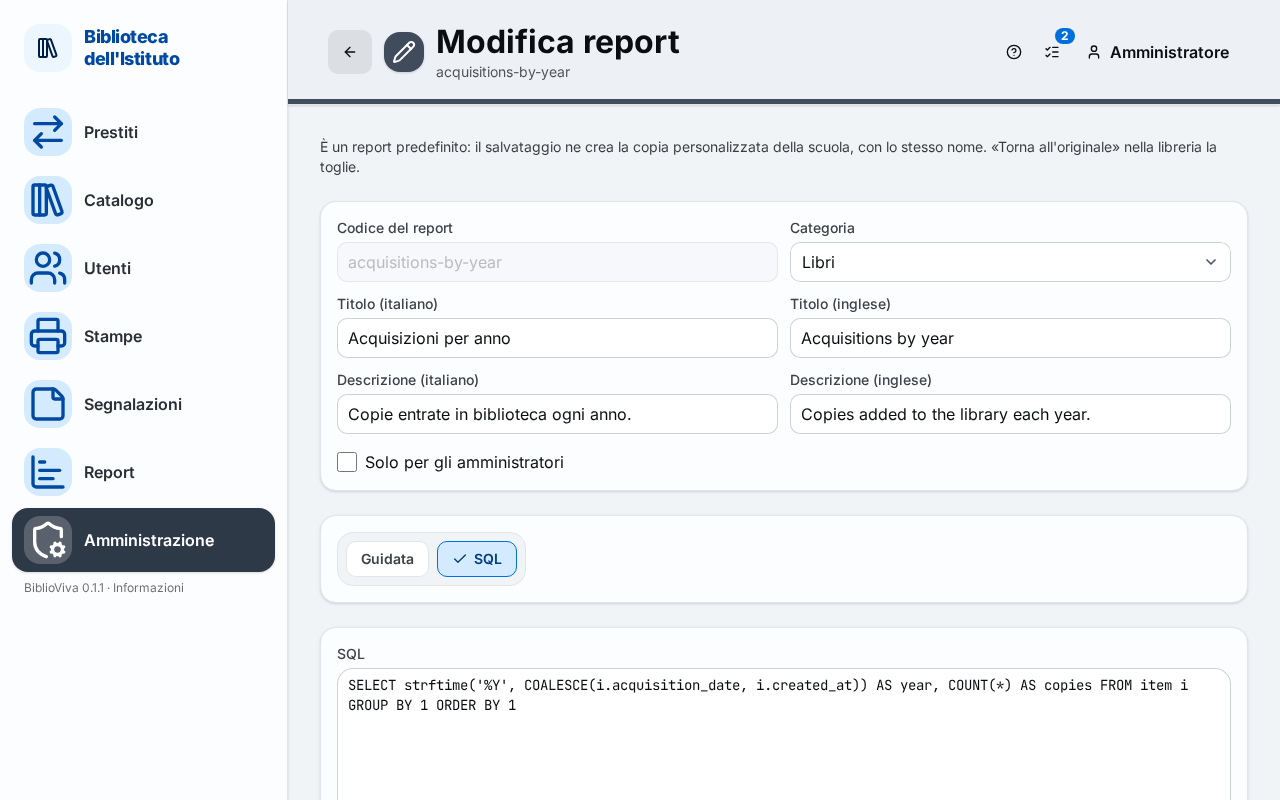
- Write in Report code a short code, only with lower-case letters, digits and dashes (for example
prestiti-per-materiale). The code cannot be changed after saving. - Choose the Category under which the report appears in the Reports list: Loans, Books, Patrons or Activity.
- Write Title (Italian) and Title (English), for example "Prestiti per materiale" and "Loans by material".
- Optional: write Description (Italian) and Description (English), a sentence that explains what is read in the report.
- Optional: tick Administrators only if the report must not be seen by the
reportaccount.
Choose the data
- Stay on the Guided tab.
- Choose in Data the source: Loans, Copies or Patrons. Changing the source makes the following choices start again from the starting ones.
- Choose in Rows what to divide into rows (for example Material for loans, or Section).
- Optional: choose a second level in Rows, second level, to divide each row into subgroups.
- Optional: choose in Columns an item whose values become the columns of a two-way table, with the totals. With columns the report shows a single value.
- Tick in Values what to count, from one to three values: for loans, for example, Loans, Readers, Titles and Average days.
- If there are columns, choose the Totals: Total row and column, Total column, Total row or No totals. Without columns, choose the Order: In the order of the rows or Highest value first.
- Choose in Chart whether to add a chart: Bars, Lines or Doughnut, or "— none —".
Choose the filters
- Under Filters a list of the possible filters for the chosen source appears (for example, for loans, the loan period, the patron type, the class). For each one choose a mode: No filter, Asked when opened or Fixed.
- With Asked when opened whoever opens the report chooses the value, for example the start and end dates.
- With Fixed the value is chosen now and always applies: for the period two dates appear, from and to.
Check and save
- Press Preview. The report runs with the default values of the filters and shows at most 200 rows, with the chart if one was chosen. If something is wrong, the list of problems appears.
- Press Save. The message "Report … saved" appears and the Edit report page of the same report opens.
- To see the result as whoever consults it sees it, go back to the library with Back to the library and press Try on the report. The report page opens with its parameters; Update runs the calculation again.
Important. If the code written is that of an existing report, saving replaces it. For a report shipped with BiblioViva this is right: the school's copy takes the place of the original, which is recovered with Back to the original. For a new report, choose a code that does not exist.
Result
The report appears in the Reports list (menu item Reports), in the chosen category, with the The school's
mark. Whoever has the report account opens and prints it; a report with Administrators only is seen only by the
administrator. Every save is a configuration change and can be undone: Undo a configuration
change.
To correct the report, press Edit in the library. To remove it, press Delete (for a customised report shipped with BiblioViva, Back to the original).
Possible problems
- Saving says "The definition is not valid". A datum is missing or not valid, usually the code (lower-case letters, digits and dashes, at most 64 characters) or the title. The message indicates which.
- Saving says "The query does not work on this database". The guided report was composed with a combination the database cannot calculate. Go back to the Guided tab, remove the last choice and press Preview to see which one causes it.
- Saving says that "new" cannot be the code of a report. Choose another code.
- The preview shows "No results with these parameters". The report is correct but the data are not there: widen the period or remove a fixed filter.
- The Report code field is off. The code of a report already saved cannot be changed. To have a different one, use Duplicate from the library.
- After Edit as SQL the report can no longer be edited with the Guided tab. Edit as SQL turns the report into a hand-written one and there is no going back to guided editing. Use it only if really needed, reading first Reports: authoring guide.
- The report does not appear in the list of another account. Check that Administrators only is not ticked and that the account has the reports permission: Manage staff accounts.
- A file in the library is in error. The library lists, at the top, the files that do not load, with the reason. Delete removes the file from the configuration; the deletion can be undone from the history.
Related pages
- Consult a report
- Manage the staff accounts
- Undo a configuration change
- Reports library
- Reports: authoring guide (technical page, in English)