
Reports library
The Reports library lists the reports shipped with BiblioViva and those of the school, and makes it possible to try them,
download them, create new ones, customise them or remove them. It is reserved for the admin account and opens from the
Reports library tab of the Configuration. Whoever consults the reports every day uses the
Reports page instead. The procedure for writing one is in the guide Create a
report; the file format is described in the technical reference of the
reports.
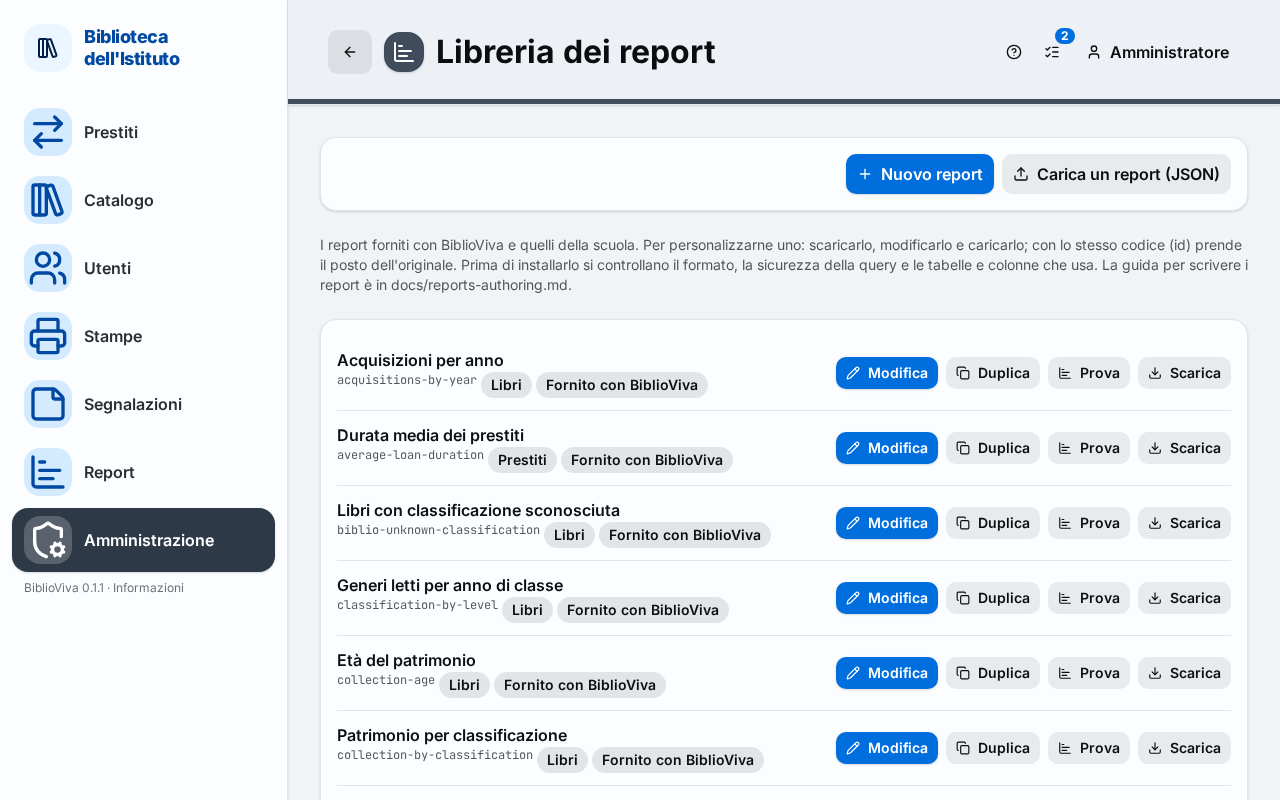
- The New report and Upload a report (JSON) buttons.
- The list of reports with title, code and markers.
- The commands of a row: Edit, Duplicate, Try, Download and Delete.
New report
The New report button opens the editor with an empty report. After Save the report stays in the library.
Upload a report (JSON)
The Upload a report (JSON) button installs a report file. Before installing it BiblioViva checks the format, the safety of the query and the tables and columns it uses. A file with the same code as a shipped report takes its place; the page confirms with "Report … installed" or "Report … replaced". These rejections are possible:
- "The file is too large";
- "The file is not valid JSON";
- "The definition is not valid";
- "The query does not work on this database";
- "new" cannot be the code of a report.
Files not loaded
When a file of the reports folder cannot be read, a yellow box, "These files are not loaded", lists it with the reason. For the files of the school the box offers Delete.
The list of reports
Each row shows the title of the report, its code and these markers:
- the category: Loans, Books, Patrons or Activity;
- the origin: Shipped with BiblioViva, Customised or Added;
- Administrators only, for the reports that other accounts do not see.
The commands of the row are:
- Edit: opens the editor. For a shipped report saving creates the school's customised copy, with the same name;
- Duplicate: opens the editor with a copy of the report, to be saved with a new code;
- Try: runs the report in the reports page;
- Download: downloads the definition as a JSON file, to be edited and uploaded again;
- Delete, only for the reports of the school. For a customised report the command is called Back to the original and puts the shipped report back in use. A dialog asks for confirmation; the operation can be undone from the History.
Report editor
The editor has two modes, Guided and SQL. In guided mode the Data, the Rows, the Columns, the Values, the Filters, the Order and the Chart (Bars, Lines or Doughnut) are chosen; a report with columns becomes a pivot table, with the Totals. Edit as SQL turns the report into a hand-written one and there is no way back to guided editing. In every mode the code, the category, the title and the description in Italian and in English are given, and the "Administrators only" box is available. Preview runs the report with the default values of the parameters, at most 200 rows. Save records it; Back to the library leads back here.