
Manage the staff accounts
This guide explains how to create, edit, deactivate and delete the accounts the staff use to enter BiblioViva. It is for whoever administers BiblioViva and wants, for example, an extra account for a second desk or an account with fewer permissions.
BiblioViva uses shared accounts, normally one per role, created by the first run:
| Account | Username | Used for |
|---|---|---|
| Administration (admin) | admin | everything: settings, backups, imports, accounts |
| Loan management (prestiti) | prestiti | the circulation desk: loans and returns |
| Cataloguing (catalogo) | catalogo | the catalogue: books, copies, labels |
| Cards and photos (tessere) | tessere | the patrons and the cards |
| Reports (report) | report | the reports and the statistics |
Each account has one or more roles, and each role is a set of permissions. An account can do only what the permissions of its roles allow. There are no personal accounts, one per person.
- Time: about 5 minutes per account.
- Account:
admin. - Requirements: the username and the password to give to the new account, or the account to edit.
Procedure
See the accounts
- Log in to BiblioViva as
admin. - Open Administration.
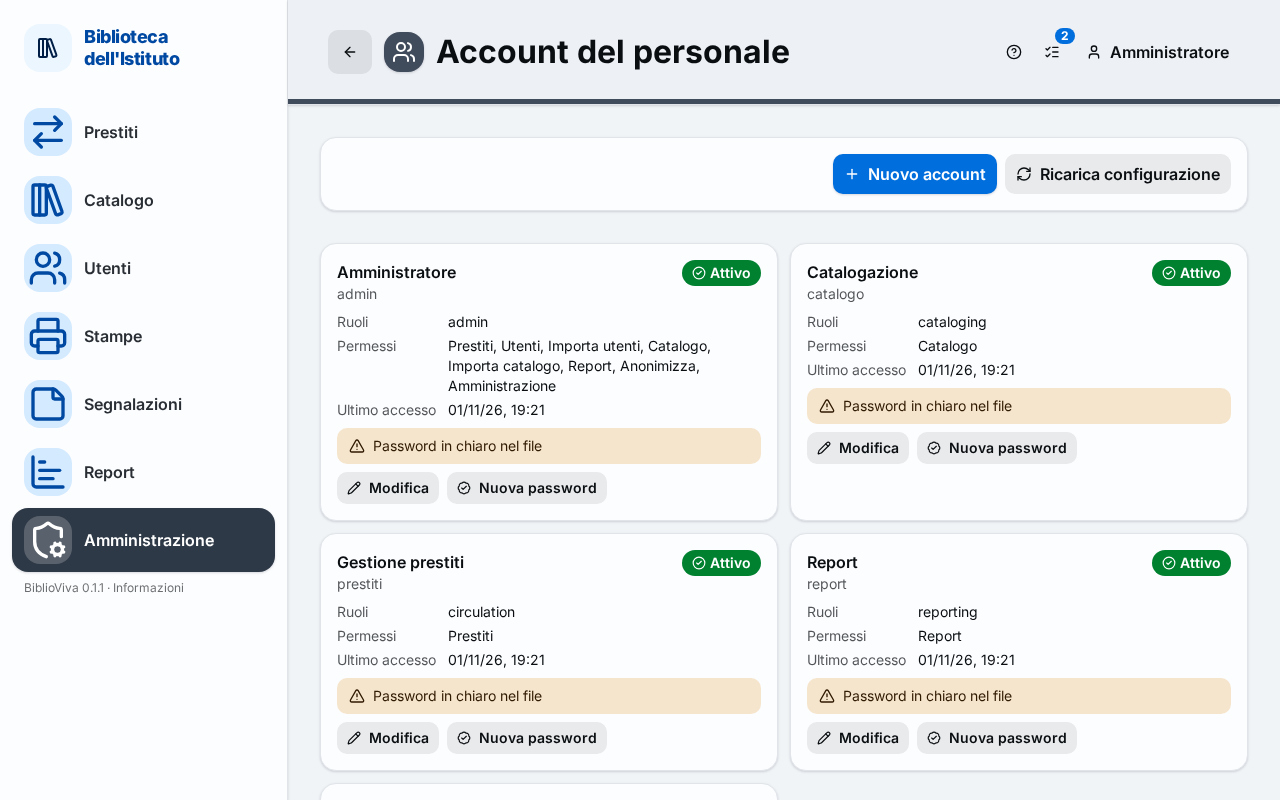
- Open Staff accounts. Each account has a card with the username, the status (Active or Deactivated), the Roles, the Permissions and the Last login.
Create an account
- Press New account. A window opens.
- Type in the Username field the name used to log in: 2 to 32 characters, only lowercase letters, digits, dot, hyphen and underscore.
- Type in the Name shown field the name that appears in the pages, for example "Desk 2". The field is optional.
- Tick at least one role under Roles.
- Leave the Active account (can sign in) box ticked.
- Type the password in the Password (at least 8 characters) field and again in the Repeat the password field.
- Press Save. The message "Account created" appears.
Important. The password cannot be seen again: BiblioViva keeps only a protected form of it. Note it down before pressing Save and hand it over in person to whoever uses the account.
Edit an account
- On the account card press Edit.
- Change the Username, the Name shown, the Roles or the status of the account.
- Press Save. The message "Account saved" appears.
To change an account's password see Change a password.
Deactivate and delete an account
A deactivated account can no longer log in, but stays in the list and can be reactivated. An account is deleted only after it has been deactivated.
- On the account card press Edit.
- Untick the Active account (can sign in) box and press Save. The card shows Deactivated.
- To delete it, press Delete on the card. The button appears only on deactivated accounts.
- At the question "Delete
?" press Delete. The message "Account deleted" appears.
The operations done by the account stay in the log under its name. The deletion can be undone from the configuration history.
Change the roles and the permissions
The Roles and permissions panel, below the cards, lists the roles and, for each, the permissions: Everything, Loans, Patrons, Import patrons, Catalogue, Import catalogue, Reports, Anonymize and Administration.
- In a role's row tick or untick the permissions. The Everything permission includes every permission, even those BiblioViva may add in the future.
- To add a role, press Add a role and type the name in the Role field: letters, digits, hyphens and underscores, at most 32.
- Press Save. The message "Roles saved" appears.
Renaming a role updates the accounts that use it. Under each role's name the accounts that use it are listed, or "no account".
Result
- The new account logs in from the Log in page with its username and password.
- Each account sees only the pages its permissions allow.
- Deactivated or deleted accounts can no longer log in.
Possible problems
- "The username … is already used." appears: choose another name.
- "At least one active account must keep the administration permission." appears: the last account that administers cannot be deactivated, deleted or stripped of the permission. First give the Administration permission to another account.
- "Deactivate the account before deleting it." appears: follow the deactivation steps above.
- The button to delete a role is off: the role is used by some account. First remove the role from those accounts with Edit.
- A card shows "Clear password in the file": the account was written by hand in the configuration files with a readable password. Give it a password with New password, as described in Change a password.
- A card shows "Removed from the configuration": the account is no longer in the configuration files, and its operations stay in the log. It can be neither edited nor deleted.
- The Reload configuration button, at the top, makes BiblioViva reread the configuration files edited by hand. It is needed only by those who edit them outside BiblioViva.
Related pages
- Change a password
- Staff accounts
- Export and import the configuration: the archive contains the accounts
- Administrator first steps