
Export and import the configuration
This guide explains how to save the whole BiblioViva configuration (settings, print templates, label sheets, logo, reports, languages) in a single file and how to put it back into BiblioViva, even on another installation. It is for whoever administers BiblioViva, to keep a copy of the settings or to repeat the same settings in another school.
The configuration archive does not contain the library's data (books, patrons, loans: for those there is the backup) nor the history of changes.
- Time: about 5 minutes.
- Account:
admin. - Requirements: for the import, a BiblioViva ZIP archive.
Important. The archive also contains the staff accounts with their passwords in protected, unreadable form. Keep it with care and do not send it to anyone who must not enter BiblioViva.
Procedure
Export
- Log in to BiblioViva as
admin. - Open Administration.
- Open Configuration.
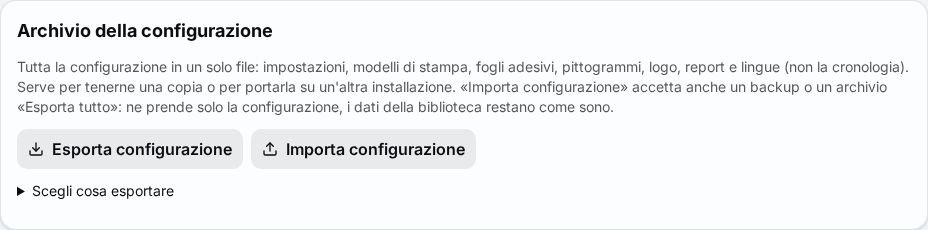
- Scroll down to the Configuration archive panel.
- Press Export configuration. The browser saves the file
biblioviva-configurazione-YYYYMMDD-HHMM.zip.
To export only some parts:
- Open Choose what to export and tick the parts to take.
- Press Export the chosen parts.
Import
- In the Configuration archive panel press Import configuration.
- Choose the ZIP file. BiblioViva checks it without changing anything and shows the result below the buttons: which archive it is, how many files are new, changed, removed and identical, and which sections change.
- Open List of files to see one file at a time.
- Tick the parts to take. The others stay as they are.
- Read any problems. With even a single error the Import button stays off.
- Press Import.
- At the question "Replace the configuration with the archive's?" press Import. The message "Configuration imported" appears.
The archive can be a file from Export configuration, but also a backup or a file from Export everything: only the configuration is taken, the library's data stays as it is. A file that contains only data is rejected.
Warning. If the archive comes from another installation and the Security and access part is also taken, the staff accounts and their passwords become those of the archive. Untick that part to keep the current accounts.
Result
- The configuration
.zipfile is on the computer. - After an import the configuration is that of the archive. The previous files stay in the history: to go back see Undo a configuration change.
Possible problems
- "The file is not a valid ZIP archive." or "The file is not a BiblioViva archive." appears: choose a file produced by BiblioViva.
- "The archive holds no configuration (only library data): it is restored from Administration → Backups." appears: the file is a copy of the data, not of the configuration; see Restart from a backup.
- "The archive has problems: they must be fixed before importing it." appears with a list: each line gives the file and the key to correct, for example an invalid value or a code used by books that would disappear. Correct the archive, or untick the parts that have the problem.
- "The archive is too large" appears: the limit is given in the message.
- Whoever works on the BiblioViva computer can do the same from the terminal: the commands are in the technical page Deployment notes.