
Print templates
The Print templates page gathers the templates with which BiblioViva prints cards, book labels, receipts and notices.
It is reserved for the admin account and opens from the Print templates tab of the
Configuration. It has two tabs at the top: Templates, to manage the template folders, and
Previews, to see how they come out. In each of them the templates are divided into three groups: Cards, Labels
and Slips. The procedures are in the guides Edit the card template and
Edit the labels and the spine band; the technical structure of the templates is in
the templates reference.
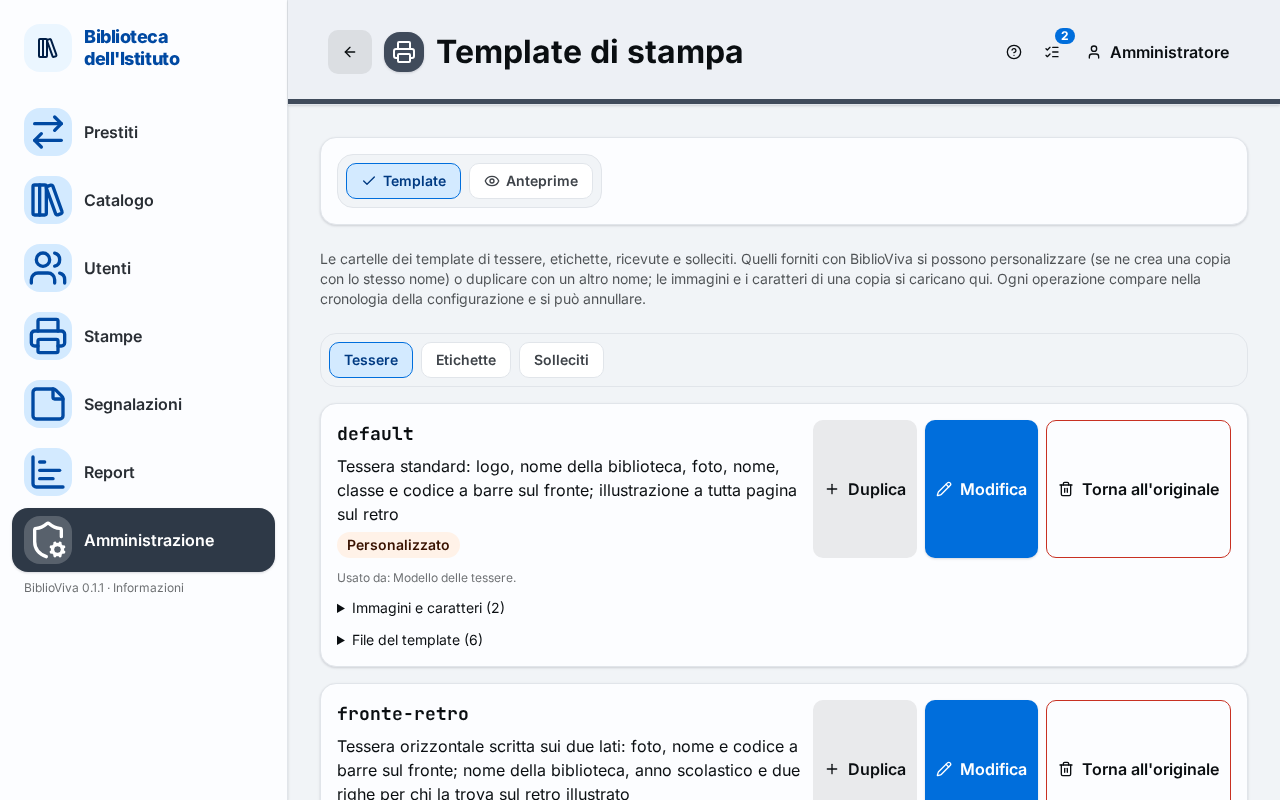
- The Templates and Previews tabs.
- The Cards, Labels and Slips groups.
- The box of a template, with its origin and commands.
- The collapsible lists of the images and files of the template.
Templates tab
Each template is a folder and has a box with the name, a description and these indications:
- the origin: Shipped with BiblioViva, Customised (a copy that takes the place of the original) or Added;
- for labels, the type of label;
- Has errors, if the template cannot be used, and the reason written below;
- "Used by" and the settings that use it (for example the default card template), or "Not used by any setting".
The commands depend on the origin.
- Customise, for a template shipped with BiblioViva: creates a copy with the same name that takes the place of the original; the original stays available to go back.
- Duplicate: creates a copy with another name, ready to be changed. The name uses lowercase letters, digits, hyphens and underscores.
- Edit: opens the template editor. Only for the school's copies.
- Rename: changes the name of the folder; the settings that use the template follow the new name. Not for the copies that replace a shipped template.
- Delete: deletes the folder and its files. For a customised template the button is called Back to the original and puts the shipped template back in use. The button is off while the template is used by a setting: choose another template first.
Every operation asks for confirmation in a dialog and appears in the History, from which it can be undone. The templates shipped with BiblioViva are not edited directly.
Images and fonts
The collapsible list "Images and fonts" shows the image and font files of the template, with their size and the files they are used in ("not used" if none uses them). Upload a file adds one (PNG, JPEG, WebP, GIF, SVG or WOFF2, WOFF, TTF fonts; the limit in MB is written next to it); the bin removes a file that is not used. A template shipped with BiblioViva has no upload: customise it first.
Template files
The collapsible list "Template files" names the HTML and CSS files of the template. Their content is edited with the editor.
Previews tab
The Previews tab shows how the templates come out. The Reload templates button re-reads the folders from the disk, useful after changing them by hand. Each template has the labels "Valid" or "Error", "Default" for the one in use, "Shipped with the app" or "In the configuration" as origin, and the folder.
Cards
For each template the tab indicates the patron types it is chosen for ("For: …") and shows the Preview of the Front and of the Back. The controls are:
- Patron to show: a Sample patron or a Real patron, to search by last name or first name;
- Zoom;
- Whole sheet: an A4 page with the sample patron, as it will be printed;
- Print test page: the "Card test page", with a 10 cm ruler that must measure 100 mm after printing (print at 100 %, without "fit to page").
Below, the "How to create a template" box summarises the steps: duplicate, edit, check the preview, choose it in the Cards or Labels settings. A template that cannot be used shows the warning "The template cannot be used until it is fixed".
Labels
For each label template the tab shows the preview, the adhesive sheets it is designed for, the size of the unit and the variant, and the Sample sheet. The "Label calibration page" box offers the choice of the Adhesive stock and Print calibration page: it is printed on plain paper and laid over a sheet of labels to check the margins. Guide: Add a label sheet.
Slips
It lists the notice templates with their origin and, if there are any, their errors. With no templates "No slip template yet" appears.
Template editor
Edit opens the editor, titled "Edit" followed by the name of the template. Design and code act on the same files: every change made in one view also appears in the other.
- Design: the template as boxes to move and resize. The Grid (from "None (free)" to 10 mm), the Zoom and the face (Front or Back) are chosen, and elements are added with Add: Field, Text, Barcode, Photo, Pictogram, Image, Box. The side panel adjusts position, size, font, colours and border of the chosen element; for a card it also allows choosing the background (Choose a background, Upload a picture) and the card format.
- Code: the HTML and CSS files of the template.
- Preview: the result.
Save records the template ("Template saved"). If the template cannot be printed, the editor lists the problems under "The template cannot print like this:".