
Step-by-step guide
Remove the sample data
This guide explains how to delete the invented students, books and loans that the first run can load to try out BiblioViva, before entering the real data. It is for whoever administers BiblioViva and chose Load sample data at the first run.
The sample data corresponds to no real person. On the dashboard a panel appears that begins "This installation holds sample data": as long as it is there, the data is still the sample data.
- Time: about 5 minutes.
- Account:
admin. - Requirements: no real data entered yet. The deletion empties patrons, books, loans and photos; the classes stay.
Warning. The deletion does not tell sample data from real data: it empties patrons, books, loans and photos. Do it before importing or entering real data, not after.
Procedure
- Log in to BiblioViva as
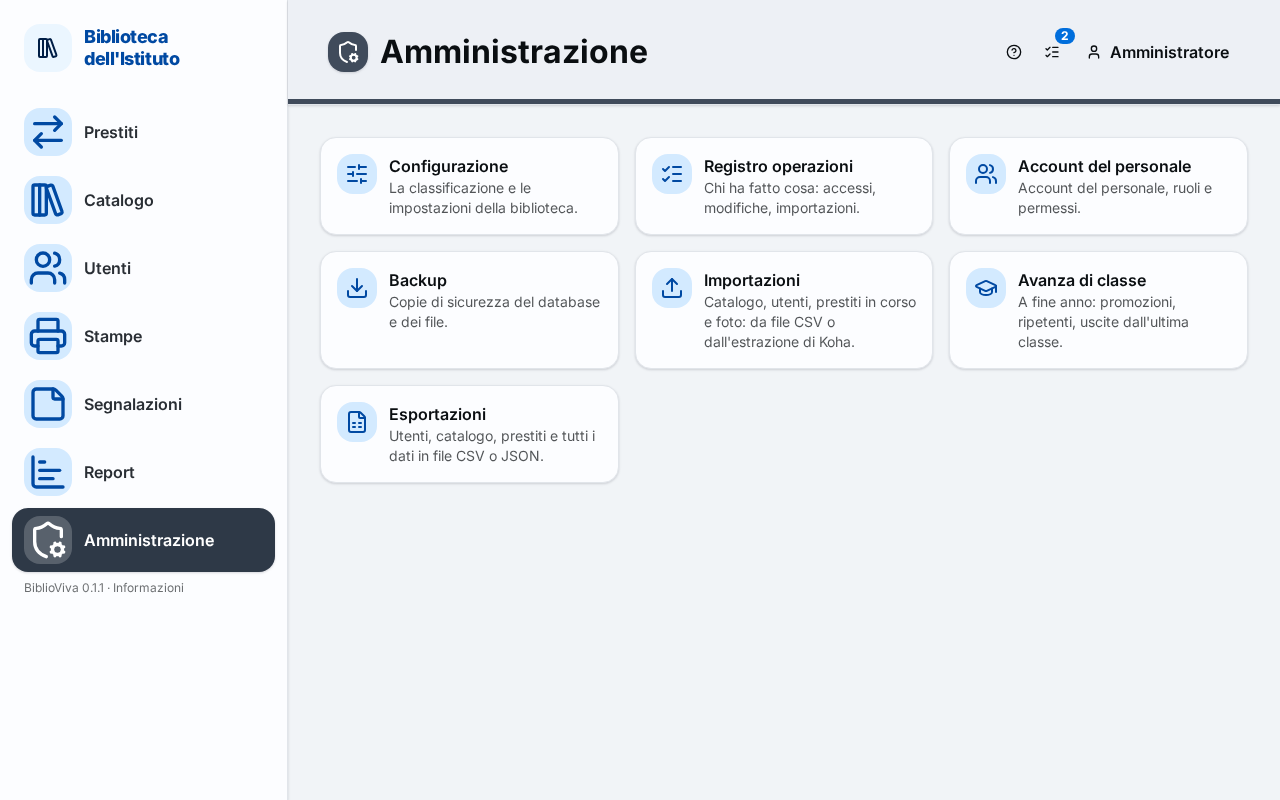
admin. - Open Administration.
- Press Clear sample data, at the top right. The button appears only as long as the sample data is there.
- At the question "Clear the sample data?" press Clear sample data. The sample patrons, books, loans and photos are deleted; the classes and the teachers' group chosen at the first run stay. All the operators are logged out.
- Read the message "Sample data removed. Sign in again." BiblioViva opens the Log in page and a second notice reminds that the accounts still have the sample password "biblioviva" and that it must be changed.
- Log in with
admin. With the sample data all the accounts had the same simple password, shown at the first run. - Change the passwords of all the accounts straight away: see Change a password.
Result
- The database is empty: no patron, book, copy or loan. The sample data panel no longer appears on the dashboard.
- The configuration (name, colours, settings, print templates), the staff accounts and the classes created at the first run stay.
- The operators must log in again.
Possible problems
- The Clear sample data button does not appear: there is no sample data, because it was not loaded at the first run or has already been removed. The button is also missing in the public demo, which recreates itself.
- If the sample data is wanted back after the deletion: it is not possible from here. To start over the technical procedure "Resetting an installation back to the first-run wizard" in the page Deployment notes is needed.