
Configuration
The Configuration page lists all the settings of BiblioViva and the editors of what the library owns: appearance,
classes, classification, print templates and reports. It is reserved for the admin account and opens from the
Configuration tab of Administration. The settings are gathered in sections, each saved in a file of the
configuration folder; every change made from here keeps the previous version in the History. The
complete list of values is in the technical configuration reference.
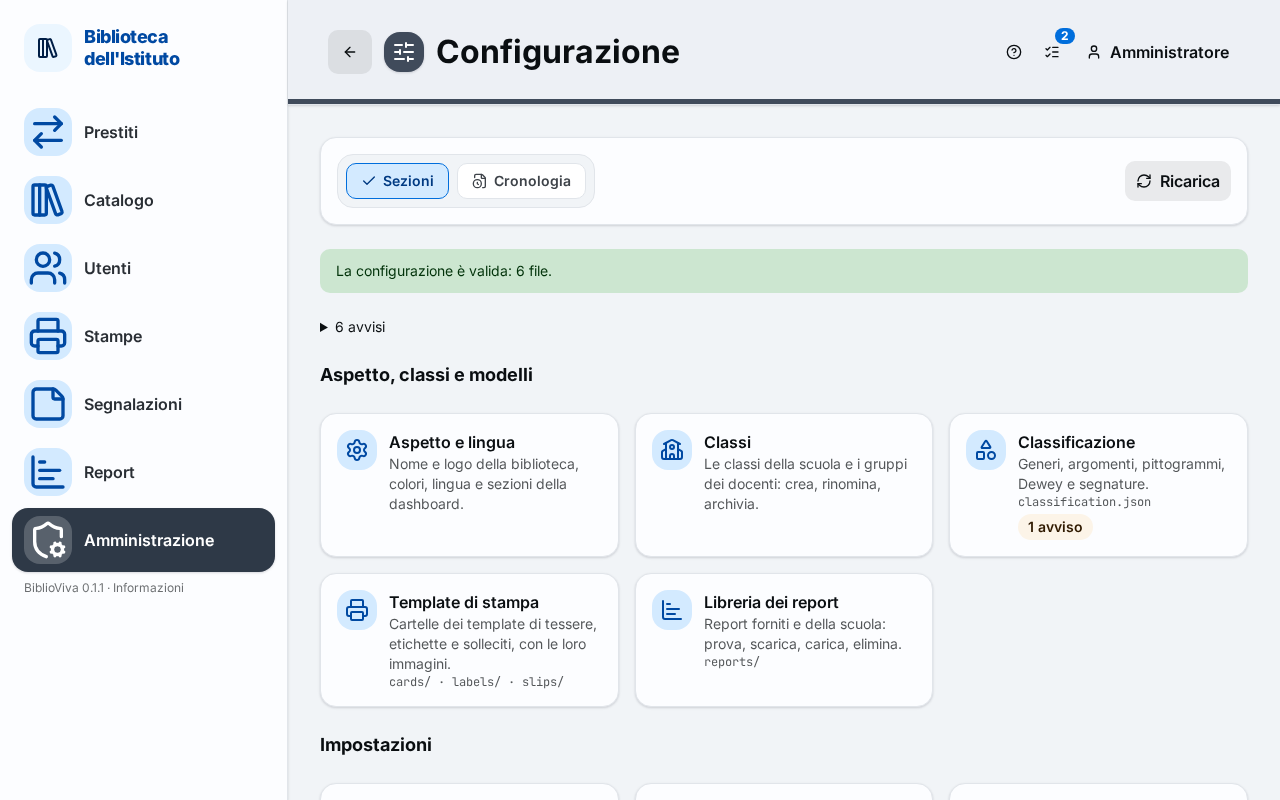
- The Sections and History tabs, which switch pages inside the Configuration.
- The Reload button.
- The notice on the state of the files (valid, changed by hand, with errors).
- The "Appearance, classes and templates" group.
- The "Settings" group, one tab per section, with the name of the file it is saved in.
- The "Configuration archive" panel.
Reload
The Reload button re-reads the files of the configuration folder. It is needed when the files have been changed by hand. If the files have errors the previous configuration stays in use and the message "The files have errors: the previous configuration stays in use." appears.
State of the files
Above the tabs a box says what state the configuration is in:
- green: "The configuration is valid", with the number of files;
- light blue: "The files were changed by hand: press "Reload" to use the changes.";
- yellow: "The configuration has not been created yet: the example values are used.";
- red: "The configuration files have errors", with the list of files and keys to correct. The library goes on with the previous version until the errors are corrected.
When there are warnings, a collapsible list with their number shows them one by one. A warning does not stop the program from working.
Appearance, classes and templates
Five tabs open the dedicated editors, each on a page of its own.
- Appearance and language: name and logo of the library, colours, language and dashboard sections. See Appearance and language. Guide: Set up the library.
- Classes: the classes of the school and the teachers' groups. See Classes. Guide: Set up the classes.
- Classification: genres, subjects, pictograms, Dewey and call numbers, with the reading levels. Guide: Change the classification and the reading levels.
- Print templates: the template folders of cards, labels, receipts and notices. See Print templates.
- Reports library: the shipped reports and those of the school. See Reports library.
Configuration archive
At the bottom of the page the "Configuration archive" panel keeps the whole configuration in a single file: settings, print templates, adhesive sheets, pictograms, logo, reports and languages (not the history). It serves to keep a copy of it or to take it to another installation.
- Export configuration downloads the archive.
- Import configuration uploads an archive, checks it and shows how many files are new, changed, removed or the same and which sections change; Import applies it, after a confirmation. The import also accepts a backup or an "Export everything" archive: it takes only the configuration from it, the library's data do not change.
- The Export the chosen parts command, in the "Choose what to export" box, limits the archive to some parts.
If the archive has problems (it is not a ZIP, it is not from BiblioViva, it contains paths that are not allowed) the import does not start and the reason is written in red. Guide: Export and import the configuration.
A settings section
Each tab of the "Settings" group opens a page with the settings of that section. The pages are all built the same way:
- At the top the name of the section and, under it, "Saved in" followed by the name of the file. If the section comes from several files "Also from" appears too.
- The two modes Settings and JSON. Settings is the form; JSON shows the section as it is written in the file, for whoever edits it by hand.
- In the form every setting has its name, an explanation, the default value ("Default: …") and, when the value has been changed, the Back to the default command. The settings are grouped under headings; the keys of the section itself are under General.
- Save and Discard changes appear at the top right; with changes not yet saved Unsaved changes appears. An invalid value is marked and blocks Save (message "Fix the marked values before saving."). When leaving with unsaved changes the page asks for confirmation ("Leave without saving?").
- If the save would take away something still in use (for example a copy type with copies, or a class with patrons) the page says so and does not save.
- At the bottom, "Other settings of this section" lists the keys that are changed elsewhere, with the Open command towards the right editor, or "In the JSON tab for now".
The sections are below, in the order of the list.
Library and school
Name, contact and calendar of the school: Library name, Contact email, Start of the school year, Name of the school year, Time zone, First day of the week. It also holds the list of Copy types (book, DVD, reference…), which decides the loan rules: the code of a type is changed only by moving its copies to the new code. The name and logo are changed more conveniently in Appearance and language. Guide: Set up the library.
School
The school stages and years, how the class is written, what happens to the classes at the end of the year: How a class is written, Word for the class, Class on the card, Name of the teachers group, At the end of the year, within a stage, At the end of the year, into another stage, plus the "Stages and years" editor. The classes themselves are created in Classes. Guides: Set up the classes and Upgrade the classes.
Catalogue
The values to use when author, publisher or place are unknown: Special authors, Unknown publisher, Unknown place. Author and publisher are always required in a record; these values are the quick choices. Use in the catalogue: Catalogue a new book.
Barcodes
The format of the card and copy codes: Computer keyboard, Camera sound (optional, it applies only to reading with the phone), Barcode type of the cards, Barcode type of the copies, under the headings "Patron cards" and "Book copies". The "Code formats" and "Numbering and preview" editors make it possible to choose the format of the new codes, the earlier formats that keep working and the starting number of the new cards. Guide: Choose the barcode formats.
Loans
The loan rules: "Rules for students" and "Rules for teachers" (Loan days, Most books on loan, Most renewals, Renewal days), Due date computation, Renewals start from, Renew after the due date too, No new loans with overdue books, Latest due date, Loan receipt and, under "Overdue notices", Notice template, One page per class and Days late before a notice. The "Rules per copy type" editor changes a rule for a copy type (for example DVDs for 5 days). Guide: Set the loan rules.
Calendar
The closed days: the Italian national holidays option and the "Library calendar" editor, with the weekly closing days, the closed days chosen with a click and the "Closed periods". Guide: Set the school calendar. Closures are also marked from the desk calendar: Mark closures in the calendar.
Z39.50 (SBN)
The catalogues the book records come from: Default server, Waiting time limit (ms), Results per ISBN, Results per search and the "Z39.50 catalogues" editor, in which Test connection makes a real search without saving. Use: Catalogue a new book.
Book data
The data sources when searching by ISBN: Data sources, Days a search is remembered, Waiting time limit (ms). Use: Catalogue a new book.
Performance
The computer BiblioViva runs on and the settings that depend on it: Computer (the profile), Database cache (MB), Database memory map (MB), Pages before a checkpoint, Images processed together, Z39.50 searches together, Prints and exports at a time, Memory to check passwords (MB), Memory saving. Normally it is enough to choose the right profile; the other values adjust. Technical details: configuration reference and installation.
Classification
The section has no settings page: it is edited with its own editor (see Appearance, classes and templates). Guide: Change the classification and the reading levels.
Cards
Format of the cards and of the print sheet: Card template, Card printing, Validity (months), Photo on the card (only with photos on), the sizes under "Card size", the "Print sheet" (Paper size, Cards per sheet, margins, fold and cut marks) and the "Printing on both sides" with the "Shift of the backs". The "Template per patron type" editor chooses the template of students and teachers. Calibrate two-sided printing also opens from the section. Guides: Edit the card template and Calibrate two-sided printing.
Labels
The labels and spine bands of the books: Default labels, Title letters, Black-and-white printer and, for each job ("Pair: spine band and label", "Barcode label only", "Spine band only"), the Template and the Adhesive sheet. The "Adhesive label sheets" editor defines the measures of the sheets and prints the test page. Guides: Edit the labels and the spine band and Add a label sheet.
Patron photos
The Patron photos switch, Photo required, the size and format of the photos (Width (px), Height (px), File format, Quality, Largest upload (bytes)) and the limits of the pictures with many photos under "Pictures with many photos (census from a picture)". With the switch off no photos are taken or shown, but those already saved stay. Guide: Switch off photos or covers.
Covers
The Book covers switch, the sizes (Width (px), Largest height (px), Smallest width (px)), File format, Quality, Country, Look for the cover by itself, Waiting time limit (ms) and the "Where covers come from" editor, which lists the sources in the order in which they are tried and allows switching them off one by one. Guide: Switch off photos or covers. Use in the catalogue: Add a cover.
Privacy
Months of the audit log: the rows of the Audit log older than this are deleted.
Backup
Backup time (in cron form, for example every night at 3), Backup at start if missed, Days kept, Off-site copy in use and Copy destination; below, "Next backups" shows the next runs in the library's time zone. Guide: Make and download a backup. The backups page is Backups; the off-site copy is prepared as described in Backups.
Security and access
Session length (days), Login attempts and Pause after too many attempts (minutes). The accounts and roles are edited in Staff accounts. Guides: Manage the staff accounts and Change a password.
Interface
Loans desk idle time (seconds) and the "Language packs" editor, which installs, downloads and deletes the added languages. Colours, language and dashboard are instead in Appearance and language. Guide: Add a language.