
Backups
The Backups page shows the safety copies of the database, makes it possible to make one at once, download it and restore the data
or the configuration. It is reserved for the admin account and opens from the Backups tab of
Administration. The program makes a copy of the database by itself every night; the time and the retention
are chosen in the Backup section of the Configuration. The procedures are in the guide
Make and download a backup; for restoring from the terminal and for the copy outside the
computer see Restart from a backup and
Backups.
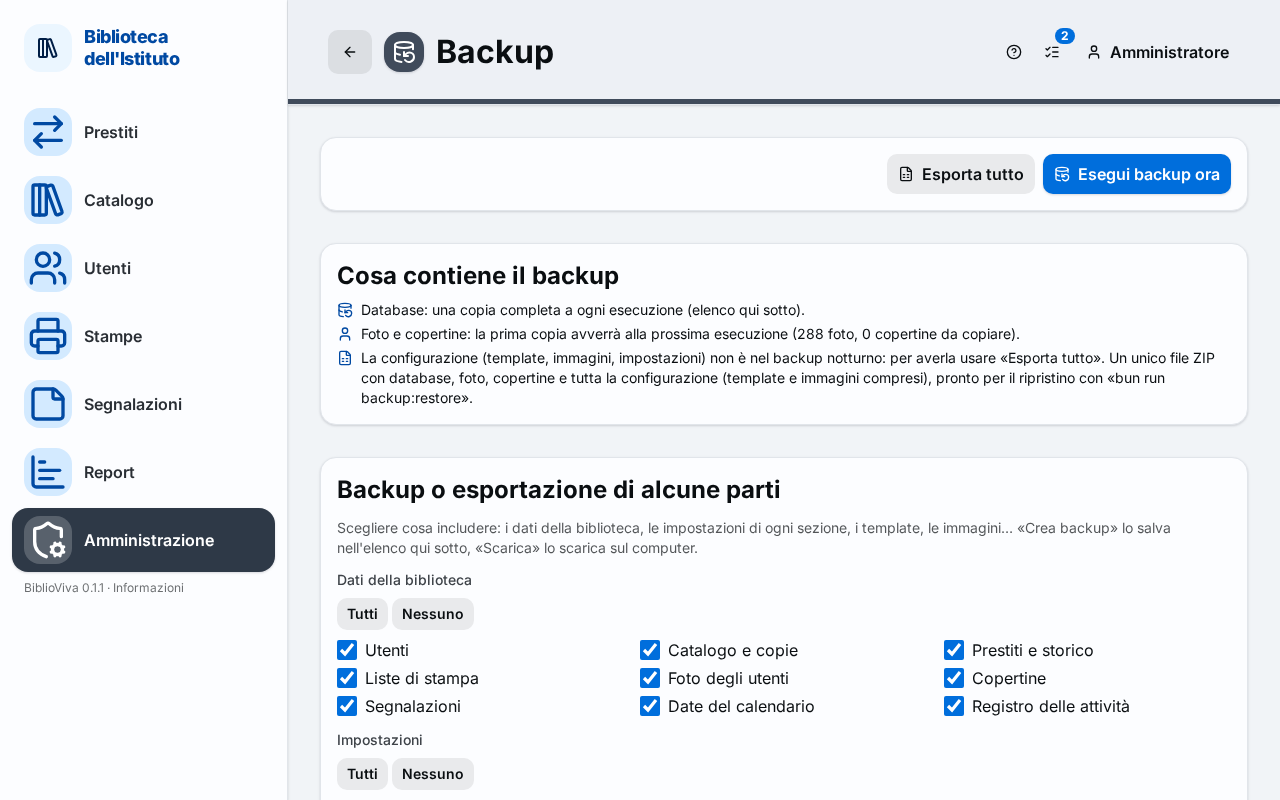
- The Export everything and Back up now buttons.
- The "What the backup contains" box.
- The "Backup or export of some parts" box.
- The state of the off-site copy.
- The list of copies, with Download and Restore… on every row.
- The "Restore" panel.
Back up now
The Back up now button creates a full copy of the database at once. When it finishes the message "Backup created" appears with the name of the file; if the retention deleted old copies, the message says how many.
Export everything
The Export everything button downloads a single ZIP file with the database, photos, covers and the whole
configuration, templates and images included, ready for restoring with bun run backup:restore. In the public demo the
download is disabled.
What the backup contains
The box summarises the content of the nightly copy.
- The database: a full copy at every run.
- The photos and covers: copied every night into the
uploadsfolder of the backup, with their number. Before the first copy the box says how many are to be copied. - The configuration (templates, images, settings) is not in the nightly backup: to get it use Export everything or the archive of the Configuration.
Backup or export of some parts
The box allows including only some parts. The parts are in three groups:
- "Library data": Patrons, Catalogue and copies, Loans and history, Print lists, Patron photos, Covers, Staff notes, Calendar dates, Activity log;
- "Settings": one item for each section of the configuration;
- "Classification, templates and more": Classification and pictograms, Label sheets, Calendar, Reports, the templates of cards, labels, spine bands, receipts and notices, Language packs and Library logo.
The All and None commands of each group choose or empty the items. Some parts need others to be restored: the page points it out. Create backup saves the choice in the list; Download downloads it to the computer.
Off-site copy
The "Last off-site copy" box says whether the copy outside the computer (with rclone) is active and how it went:
- "Off-site copy not configured", when the service is not active;
- "The service is enabled but has not written any result yet";
- "Last copy succeeded" or "Last copy failed", with date and time;
- "The off-site copy is older than two days: check the offsite service";
- the "Destination" of the copy.
The list of copies
Each row shows the name of the file, the creation date and the size. A copy made at start because the scheduled one was missed (computer off) carries the Made up at start label. With no copies "No backups yet. The first one runs at the scheduled time, or press "Back up now"." appears.
- Download downloads the file of the copy.
- Restore… prepares the restore from that copy and leads to the "Restore" panel.
Restore
The "Restore" panel brings back only the chosen parts; the others stay as they are. Start from a copy of the list with Restore…, or upload a BiblioViva archive with Upload an archive (a backup, Export everything or the configuration archive; the maximum size is written on the page, a larger one is copied into the backups folder of the server). Before restoring, the page checks everything and shows:
- which archive, and of which date, is being restored;
- for each part, how many items there are now and how many in the backup;
- the images that will be restored (photos and covers);
- the warning "Some data would be left without what it refers to", with the part to add to the choice;
- the block "The backup is from another version of BiblioViva", which cannot be restored;
- the message "The file is not a BiblioViva archive", if the file is wrong.
The Restore button asks for confirmation ("Restore the chosen parts?"): the chosen data and configuration are replaced by those of the backup. The configuration can be taken back from the History; for the data it is better to make a backup first, if there is no recent one. When the operation ends "Restore completed" appears.