
Upgrade the classes
This guide explains how to move all the students up to the next year at the end of the school year: each class moves up
with its students (3 B becomes 4 B) and whoever finishes the last year leaves the school. It is for whoever
administers BiblioViva and is done once a year, when the administrator decides: BiblioViva never runs it by itself.
- Time: 20 to 40 minutes, plus the time to import the new students.
- Account:
admin. - Requirements: no books on loan to the students of the last year (or the decision to keep them at school), the list of the new students of the first-year classes.
Warning. The personal data of the students who leave the school (first name, last name, contacts, registration number, card number, photo) are erased at once and for good; only the class and the statistics remain. The operation cannot be undone, except by restoring the backup made at the first step.
What the upgrade does, in short:
- each class moves up to the next year and keeps its students; a mixed-year class (a class that hosts several years) moves each student up in their own year;
- the students of the last year leave the school and are removed;
- classes left without students are archived;
- the teachers and their groups do not change;
- loans already made keep the class of the day of the loan, so the statistics of past years stay correct;
- the class pictures uploaded for the photo census are deleted.
Procedure
Before starting
- Open Loans, then Returns, and register the return of the books of the students of the last year. A lost book is marked as lost. Whoever still has books on loan blocks the upgrade, unless they are kept at school (Leavers step).
Run the upgrade
- Log in to BiblioViva with the
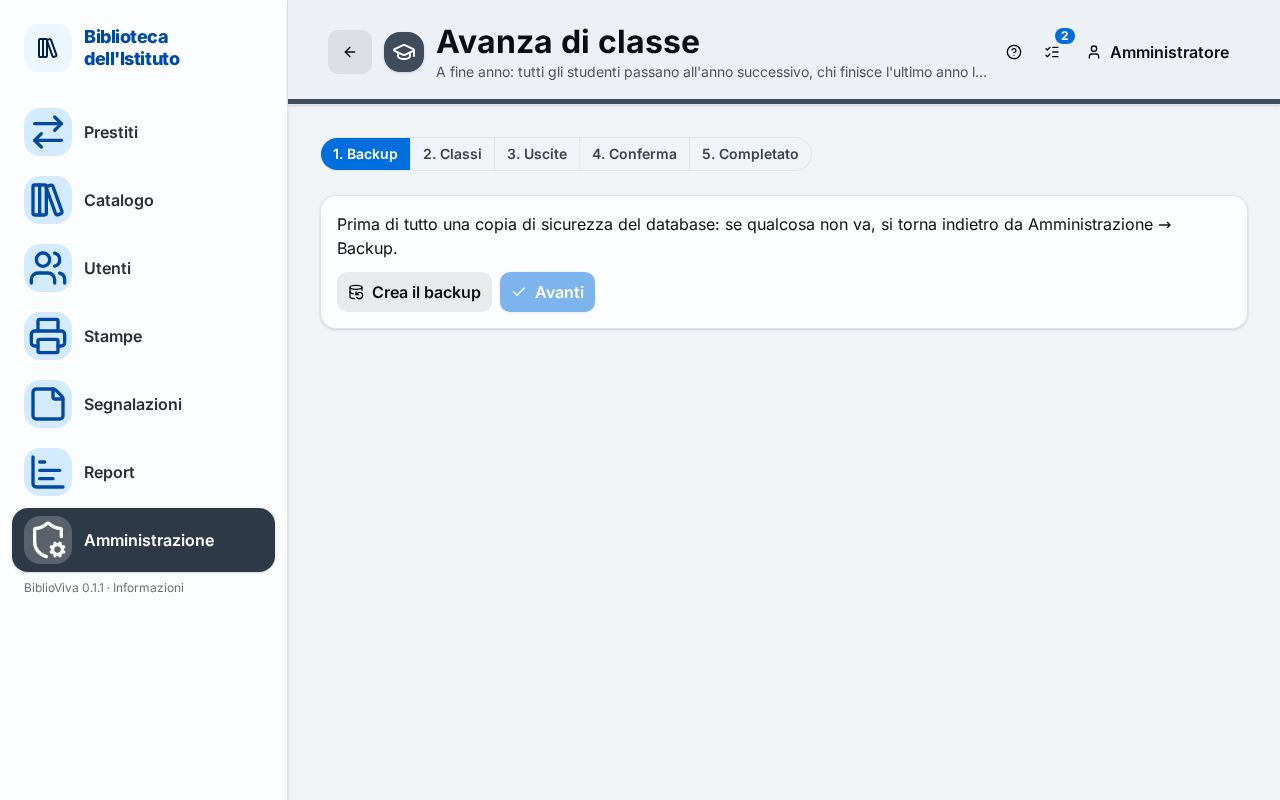
adminaccount. - Press Administration, then Class upgrade. The page shows the steps Backup, Classes, Leavers, Confirm and Completed.
The Backup step
- Press Create the backup. The message "Backup created: …" appears with the name of the file.
- Press Next. The button becomes active only after the backup.
The Classes step
- Read the list: each row shows the move, for example "3 B → 4 B", and the number of students. A Closes mark indicates a class that is left without students and is archived.
- To see the students of a class press its row.
- For a student who repeats the year, tick Repeats. The student stays in their year and in the class that will host them, normally the one with the same name.
- For a student who changes section, choose the new class in the Class menu.
- Where the path splits into several possible years, choose the year in the The year after menu.
- If the page says "… students wait for their class to be picked", choose Pick the class… for each one: the Next button stays off until they are all settled.
- Press Next.
The Leavers step
- Read the list of the students of the last year, each with the Leaves tick.
- Untick whoever stays at school, for example whoever repeats the last year.
- If a student has books on loan, the row shows "… books on loan" and a warning appears above. Press Go to Returns, register the return (or mark the book as lost) and come back to the step; or untick the student.
- Press Next. The button becomes active when nobody who leaves has books on loan.
The Confirm step
- Read the summary: how many students move up a year, how many repeat, how many change class, how many classes close, how many leave the school and are erased.
- If the last upgrade was less than six months ago, tick the box "The last upgrade ran on …, less than six months ago. I confirm I want to run it again.".
- Press Upgrade classes.
The Completed step
- Read the numbers: the students promoted and those who repeat, the classes moved up and archived, the students removed.
After the upgrade
- To create the first-year classes press Administration, then Configuration, then Classes, then New classes: see Set up the classes.
- To load the new students press Import the new students in the Completed step, or Administration, Imports, Students: see Import the students. With a file that contains all the school's students choose Synchronise students; with a file of only the new students choose Add and update.
- Print the cards of the new students with Print the cards of the new patrons and take the photos with Photo census.
Result
The students are in the classes of the new year, the graduates have been removed and the empty classes are archived. The operation appears in the Audit log.
Possible problems
- "Some leaving students still have books on loan." appears: register the return of the books, mark them as lost, or untick Leaves for that student.
- "The backup was not found or is too old: take it again from the first step." appears: the backup is valid for two hours. Go back to the Backup step, press Create the backup and repeat the steps.
- "Some students have no class yet: pick it in the Classes step." appears: go back to the Classes step and choose the class for each one.
- "Confirmation needed: the last upgrade is recent." appears: tick the confirmation box in the Confirm step.
- Something went wrong after the upgrade: restore the backup made at the first step from Administration, Backups: see Make and download a backup. Everything done after the backup is lost.