
Switch off photos or covers
This guide explains how to switch off the patrons' photos, the books' covers or both, when the school prefers not to keep them. It is for whoever administers BiblioViva. The two functions are independent: one can be switched off while the other is kept.
Switching off deletes nothing: the photos and covers already saved stay and reappear if the function is switched on again.
- Time: about 3 minutes.
- Account:
admin. - Requirements: nothing.
Procedure
The patrons' photos
- Log in to BiblioViva as
admin. - Open Administration.
- Open Configuration.
- In the Settings list open Patron photos.
- Untick the Patron photos box.
- Press Save, at the top right. The message "Settings saved" appears.
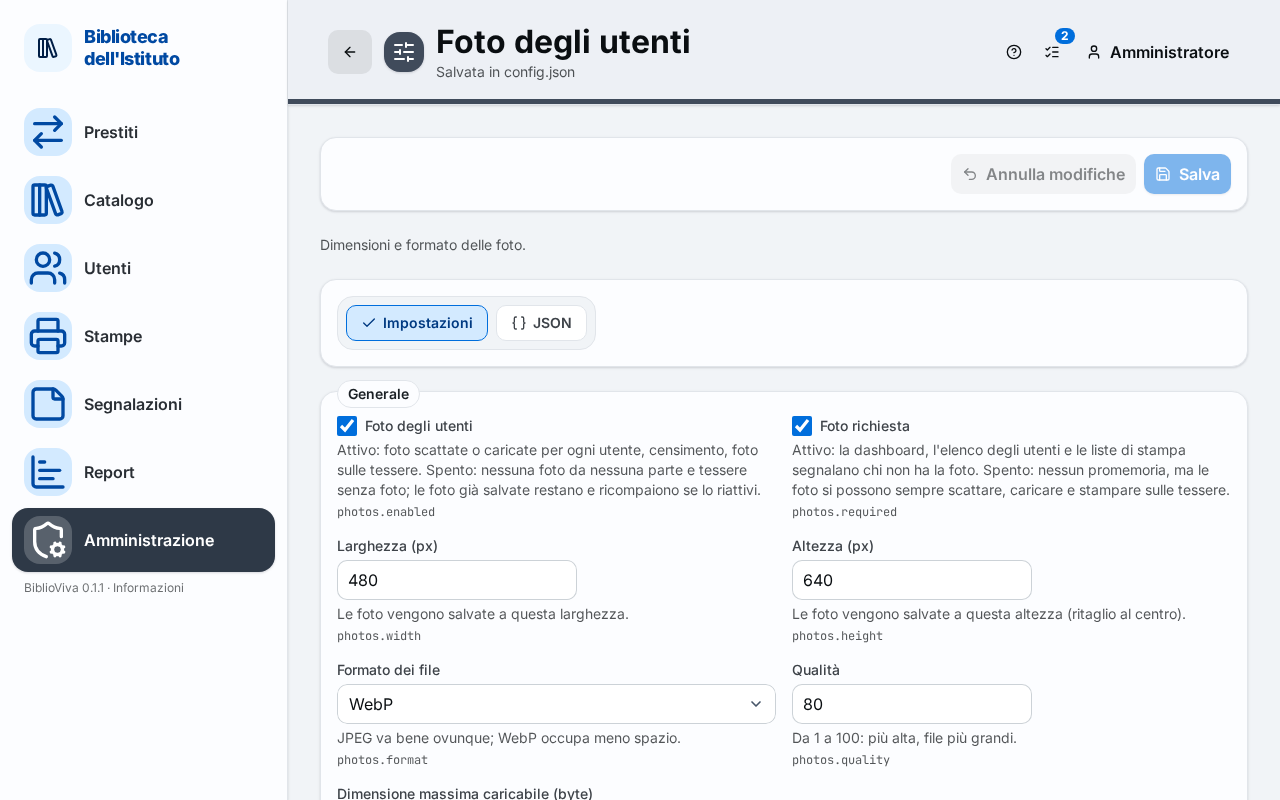
With photos off there is no photo on any page: they are neither taken nor uploaded, the photo census is not there and the cards come out without a photo.
If photos stay on but are not always needed, the Photo required box controls the reminders: when off, the dashboard, the patron list and the print lists no longer flag who has no photo. Photos can still be taken, uploaded and printed on the cards.
The books' covers
- Go back to Configuration.
- In the Settings list open Covers.
- Untick the Book covers box.
- Press Save.
With covers off there is no cover on any page: they are not looked up online, nor photographed or uploaded, and the catalogue does not show them.
Result
- The pages about photos, or covers, no longer show them and no longer ask for them.
- The files already saved stay on the computer and in the backups.
- To switch the function on again, tick the same box again and press Save.
Possible problems
- The photos already saved are really to be deleted: switching the function off does not do it. Deletion is done patron by patron [VERIFY: whether there is a way to delete all the photos at once].
- The cards printed before the change still have the photo: reprint the cards without it.
- "Fix the marked values before saving." appears: a field in the section has an invalid value. Correct it.
- If the page is left with unsaved changes, BiblioViva asks for confirmation.