
Edit the labels and the spine band
Each book has two labels: the spine band, with the pictogram and the call number, and the label with the barcode. This guide is for the administrator who wants to change what is printed on each and where, by drawing with the mouse in the template editor, without writing code.
- Time: about 30 minutes, plus the time for a test print.
- Account:
admin, the only one who sees the Print templates page. - Requirements: a sheet of plain paper for the test and a sheet of adhesive labels for the final check. The label sheet must already be described in BiblioViva: see Add a label sheet.
BiblioViva has three shipped label templates: Pair (pair-default, spine band on top and barcode label below, one
unit per book), Barcode only (barcode-default) and Spine band only (spine-default). The shipped templates
are not edited directly: an editable copy is created, which always leaves the original available. The size of each
label is not decided in the template but in the chosen adhesive sheet.
Procedure
Create the copy to edit
- Open Administration and press Configuration.
- Press the Print templates box, in the Appearance, classes and templates group.
- Press the Labels tab. The list shows the three templates, each with the label type and the Shipped with BiblioViva mark.
- Press Customise on the template to change, for example
pair-default. - Press Customise in the window. The message "Template customised: its copy can be changed" appears.
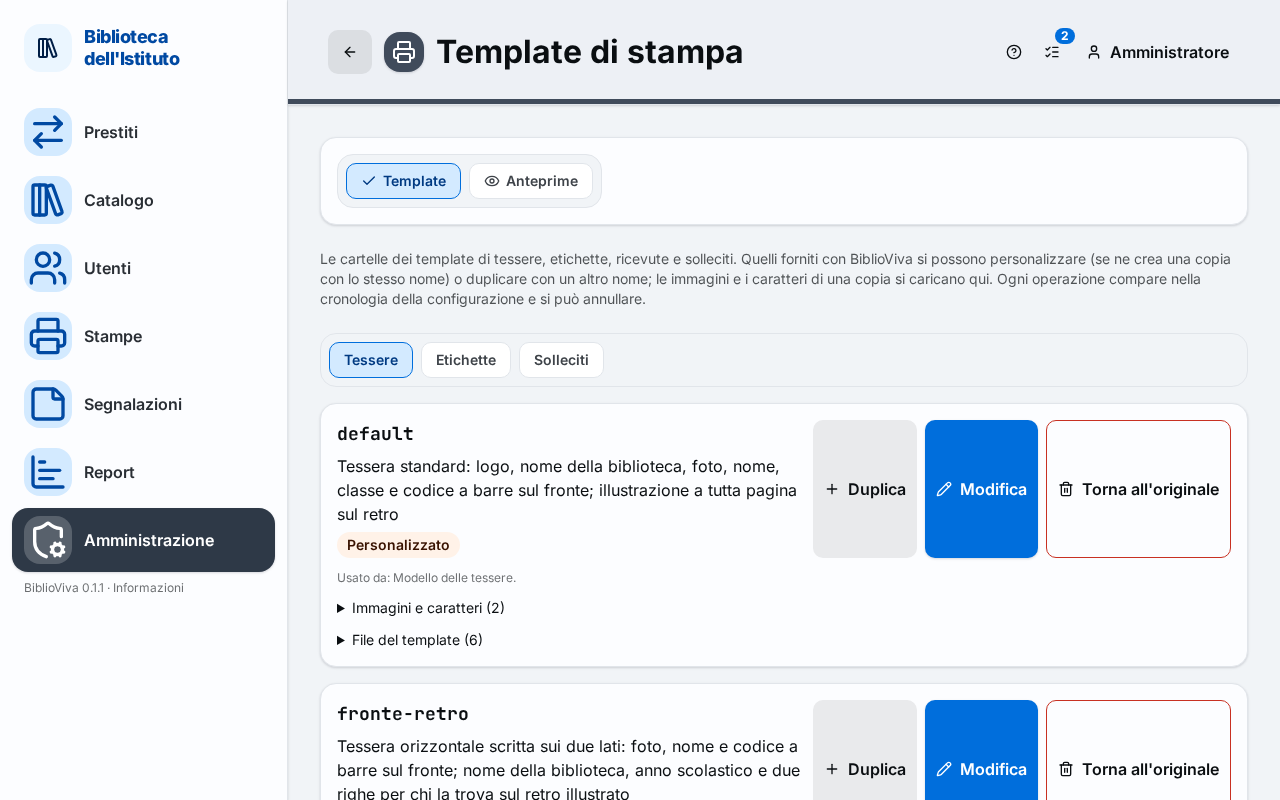
Note. Customise keeps the same name: the settings that use pair-default use the copy at once. Duplicate
instead creates a template with another name to be chosen afterwards in the settings (last step of this guide).
Draw the label
- Press Edit on the customised template. The template editing page opens, in the Design view.
- Choose above the drawing the label to change, in the Faces or labels group. Each button carries the name of a label of the unit (for the pair, the top one and the bottom one) and, if the template has several layouts, the variant: one for sheets with tall labels, another for those with short labels.
- Check the preview under the tab: it shows the label as it is printed, on a sheet that uses that variant. If the warning "No label sheet uses this variant" appears, the drawing is shown without a preview.
- Click a box to select it, drag it to move it, drag the corner to change its size. Grid changes the step to which positions snap, Zoom enlarges the drawing. The keyboard arrows move by one grid step; the panel on the right takes the numbers in X (mm), Y (mm), Width and Height.
- To change the datum of a box, select it and choose another value in Field. For labels the following are available, among others: Call number, Call number: first line, Call number: second line, Short title, Short author, Barcode (text), Classification code, Class name and Reading level.
- To change the look of a text, use Size (pt), Typeface, Bold, Italic, Uppercase, Alignment and Colour.
- To add an element, press one of the buttons under Add: Field, Text, Barcode, Pictogram, Image, Box or Free HTML. The Image button works only after an image has been uploaded among the template files (Upload a file in the list of templates).
- To remove an element, select it and press Delete.
- Press Save. The message "Template saved" appears.
Important. The labels of the shipped templates adapt by themselves to the size of the sheet. As soon as an element of a label is moved, the positions of all the elements of that label are written to the file, and that label stays fixed to the sheet size it was drawn with. Under the drawing the warning "… elements of this face are laid out by the style sheet" appears. For a template valid for sheets of different sizes, change only colours, texts and fields with the mouse and do not move anything.
Note. The spine band shows the pictogram and the colour of the classification. Pictograms and colours are chosen in Configuration → Classification: see Change the classification and the reading levels. With a black-and-white printer, the coloured stripe of the short spine bands becomes a hatching: the option is Black-and-white printer in the Labels section.
Check the label on the sheet
- Go back to the Print templates page and press the Previews tab, then Labels.
- Choose the edited template in the list.
- Choose the sheet in Adhesive stock. The measures of the unit and the variant used appear above the preview.
- Press Fiction or Non-fiction: the template changes according to the type of book (the spine band looks different for fiction and for non-fiction).
- Press Sample sheet. The whole sheet opens in a new tab, with test data.
- Press Print calibration page, print on plain paper at 100% (without "fit to page") and lay the printed sheet over a sheet of labels, checking against the light that the outlines fall on the labels. If they do not, correct the margins of the sheet: Add a label sheet.
Use a template with another name
This step is needed only for a template created with Duplicate.
- Open Administration → Configuration and choose the Labels section.
- In the group of the label to change (Pair: spine band and label, Barcode label only or Spine band only) write the name of the new template in Template.
- Press Save.
Result
Labels printed from the moment of saving, from the catalogue, from a print list or from a book's record, use the edited template. Labels already printed do not change. Every save is a configuration change and can be undone: Undo a configuration change.
To go back to the original template, in the list press Back to the original on the customised template.
Possible problems
- The Save button is off. There are no changes, or the template cannot be printed: read the red box "The template cannot print like this:" above the drawing.
- The preview does not change. The preview updates shortly after each change. If it does not update, check that the chosen variant is the one used by the label sheet.
- A part of the label cannot be moved. Parts inside a code section are edited in the Code view; the drawing says so under the label. For the code see Print templates: authoring guide.
- The labels come out shifted on the sheet. The template is not the cause: the position depends on the sheet. Print the calibration page and correct the margins: Add a label sheet.
- The chosen sheet does not have the right number of rows for the pair. The pair uses two labels one above the other: the sheet must have an even number of rows.