
Edit the card template
The card template decides what is printed on the front and back: logo, library name, photo, name, class, barcode, background. This guide is for the administrator who wants to change the look of the cards by drawing with the mouse, without writing code.
- Time: about 30 minutes for a first touch-up, plus the time for a test print.
- Account:
admin, the only one who sees the Print templates page. - Requirements: the card printer and a sheet of plain paper for the test. For a custom logo or background, the image file (PNG, JPEG, WebP, GIF or SVG).
The templates shipped with BiblioViva are not edited directly: an editable copy is created first, which is the real subject of this guide. The original stays available to go back to at any time.
Procedure
Create the copy to edit
- Open Administration and press Configuration.
- Press the Print templates box, in the Appearance, classes and templates group. The page opens with the tabs Cards, Labels and Slips.
- Stay on the Cards tab. The list shows the templates: the one normally in use is called
defaultand carries the Shipped with BiblioViva mark. - Press Customise on the
defaulttemplate. A window opens explaining that a copy with the same name is created, which takes the place of the original. - Press Customise in the window. The message "Template customised: its copy can be changed" appears and the template carries the Customised mark.
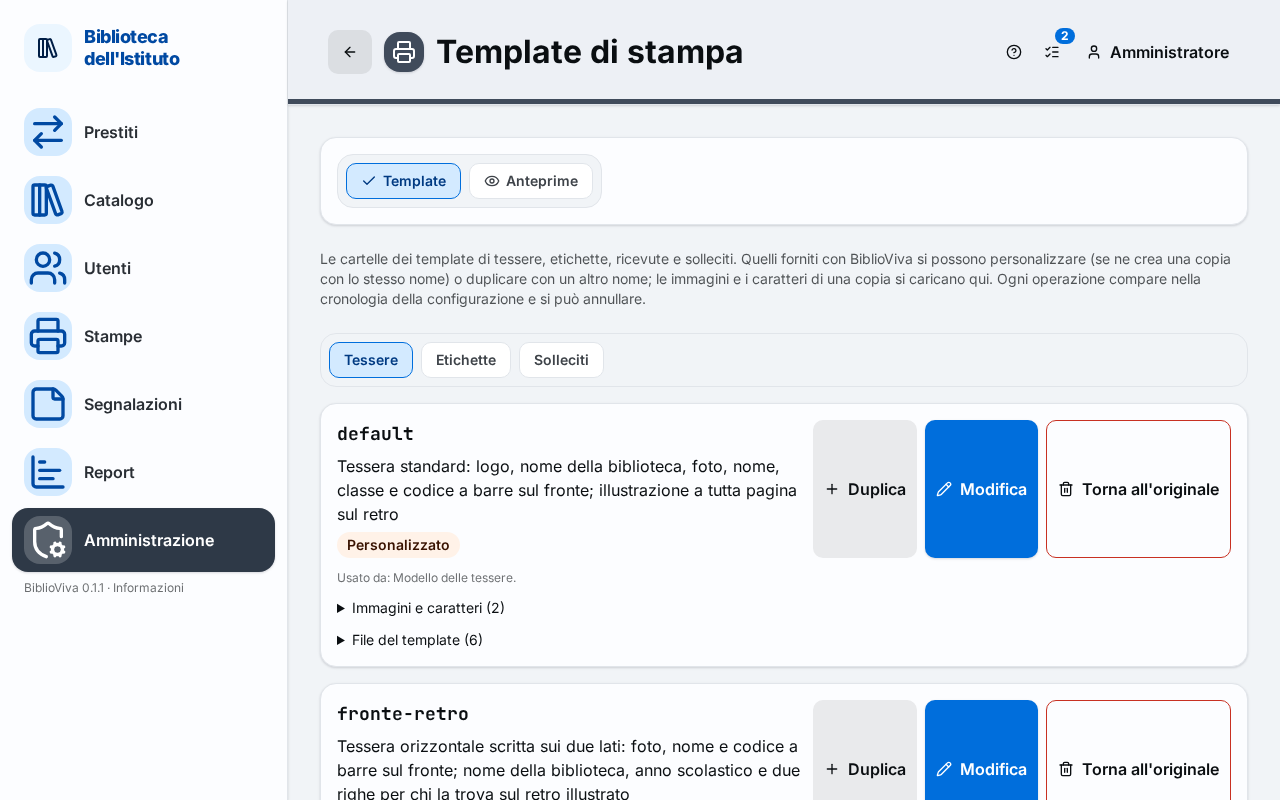
Note. Customise keeps the same name: the settings that use default use the copy at once. Duplicate instead creates a
template with another name, to be chosen afterwards in the settings (see "Use a template with another name").
Upload the images (optional)
- Open the "Images and fonts" list on the customised template.
- Press Upload a file and choose the image. Allowed formats: PNG, JPEG, WebP, GIF, SVG; the maximum size is indicated under the button.
- Repeat for each image needed. The file appears in the list with the "not used" mark until some element uses it.
Draw the card
- Press Edit on the customised template. The template editing page opens, in the Design view, with the Front of the card at actual size.
- Click a box of the card to select it. The selected box shows its handles and the panel on the right lists its properties.
- Drag the box to move it, or drag the corner to change its size. Positions snap to the grid; the grid distance is changed with Grid, and Zoom shows the card larger for working precisely.
- As an alternative to the mouse, use the keyboard arrows (one grid step at a time) or write the numbers in the X (mm), Y (mm), Width and Height fields of the panel.
- To change a printed datum (for example the last name), select the box and change Field in the panel. The data available are those of the card: first name, last name, card number, class and section, library name, school year, issue and validity dates.
- To change a fixed text, select the box of type Text and write in Text.
- To change the look of a text box, use Size (pt), Typeface, Bold, Italic, Uppercase, Alignment and Colour.
- To add an element, press one of the buttons under Add: Field, Text, Barcode, Photo, Image, Box or Free HTML. The Image button works only after at least one image has been uploaded.
- To remove an element, select it and press Delete in the panel, or the Delete key.
- If two elements overlap, select one and use Bring forward or Send backward.
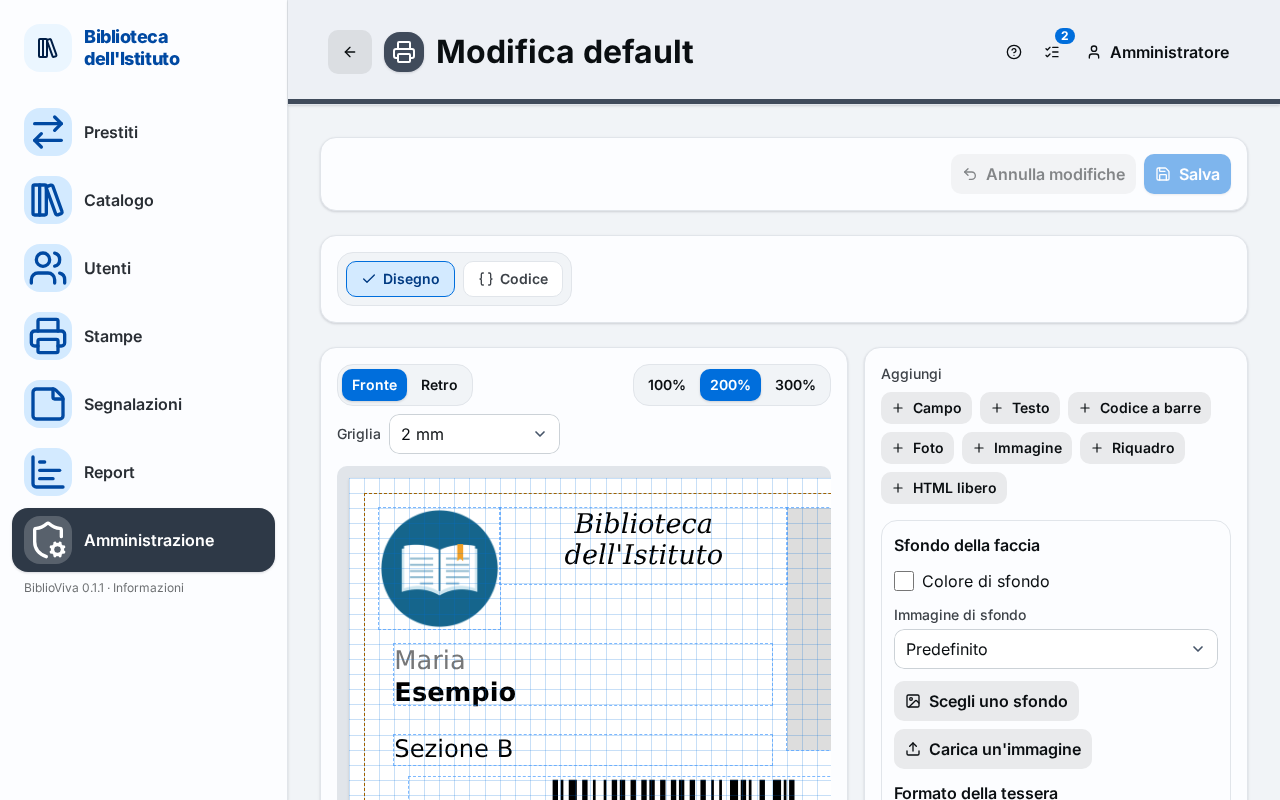
Important. Keep texts and photos inside the dashed line that appears on the card, 2 mm from the edge: when printing front and back on the two sides of the sheet, the back may shift by about a millimetre.
Note. The Photo box is printed only if patron photos are on. If the administrator has switched them off, the card comes out without a photo: see Switch off photos or covers.
Change the background and the size
- Press Back to move to the rear face.
- Click on an empty space of the card, so that no element stays selected. The panel shows Face background.
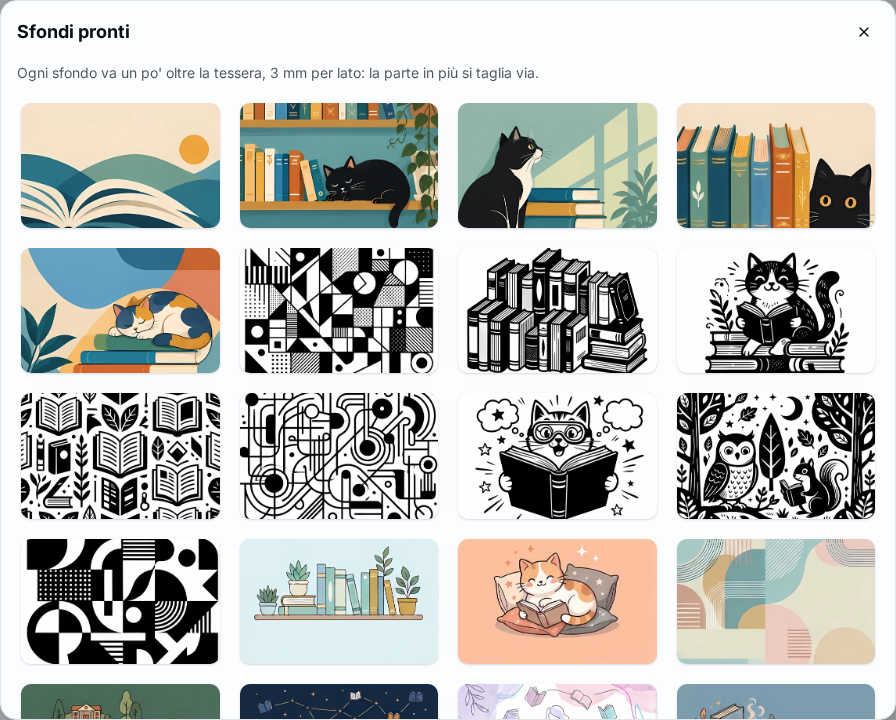
- To use a ready-made background, press Choose a background and click the wanted image. The ready-made backgrounds extend 3 mm beyond the edge of the card: the extra part is cut away.
- To use a custom image, press Upload an image and choose the file; alternatively choose a file already uploaded in Background image.
- For a colour instead of the image, switch on Background colour and choose it.
- To change the size of the card, write the new values in Width (mm) and Height (mm) under Card size. The Rotate: portrait or landscape button swaps the two measures. The size applies to this template only; that of all the cards is changed in Configuration → Cards.
Save and check
- Check the preview: it updates by itself shortly after each change. If the template cannot be printed, a red box appears with the reason and Save stays off.
- Press Save. The message "Template saved" appears.
- To give up changes not yet saved, press Discard changes.
- Go back to the Print templates page and press the Previews tab.
- Choose the template in the list. On the right Front and Back appear at actual size.
- Press Real patron and search for a patron by last name, to see the card with real data. With Sample patron test data are seen.
- Press Whole sheet to see how the card sits on the A4 sheet.
- Press Print test page, print on plain paper at 100% (without "fit to page") and check that the printed 10 cm ruler measures 100 mm.
Use a template with another name
This step is needed only for a template created with Duplicate, or to give teachers a card different from the students'.
- Open Administration → Configuration and choose the Cards section.
- In the Template per patron type block choose the template in Students' card, in Teachers' card or in both. The entry starting with "Same as the default" uses the default template.
- Press Save. The message "Card templates saved" appears.
Result
Cards printed from the moment of saving use the edited template. Cards already printed do not change. Every save is a configuration change and can be undone: see Undo a configuration change.
To go back to the original template, in the list of templates press Back to the original on the customised template: the copy is deleted and the template shipped with BiblioViva is used again.
Possible problems
- The Customise button is missing. The template is already customised or has been added: use Edit.
- The Save button is off. Either there is no change to save, or the template cannot be printed. Read the red box "The template cannot print like this:" above the drawing: it indicates the unknown field or the missing file.
- The image does not upload. The file must be PNG, JPEG, WebP, GIF or SVG (without scripts), or a WOFF2, WOFF or TTF font, and must not exceed the maximum size indicated under Upload a file.
- A part of the card cannot be moved in the drawing. Parts inside a code section are edited in the Code view: the drawing says so under the card. For the code see Print templates: authoring guide.
- The printed texts come out cut off or shifted. Keep them inside the dashed line. If the back does not fall behind the front, calibrate the printing: Calibrate two-sided printing.
- On leaving the page "Leave without saving?" appears. There are unsaved changes: press Leave without saving to lose them, or stay and press Save.
- The template cannot be deleted. A template used by a setting cannot be deleted: first choose another template in Configuration → Cards.