
Change the classification and the reading levels
This guide explains how to change the genres of fiction, the subjects of non-fiction, their colours and pictograms, and the reading levels of the books. It is for whoever administers BiblioViva and is an operation done rarely, because the classification codes are written on the books, in the call numbers and on the spine bands.
- Time: 10 to 30 minutes, depending on the changes.
- Account:
admin. - Requirements: the list of genres and subjects to add, rename or remove; the pictogram images (PNG, JPEG or WebP), if new ones are wanted.
The classification divides the books into genres (fiction: novels, adventure, comics…) and subjects (non-fiction,
with its sub-subjects). Each genre and each subject has a code, a name, a colour and a pictogram, that is the image
printed on the spine band. A fiction book can also have a reading level, for example the level 4 that is read in the
call number B 4 DEL. Reading levels are the library's own scale, independent of the school's classes.
The changes stay in draft until Save is pressed; a previous version of the file is kept in the configuration history.
Procedure
Open the classification
- Log in to BiblioViva with the
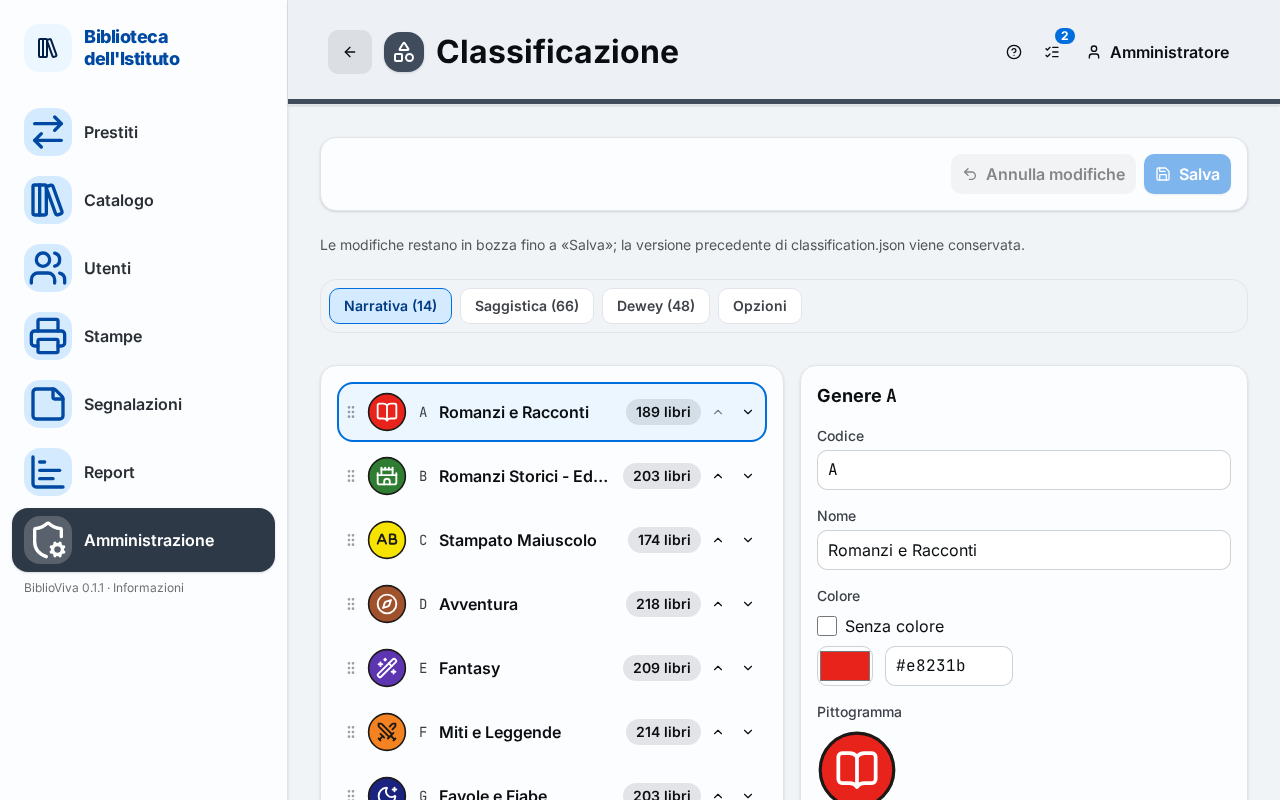
adminaccount. - Press Administration, then Configuration, then Classification. The page has the tabs Fiction, Non-fiction, Dewey and Options; next to each name is written how many entries the tab contains.
Change a genre or a subject
- Open the Fiction tab (for genres) or the Non-fiction tab (for subjects).
- Press the row to change. On the right the Genre, Subject or Sub-subject panel appears (on the phone a window opens). Next to each row is written how many books use it.
- Change the Code, Name, Colour and Pictogram fields. The colour is chosen from the picker or written in
the Colour code field, in the form
#e8231b. - For the pictogram press Upload an image (PNG, JPEG or WebP: it is saved as PNG), or Choose among the images to reuse an image already present. Remove the image removes it: on the spine band a circle with the colour and the code then appears. A sub-subject without a colour or without an image uses those of its subject.
- Look at the Spine band preview at the bottom of the panel: it shows a sample book as it would be printed, at actual size.
Note. Changing the Code of a genre or subject in use also renames the books that use it. On saving, the books move to the
new code and their call numbers are rewritten (for example B 4 DEL becomes A 4 DEL).
Add, order and delete
- To add press Add a genre (Fiction tab) or Add a subject (Non-fiction tab). For a sub-subject select the subject and press Add a sub-subject. Write the code, which cannot also be used by another genre or subject, and the name.
- To change the order in which they appear in the catalogue choices drag the rows, or use Move up and Move down.
- To move a sub-subject under another subject change the Position field.
- To delete press Delete the genre or Delete the subject and confirm with Delete. Deleting a subject also deletes its sub-subjects.
Link a Dewey number to a subject
- Open the Dewey tab. Each row links a Dewey prefix (1 to 3 digits) to a subject.
- To add a row press Add a mapping, write the Dewey prefix and choose the Subject.
- Write a Dewey number in the Try a Dewey number field: the page shows the subject that would be proposed. When a non-fiction book arrives with a Dewey number (for example from the SBN catalogue), BiblioViva proposes the subject of the longest matching prefix.
Set the reading levels
- Open the Options tab.
- Tick Fiction is divided by reading level if the library uses levels. Unticking it makes the level fields disappear from records, labels, filters and reports.
- In the Reading levels box, in order from the easiest, write for each level the Level code (it is the sign
printed in the call number, for example
4) and the Level name. Use Add a level to add one, Move up and Move down to order them, Remove the level to delete one. - Tick The reading level is on each copy only if copies of the same book sit on shelves of different levels; otherwise the level is on the book. On saving, the level of each book passes to its copies (or goes back to the book, if there are no copies of different levels).
- In the Call number patterns group write the pattern of the call numbers for Fiction, Fiction with an associated class and Non-fiction, with the placeholders listed above the fields. Under each pattern an example appears. The pattern applies to copies added after saving; existing call numbers do not change.
Save
- Press Save at the top. The Save the classification window opens, showing what changes in the catalogue.
- If a code used by books was deleted or renamed, the window asks where to move them: for each code choose the new value in the Choose… menu. The new code goes on the books and at the start of their call numbers.
- If a reading level that has books was removed, the window asks in the same way which level the books move to, or No level.
- To put back among the labels to print also the spine bands that change only in name, colour or pictogram, tick the box that proposes it. Leave it off if the difference on the bands already stuck on does not matter.
- Press Save. The message "Classification saved" appears, with the number of books moved, of call numbers rewritten and of spine bands to reprint.
To go back before saving press Discard changes. Leaving the page with unsaved changes makes BiblioViva ask for confirmation.
Result
The new classification applies at once in the catalogue, in the cataloguers' choices and on the labels. The books moved have the new code and call number; their spine bands, and the labels whose call number changed, go back among those to print. The save enters the configuration history: see Undo a configuration change.
Possible problems
- "This code is already used by another genre or subject." appears: a code cannot be used twice, not even by a genre and a subject. Choose another code.
- "Write the colour as #rrggbb, for example #e8231b." appears: correct the colour code.
- The Save button is off: the fields with an error are marked in red; correct them.
- "The catalogue has books with codes the classification does not contain" appears: some books have a code that is not in the classification. Add those codes here or reclassify those books from the catalogue.
- The colour or pictogram of a sub-subject does not change: without a colour or an image of its own the sub-subject uses those of its subject.
- "The file is not an image." or "Format not accepted: use PNG, JPEG or WebP." appears: choose an image in one of these formats. "The image is too large": reduce it and upload it again.
- The save window reports books with copies in different classes: before removing the class from the copies, give the same class to all the copies of each book.