
Calibrate two-sided printing
When cards are printed on both sides of the sheet, the back must fall exactly behind the front. Every printer shifts the back a little: calibration measures by how much and corrects it for good. This guide is for the administrator, after buying a new printer, or when the back of the cards comes out shifted relative to the front.
- Time: about 15 minutes.
- Account:
admin, the only one who sees the calibration page. - Requirements: the card printer with two-sided printing, a sheet of paper or card, scissors or a cutter and a ruler. It is best to use the same paper and the same printer as for the cards.
Calibration is needed only for printing On both sides of the sheet. With Front and back side by side (to fold) it is not needed. It is done once per printer: repeat it when the printer is changed.
Procedure
Open the page
- Open Administration → Configuration and choose the Cards section.
- In the Template per patron type block press Calibrate two-sided printing. The page with the same name opens.
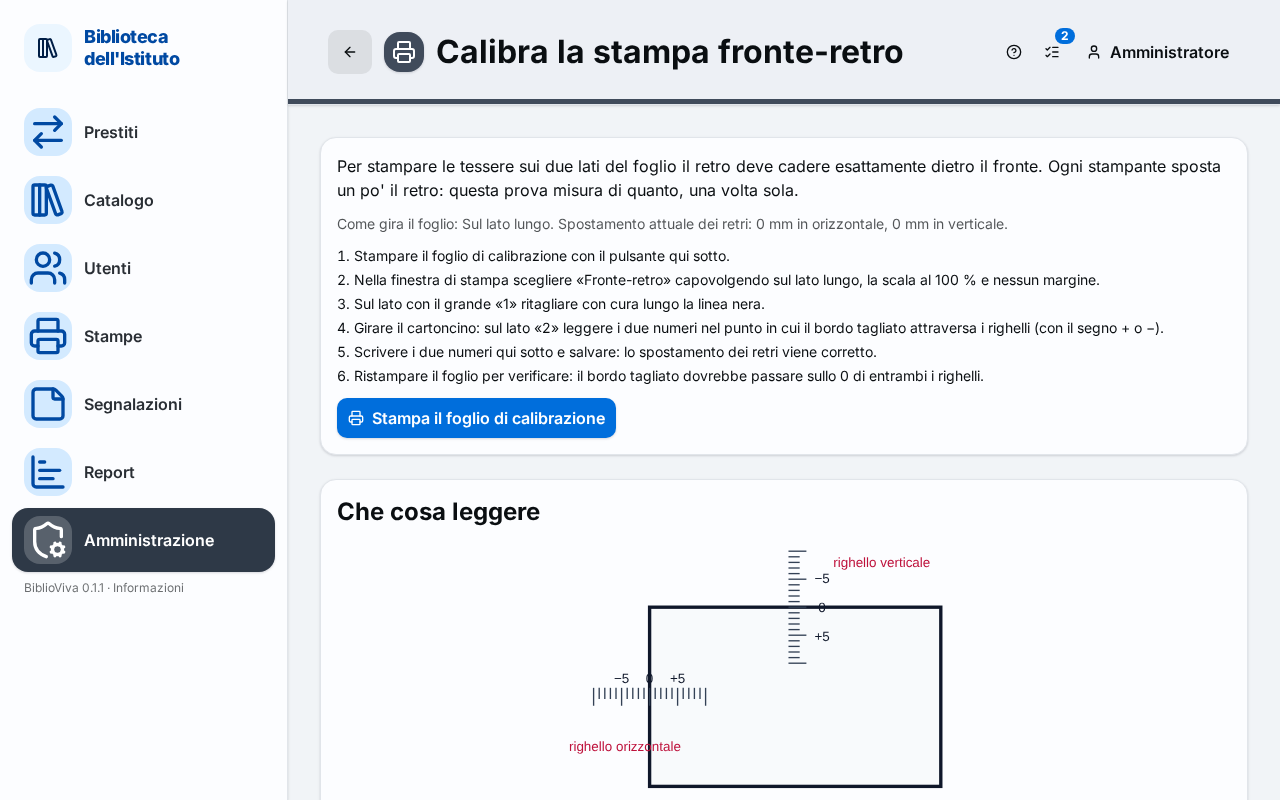
- Read the line that says how the sheet turns and by how much the backs are shifted: for example "How the sheet turns: On the long edge. Shift of the backs in use: 0 mm across, 0 mm down".
Note. The same page also opens from the card print dialog, when On both sides of the sheet is chosen, from the Calibrate two-sided printing link. The card print dialog is described in Print the cards of a class.
Print the calibration sheet
- Press Print the calibration sheet. The sheet opens in a new tab, carrying a large card, 150 × 100 mm, with the number "1" on one side and the number "2" on the other.
- Open the browser's print window and choose "Two-sided" flipping on the side indicated in the page (the line of the page says On the long edge or On the short edge), the scale at 100% and no margins.
- Print.
Important. The side chosen in the print window must be the same as the one written in the calibration page. If the printer turns the sheet in another way, change the How the sheet turns setting in the Cards section, in the Printing on both sides block, before calibrating.
Measure the shift
- On the side with the large "1" cut carefully along the black line.
- Turn over the cut card. On the "2" side there are two rulers, one horizontal and one vertical, with a mark every millimetre and numbers every five.
- Read the number the cut edge crosses on the horizontal ruler, with the + or − sign.
- Read the number the cut edge crosses on the vertical ruler, with the + or − sign. The drawing in the page (What to read) shows where to read. If the edge falls on zero, the value is 0.
Note. If the edge falls between two marks, write the nearest value, even with the half millimetre (for example 1.5).
Save the correction
- Write the first number in Horizontal ruler (mm) and the second in Vertical ruler (mm).
- Check the line under the fields: it says by how much the backs will be shifted after saving.
- Press Save the calibration. The message "Calibration saved" appears, with the new shifts, and the two fields go back to 0.
Verify
- Press Print the calibration sheet again and repeat the printing, the cutting and the reading.
- Check that the cut edge passes over the 0 of both rulers. If not, write the numbers read and save again: the values are added to those already saved.
- Print a real card on both sides and check that the back falls behind the front.
Result
Cards printed on both sides have the back behind the front. The calculated shift is stored in the Shift of the backs, across (mm) and Shift of the backs, down (mm) settings, in the Cards section, and applies to every later print. Every save is a configuration change and can be undone: Undo a configuration change.
Possible problems
- It is not clear which side to choose in the print window. The page writes it above the list of steps, in the line "How the sheet turns". If the printer turns the sheet in another way, change How the sheet turns in the Cards section and repeat the calibration.
- The values read are very large. Check that the print is at 100% and without added margins, and that the side of the print window is the one indicated.
- After saving, the cut edge is still not on 0. Repeat the reading and save the new numbers: the correction adds up.
- The fields do not accept the number. Numbers from −20 to 20 mm are allowed, in steps of half a millimetre.
- The page does not open. Only the
adminaccount sees the calibration. - The correction is to be cancelled. Undo the change from the configuration history: Undo a configuration change.