
Choose the barcode formats
This guide explains how to choose the form of the book copy codes and of the card numbers, and how to check that they cannot be confused. It is for whoever administers BiblioViva and is a choice to make at the start: codes already printed always keep working, and the new format applies only to the copies and cards created from then on.
- Time: 10 to 20 minutes.
- Account:
admin. - Requirements: no choice is mandatory; the formats proposed at the first run suit almost every school.
The proposed formats are these: a copy has a code like 2026-E0267 (year, dash, check letter, running number) and a
card a number like U012345 (check letter and running number). The check letter is a character calculated from the
digits: if a code is read or written wrongly, BiblioViva notices.
The USB barcode scanner writes the code as if it were typed on a keyboard, so BiblioViva recognises by itself whether a code belongs to a copy, a card or an ISBN. One rule always holds: copies and cards can never be confused. BiblioViva refuses a choice in which the two formats could produce the same code or look too much alike.
Procedure
Choose the formats
- Log in to BiblioViva with the
adminaccount. - Press Administration, then Configuration, then Barcodes.
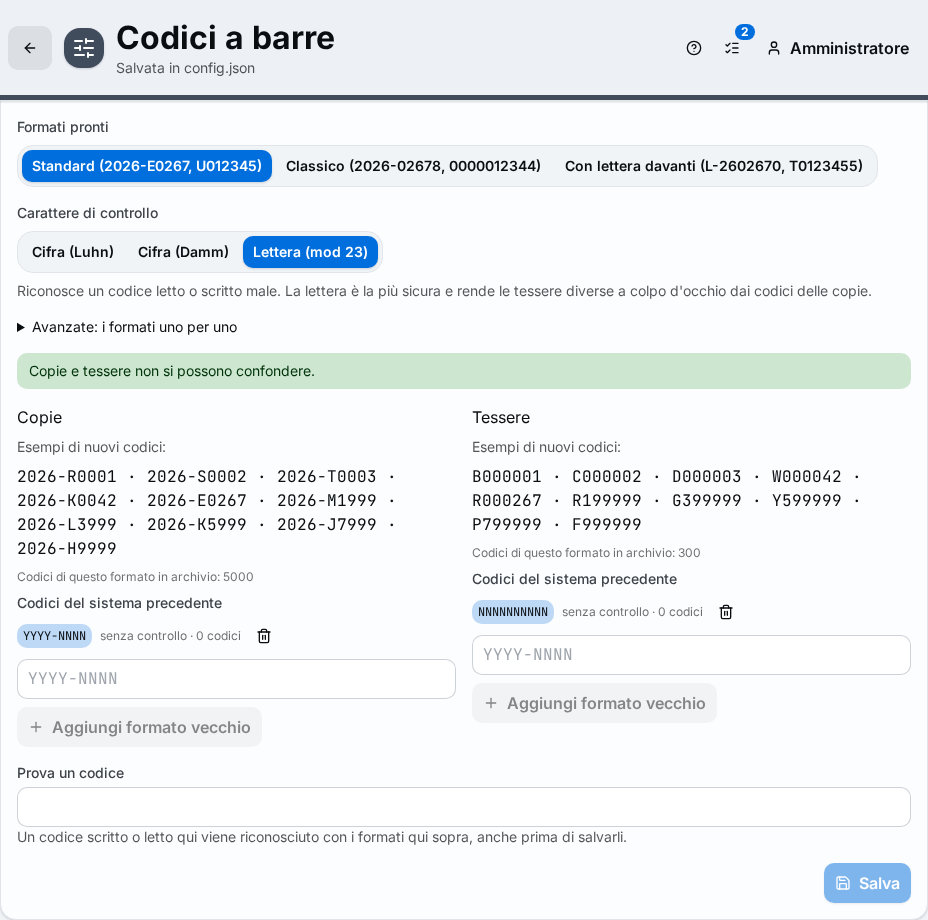
- In the Code formats box, in the Ready formats field, choose one of the forms: Standard (2026-E0267, U012345), Classic (2026-02678, 0000012344) or Letter in front (L-2602670, T0123455). The Classic format is the numeric one, with a 10-digit card number.
- In the Check character field choose Letter (mod 23) (the safest, and it makes cards look different at a glance from copy codes), Digit (Damm) or Digit (Luhn).
- Under Copies and Cards read the Examples of new codes:. They are the codes BiblioViva will give to the next copies and the next cards.
Check that they cannot be confused
- Under the formats read the check. If all is well "Copies and cards cannot be confused." appears.
- If instead "With these formats copies and cards could be confused:" appears, the page lists the reasons and shows two example codes that would be confused. In that case the Save button stays off: choose another ready format or another check character.
- In the Try a code field write (or read with the scanner) any code. The result says how BiblioViva recognises it: for example "…: a copy barcode", "…: a card number", "…: an ISBN", or "…: not recognised or wrong check character".
Save
- Press Save at the bottom of the box. The message "Code formats saved" appears.
Choose the number the cards start from (optional)
- In the Numbering and preview box, under Numbers of the new cards, leave After the highest number of the cards that already exist to continue from the last number in use, or choose From this number on: and write a number in the First number of the new cards field.
- Check "Next card: …" and "Next copy: …": the page also shows the two drawn barcodes. The previews do not use up numbers.
- Press Save. The message is "Numbering saved".
A number already used never comes back: if the chosen number is lower than the last in use, numbering continues from where it had got to.
Write a different format (optional)
The ready formats cover most cases. Whoever needs a particular form opens Advanced: the formats one by one and writes the format in the Format of the copies and Format of the cards fields.
- Press Advanced: the formats one by one.
- Write the format with the signs indicated above the field:
YYYYorYYfor the year,Nfor each digit of the running number,Cfor the check character,-for a dash, a capital letter between apostrophes ('T') for a fixed letter. The letters I, O and Q are not allowed. - Read the examples and the check that appear under the fields, then press Save.
Keep the codes of another program alive
- In the Codes of the previous system list of each kind the old formats that BiblioViva still recognises are
shown. To add one write it in the field, for example
YYYY-NNNN, and press Add an old format. - If the cards or copies of the old program were plain numbers, indicate in the Digits of the old plain numbers field how many digits they have at most; the page also shows the longest number found in the records.
- Press Save.
A replaced format stays in the Formats used in the past list. A format with codes still in the records cannot be removed: the page says how many codes there are.
Set the keyboard and the barcode type
- In the Settings tab of the same page, in the Computer keyboard field, choose the keyboard layout of the computers the scanners are connected to: it serves to correct the characters that a scanner set for another keyboard writes wrongly.
- In the Patron cards and Book copies groups leave Code 128 in the Barcode type of the cards and Barcode type of the copies fields. Choose Code 39 only if the library's scanners cannot read Code 128.
- Press Save.
Result
Copies and cards created after saving have the chosen format. Labels and cards already printed stay valid and need not be reprinted: their codes are recognised even if they have a different format.
Possible problems
- The Save button is off: the format is not valid or the two formats get confused. Read the messages under the fields, which say which part to correct.
- "The format … still has … codes stored: it cannot be removed." appears: an attempt was made to remove a format that still has copies or cards. Leave the format in the list: it serves to recognise the codes already printed.
- A code read by the scanner comes out "not recognised or wrong check character": the code was read badly, or the scanner is set for a keyboard different from the one chosen in Computer keyboard. Read the label again; if it happens often, correct the keyboard.
- A card from a previous program is not recognised: add its format among the Codes of the previous system.