
Print the cards of a class
This page explains how to print at once the cards of all the students of a class, cut them and fold them. It is for whoever prepares the cards, usually at the start of the year or after the class upgrade. The same operations apply to the card of a single person.
- Time: about 10 minutes for a class of 25 students, plus the cutting time.
- Account: Cards and photos (also Administration).
- Requirements: a printer connected to the computer and A4 sheets; scissors or a paper cutter and a ruler.
- Before printing it is better that the students have their photo: see Take the patrons' photos. If the administrator has switched off the photos, the cards are printed without a photo.
- To print only some cards, for example those not printed yet, use a print list: see Use the print lists.
Procedure
Choose the class
-
Log in to BiblioViva with the "Cards and photos" account.
-
Open Printing.
-
Scroll below the lists to the Classes part. In a school with several stages the classes are divided by stage.
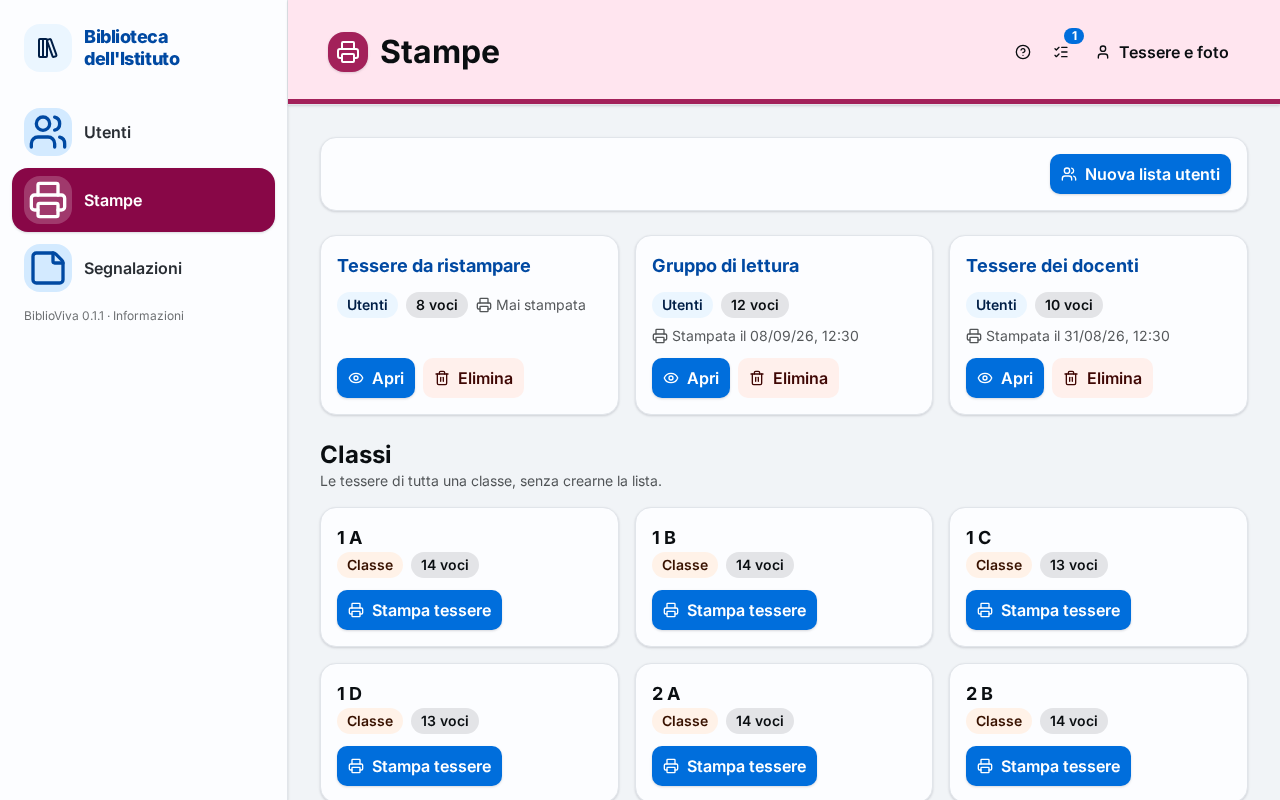
Figure 1. The Printing page with the Classes part and the Print cards button of each class -
Find the card of the class, with its name and the number of patrons, and press Print cards. The Print cards window opens, which shows the number of cards.
The same window opens from Patrons: choose the class in the section filter, then press the "Print cards" button followed by the name of the class, for example Print cards 3 B. Or select some rows (holding down Ctrl or Shift while pressing) and press Print cards. From a patron's record, in the Card tab, the button is Print card.
Choose how to print
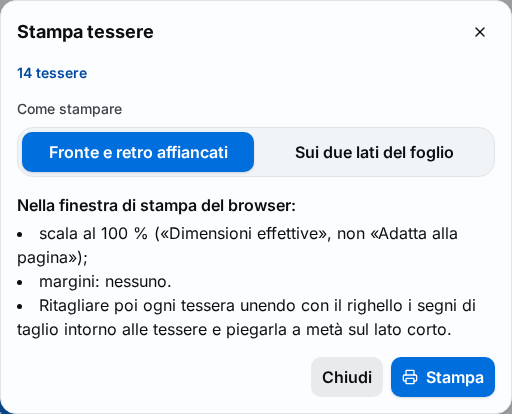
- In How to print choose Front and back side by side if the printer prints on one side only. Front and back are side by side and the card is folded in half. Normally four cards fit on an A4 sheet.
- Choose On both sides of the sheet instead if the printer prints on both sides: the back falls behind the front, without folding, and ten cards fit on a sheet. The window starts from the choice made by the administrator.
- Read the instructions under "In the browser's print window:". They change with the choice and with the administrator's settings, and must be repeated in the next step.
- Press Print. The sheet opens in a new browser tab. Close closes the window without printing.
With On both sides of the sheet, the first time, or if the backs do not fall behind the fronts, the administrator must calibrate the printing: see Calibrate two-sided printing.
Print and cut
- In the new tab press Ctrl+P to open the browser's print window.
- Choose the printer and the A4 sheet.
- Set the scale to 100 %, that is "Actual size", and not "Fit to page": the cards have a precise size in millimetres.
- Set the margins to "None".
- With On both sides of the sheet choose "Two-sided" with the flip that the Print cards window indicated (on the long edge or on the short edge).
- Print. The exact names of the items depend on the browser: see Set the print window.
- Cut out each card as the window indicates. With crop marks, join them with the ruler; with the coloured line, cut along the line; otherwise cut along the edge.
- With Front and back side by side fold each card in half on the short edge, so that front and back are on the two faces. With On both sides of the sheet there is nothing to fold: the back is already behind the front.
Mark the cards as printed
Printing alone marks nothing: BiblioViva does not know whether the sheet came out of the printer. A patron whose card is not marked as printed shows "Card not printed yet" and counts in the Patrons without a printed card number of the Dashboard.
- For the class printed from Printing: after pressing Print, the Print cards window stays open and shows Mark as printed. Press the button after printing: a notice confirms "N cards marked as printed". The cards of the class that the print page contains are marked (not those of patrons without a number).
- For a single card: open the Patron record, open the Card tab and press Mark as printed.
- For many cards: print from a print list and press Mark as printed, as described in Use the print lists.
Result
The sheet has the cards with the name, the class, the photo and the barcode, each to be cut out and folded. With the card a book is lent: the barcode scanner reads the code of the card at the circulation desk.
Possible problems
- The cards come out reduced or do not fit the sheet: the scale is not 100 %. Reopen the print window with Ctrl+P and choose "Actual size".
- The backs do not fall behind the fronts: the administrator must run the calibration described in Calibrate two-sided printing.
- Some students are missing from the sheet: the cards of removed patrons or of patrons without a number are not printed.
- The "Print cards" window does not offer the look wanted: the card's graphics are edited by the administrator, as explained in Edit the card template.