
Print book labels
This guide explains how to print the adhesive labels to stick on the books: the spine band, with the call number and the pictogram, and the label with the barcode. It is for whoever catalogues the books and prepares them for the shelf.
- Time: about 5 minutes for a sheet of books.
- Account: "Cataloguing" (also "Administration").
- Requirements: the sheets of adhesive labels of the format chosen by the library (normally 70 × 48 mm, eighteen labels per A4 sheet), the printer connected to the circulation desk computer and the copies already in the catalogue, see Catalogue a new book. The first time try the printout on plain paper, see Test the scanner and the printer.
For each book a pair of labels is normally printed, one above the other in two places of the sheet:
- the spine band (above) is wide enough to wrap around the spine: it carries the short title, the pictogram of the genre
or subject and the call number on two large lines (for example
B 4andDEL); - the barcode label (below) carries the call number, the short title, the barcode and the number of the copy. It is the label the scanner reads at the circulation desk.
With the 70 × 48 mm sheet a pair takes two labels and a sheet holds nine books. The print window calculates the number of sheets by itself.
Note. The spine band is printed only for classified books. For a book still To classify only the barcode label is printed; the spine band is printed after the classification, see Classify books.
Procedure
Print the labels of a book or of a copy
-
Open the record of the book from Catalogue. Right after cataloguing a new book the same Print labels button is in the confirmation "Record saved".
-
For all the copies of the book press Print labels at the top of the record (in the menu of the other actions if the window is narrow). For a single copy press the printer icon on the row of the copy.
-
In the Print labels window, in Label kind, leave Pair (spine band above and barcode label below) or choose Barcode only (to reprint the barcode label) or Spine band only (for example after a reclassification). Under the choice a text explains the kind.
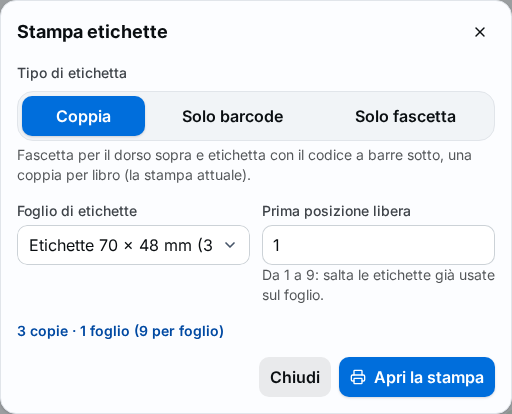
Figure 1. The Print labels window, with the kind, the sheet and the first free position -
Check the Label sheet. The sheet proposed is the one configured for the chosen kind; if the library has several label products, choose the one in use.
-
If the sheet has already been partly used, write in First free position the number of the first position still free (from 1 to the maximum shown). For the Pair kind the positions are counted in pairs.
-
Read the line under the fields: it says how many copies and how many sheets are needed ("N copies · N sheets (M per sheet)").
-
Press Open the print page. The print page opens in a new browser tab.
-
In the browser print window set the scale to 100 % ("Actual size", never "Fit to page") and the margins to none. Put the sheet of adhesive labels in the printer and print.
-
Go back to BiblioViva. The window reminds "The print page opened in a new tab. Once the labels are printed, mark them as printed.". Press Mark as printed. A notice confirms "N copies marked as printed".
-
Stick the labels on the books: the spine band around the spine, the barcode label on the book.
Print the labels of many books
For the books catalogued in a day or for a group of books the print lists are used.
- Open Catalogue and search for the books (also by Year from/Year to, see Find a book).
- Select the books with Ctrl + click (or Shift + click for a group).
- Press Print labels of the selection. The same Print labels window opens, which counts the copies of all the selected books. Go on from the choice of the kind as in the previous procedure.
To choose the books without selecting them one by one a list is built:
- Open Printing and press New book list.
- In the list, under Add with filters, choose in Labels to print the kind of label that is missing (Pair, Barcode only, Spine band only) and press Add to the list. All the copies that still have labels to print are added.
- Press Print labels in the list, then proceed as above.
- After printing press Mark as printed: the kind of label to mark is chosen in the menu next to the button. With Empty the list after printing ticked the list empties by itself.
The lists are explained in Use print lists.
Print the missing labels
The Dashboard counts the copies without labels in the Books without labels panel.
- Open the Dashboard and press the Books without labels panel. The Print labels window opens, with the line "N copies with labels to print".
- Choose kind, sheet and first free position and press Open the print page.
- After printing go back to BiblioViva and press Mark as printed: exactly the copies that the print page listed when it was opened are marked, and the Books without labels panel goes down. A copy catalogued in the meantime stays to be printed.
Result
The printed copies show Labels printed in the Labels column of the record of the book, and the Books without labels panel of the Dashboard goes down. The books have the spine band and the barcode label: at the circulation desk the scanner reads the code of the label and opens the copy.
Possible problems
- The labels come out shifted relative to the sheet: the printout is not at 100 % or has the browser margins. Check the browser print window: scale 100 %, margins none. The calibration page for the type of sheet is printed by the administrator, see Add a label sheet.
- The sheet was partly used and the printout overwrites it: write in First free position the number of the first label still free.
- "N copies of books to classify: only their barcode label prints, the spine band after the classification." appears: the book is not classified. Classify it, then reprint the spine band with Spine band only.
- Open the print page is grey and does not respond: there are no copies to print, or the label sheet is missing. Check the line with the number of copies and the Label sheet field.
- The scanner does not read the barcode of the label: check that the scanner reads Code 128 and Code 39, and that the printout is not reduced or too light. See Test the scanner and the printer.
- A spine band has text that is too long or the wrong pictogram: the spine band follows the classification and the call number of the copy: correct them, see Correct a book record, and reprint with Spine band only. The graphic template of the labels is edited by the administrator, see Edit the labels and the spine band.