
Consult a report
This page explains how to open a report, choose the period, read the numbers, print them or save them in a spreadsheet. It is for whoever wants to know how the library is doing: how many loans, which books, which classes read the most, which loans are overdue.
- Time: about 3 minutes.
- Account: "Reports" (also Administration).
- Requirements: no material. To print, a printer and an A4 sheet.
- Some reports are reserved to the administrator and do not appear to the other accounts. New reports, made for the school, are created by the administrator: see Create a report.
Procedure
Open a report
-
Log in to BiblioViva with the "Reports" account.
-
Open Reports. The page groups the reports in four parts: Loans, Books, Patrons and Activity. Each report has a title and a line of explanation.
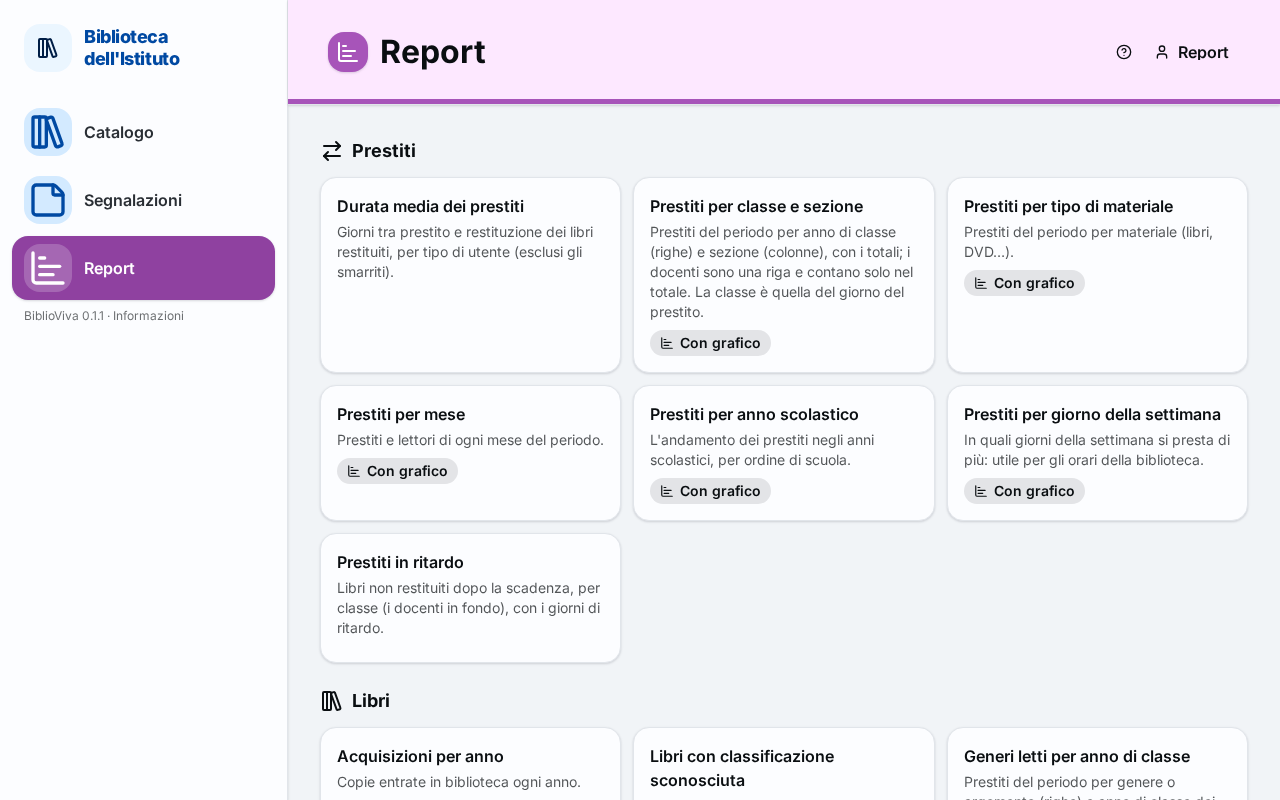
Figure 1. The Reports page with the reports divided by category -
Choose the report. Some have the With chart mark, those made by the school have the The school's mark. The Administrators only mark indicates a reserved report.
-
Press the report. Its page opens. The report starts at once with the starting values and shows the rows.
Choose the period and the other parameters
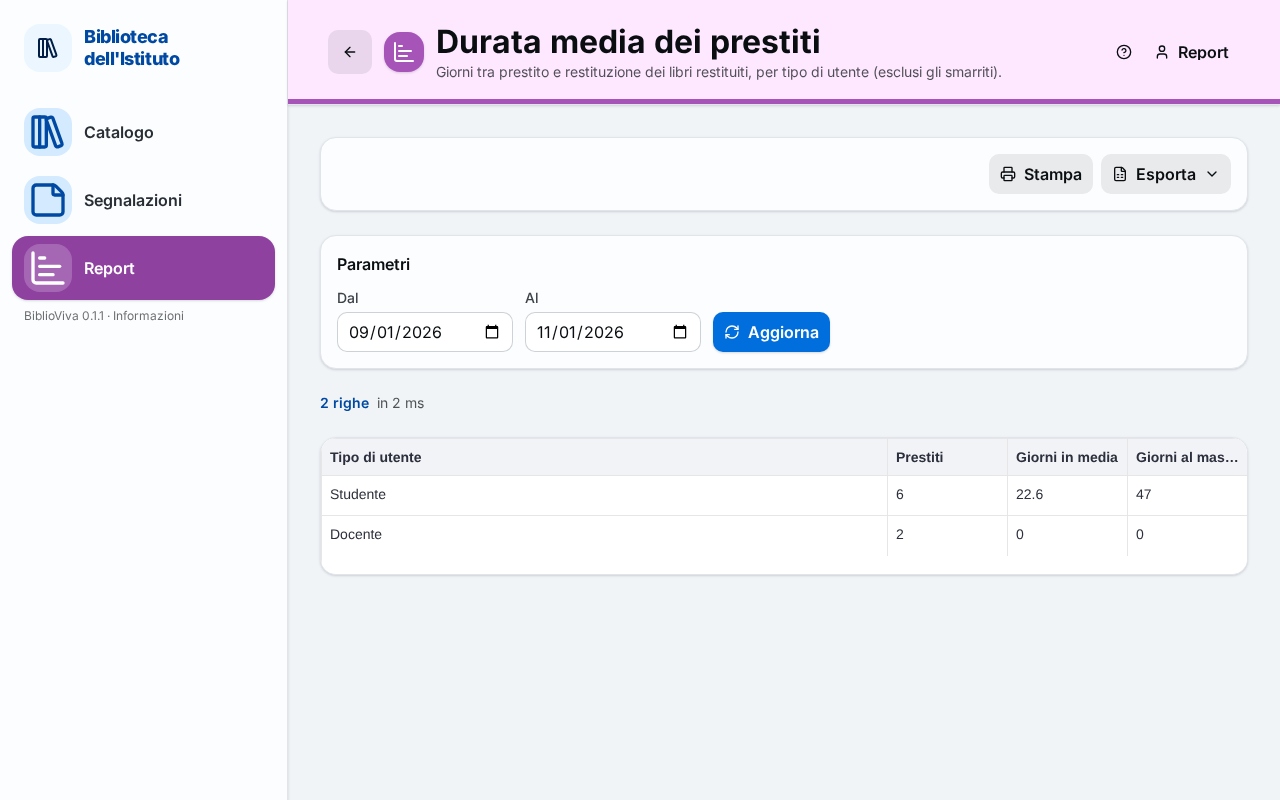
- In the Parameters part read the fields. For example the report "Most borrowed books" has the fields "From", "To" and "How many". Normally the period goes from the start of the school year to today.
- Change the dates or the other values. A report that has none says "This report has no parameters.".
- Press Update. The report is redone with the chosen values.
Read the result
- Read the number of rows, for example "20 rows", and the time taken.
- If the report has a chart, it is above the table.
- Read the table. Press the title of a column to sort the rows.
- If "Only the first N rows are shown: narrow the parameters to see them all." appears, narrow the period or the other values and press Update.
Print the report
- Press Print. The report opens in a new tab, with the title, the parameters and the print date.
- Press Ctrl+P. The page is set to landscape on an A4 sheet. For the other settings see Set the print window.
Save the report in a spreadsheet
- Press Export.
- Choose "CSV (spreadsheet, text)" or "ODS (LibreOffice / Excel)". The browser downloads a file with the rows of the report, with the same parameters as the page.
Result
The page shows the numbers of the chosen period. The address of the page contains the parameters: copying and pasting it in another browser, the same report opens again with the same values.
Possible problems
- "No results with these parameters.": there is nothing in the chosen period. Widen the period.
- ""From" is missing." (or the name of another field): the field is mandatory and must be filled in.
- "The value of "…" is not valid.": the date or the number has a value that is not allowed. Correct the field.
- A report does not appear: it may be reserved to the administrator. The reports that show single readers, such as "Most active readers", are visible only to the administrator.
- A report made by the school does not appear in the list: it probably has an error. The administrator sees at the top of the page the notice "Report files not loaded" with the reason.
- The classes of the report are today's, while the loans keep the class of the day they were made: two reports can therefore give different numbers for the same class, if the students have changed class.