
Print the overdue notices
This page explains how to print the overdue notice sheets, with the overdue books grouped by class, and how to mark them as printed. It is for staff at the circulation desk using the "Loan management" account.
- Time: about five minutes.
- Account: "Loan management" (also "Administration").
- Requirements: a printer connected to the computer and A4 sheets.
Procedure
-
Open Overdue notices from the tabs at the top of the circulation desk. The page groups the overdue loans by class; teachers are in a separate group (Teacher) and patrons without a class in No class. Above the list a line says how many overdue loans there are and in how many groups.
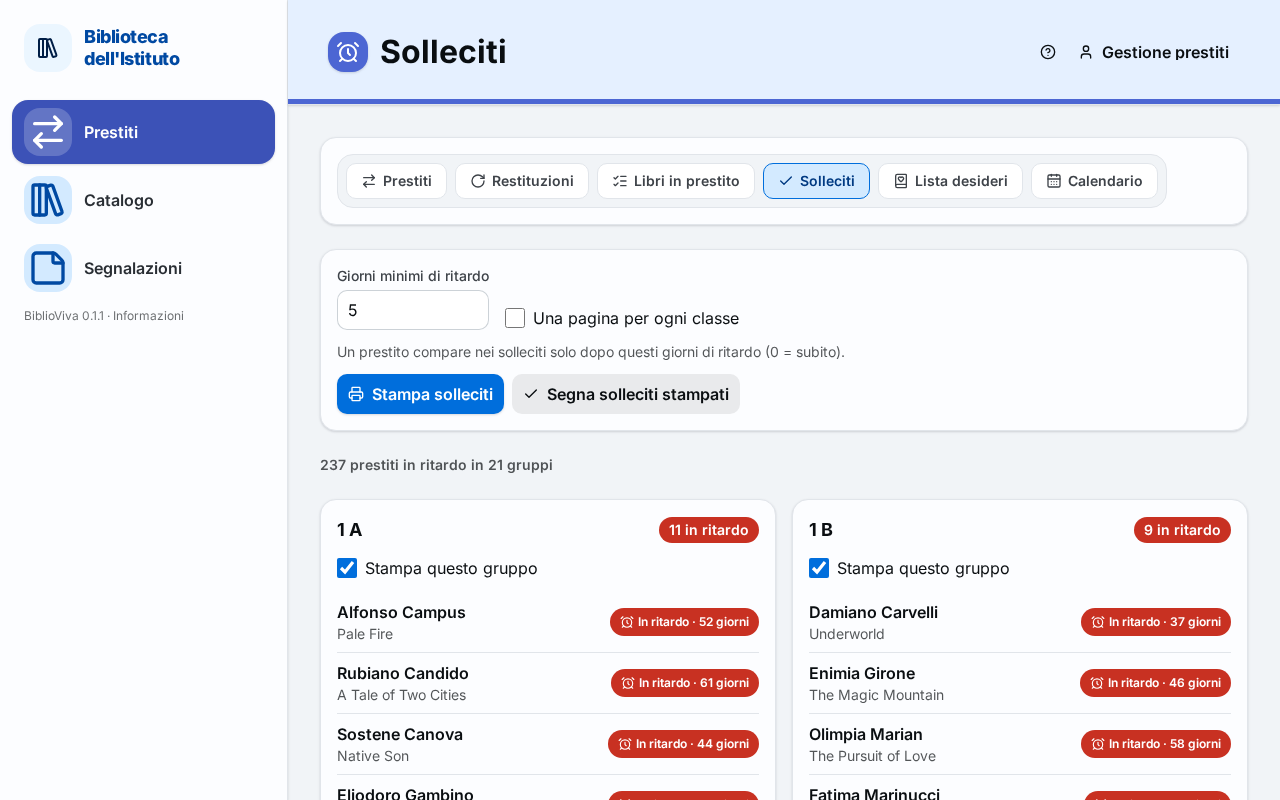
Figure 1. The Overdue notices page with the groups by class -
Check the Minimum days late field. A loan appears only after that many days late; with 0 it appears at once. The value proposed is the one chosen by the administrator (five days, if unchanged).
-
To print each class on its own page, tick One page per class.
-
Untick Print this group in the groups that should not be printed.
-
Press Print notices. The sheet opens in a new browser tab.
-
Open the browser's print window with
Ctrl+Pand print the sheet. The sheet does not open the print window by itself. -
Go back to the BiblioViva tab and press Mark notices printed.
-
In the confirmation window, which says how many notices are being marked, press Mark notices printed. A message says how many notices were marked.
Result
The sheets are printed, one per class (or a single one, if the page per class was not chosen). On the Overdue notices page, next to each loan, "last notice" appears with today's date; the same date is in the Last notice column of Books on loan. In this way, at the next printing, it is visible who has already been sent a notice.
Note. Printing alone marks nothing: the date of the last notice is recorded only with Mark notices printed.
Possible problems
There are no overdue loans to remind
The page says there is nothing to remind. If, on the other hand, there are known to be overdue books, the value of Minimum days late is too high: lower it, even to 0.
All the classes are printed on a single sheet
Tick One page per class and press Print notices again.
The notices were printed but not marked
At the next printing the same loans appear again. Mark them as soon as they are printed, with Mark notices printed; the mark applies to the groups that are selected at that moment.
A sheet for a single person is needed
Press Print a reminder in the book's row in Returns, or in the message that appears in Loans when the patron has overdue books. The sheet lists all the patron's overdue books.
The sheet does not open
The browser may block new tabs: allow them for the BiblioViva address and press Print notices again.