
Calendar
The Calendar shows the months of the school year with the library's opening and closing days and the dates to remember, such as a reading in a class or the deadline of a contest. It is used to know when a due date falls and when the library is closed. It is read by all accounts; the accounts that have the loans permission ("Loan management" and "Administration") can also add, correct and delete dates. For the accounts that have the loans permission the page is the Calendar tab of the circulation desk; the others open it from the Open the calendar button of the Upcoming dates section of the dashboard.
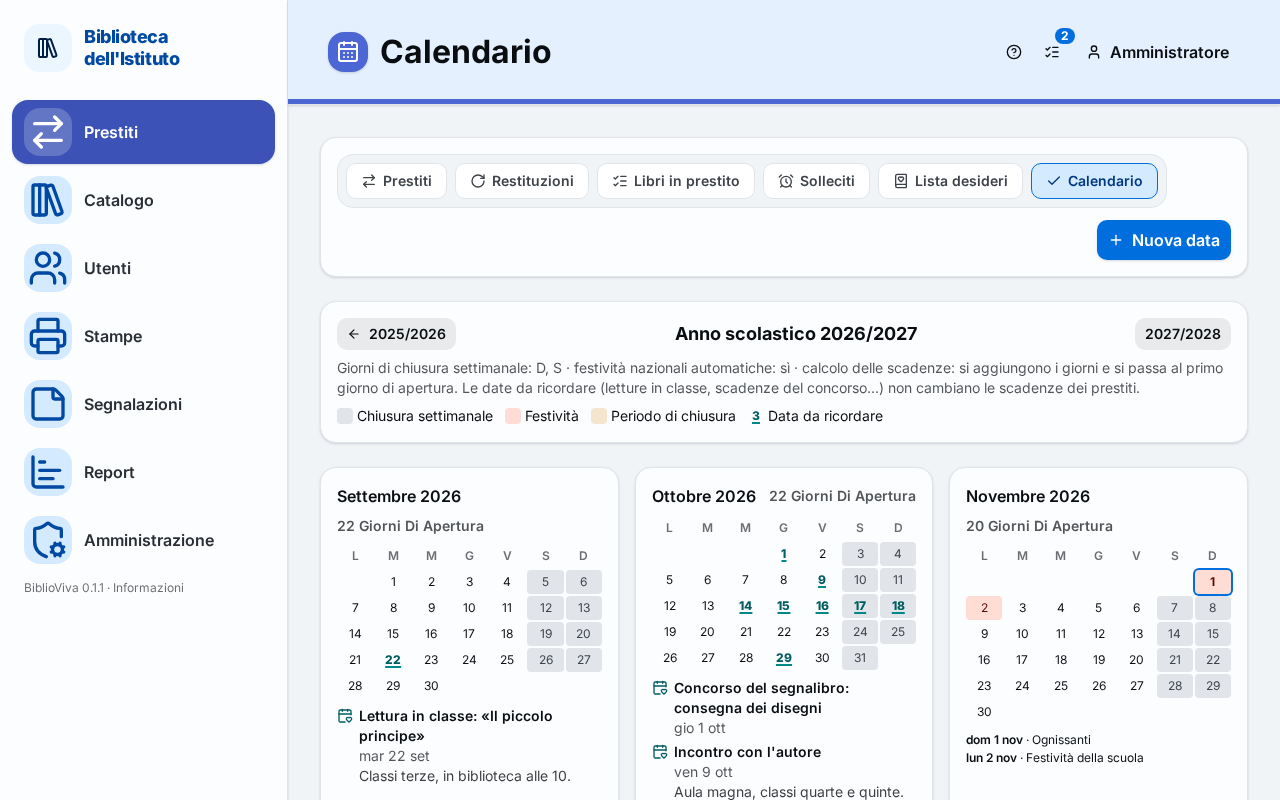
- Title and New date button.
- Choosing the year.
- Settings and legend.
- Months.
- Dates to remember.
New date
The New date button, at the top right, appears only to accounts that have the loans permission. It opens the Date window, already with today's date (or the first day of the year shown, if today is not part of it).
Choosing the year
Above the months, two buttons with the previous and the next school year lead to another year; in the centre is the
title "School year <year>", for example "School year 2026/2027". The current year is opened.
Settings and legend
Under the year title a sentence summarises the rules in use: "Weekly closing days: <days> · automatic national
holidays: yes · due dates: <mode>.", followed, when there is a latest date for loans, by "No due date after <date>."
and, always, by the note "Dates to remember (readings in a class, deadlines of the contest…) never change the due
dates of loans."
The <mode> is one of:
- "the days are added, then moved to the first open day";
- "only open days are counted";
- "calendar days are counted, closures ignored".
These rules and the closing days can be changed only under Administration → Configuration → Calendar: see Set the school calendar.
The legend explains the signs of the days: Weekly closing day (grey), Holiday (red), Closure period (yellow) and Date to remember (bold number, coloured and underlined). The signs are always accompanied by a written list under the month.
Months
Each month has its own tile with the name of the month and the number of open days ("<n> open days"). Weeks start
from the day chosen by the administrator. Closing days are coloured according to the legend and, when the mouse is
over them, show the reason (for example "Christmas"); today's date has an outline.
Under the grid appear:
- the list of the month's closures, with the period and the reason ("Tue 8 Dec · Immaculate Conception"); consecutive days closed for the same reason are joined on one line;
- the list of the dates to remember, described below.
The national holidays are New Year's Day, Epiphany, Easter Monday, Liberation Day, Labour Day, Republic Day, Assumption, All Saints, Immaculate Conception, Christmas and St Stephen's Day.
Dates to remember
Each date to remember appears under the month in which it falls (a period appears in every month it crosses), with the
title, the day or the period ("from <day> to <day>") and possibly the note. Accounts that have the loans permission
press the title to open the window and correct or delete the date; for the others the title is only text.
Date window
The window is titled New date for a new date and Edit the date for an existing one. It has these fields:
- Title: the name of the date; the field suggests "Reading in a class, contest deadline…". Required.
- Day: the day of the date.
- Until: the last day, if the date lasts several days. Optional.
- Note: free text.
Under the fields appears the warning "Every account reads the dates: do not write personal data of pupils." The buttons
are Cancel and Save; for an existing date there is also Delete, which asks for confirmation with "Delete
the date “<title>”?". After saving, "Date added", "Date saved" or "Date deleted" appears.
If something is wrong, the window says so under the fields:
- "Write a title."
- "The title may be at most
<n>characters long." - "The note may be at most
<n>characters long." - "Choose a valid day."
- "The end of the period comes before its start."
Dates to remember do not change the due dates of loans and do not close the library: to close it see Set the school calendar. For the step-by-step procedure see Mark closures in the calendar.