
Enrol a student
This page explains how to add to BiblioViva a student who is not in it yet, with the card number and, if wanted, the photo. It is for whoever manages the patrons, for example when a student arrives after the school year has started. To enrol many students at once, for example in September, use the import described in Import the students.
- Time: about 3 minutes, about 5 with the photo.
- Account: "Cards and photos" (also "Administration").
- Requirements: the student's surname, first name, year and section. The class must already exist: the administrator prepares the classes. Optional: the student id (the code of the electronic register) and the email address.
- For the photo: a file with the student's photo or, with Tailscale only, the computer's camera. If the administrator has switched off the photos, the page does not mention them and this part is skipped.
Procedure
Fill in the data
-
Log in to BiblioViva with the "Cards and photos" account.
-
Open Patrons.
-
Press New patron. The New patron page opens. The same page also opens from the New patron item of the Dashboard's quick actions.
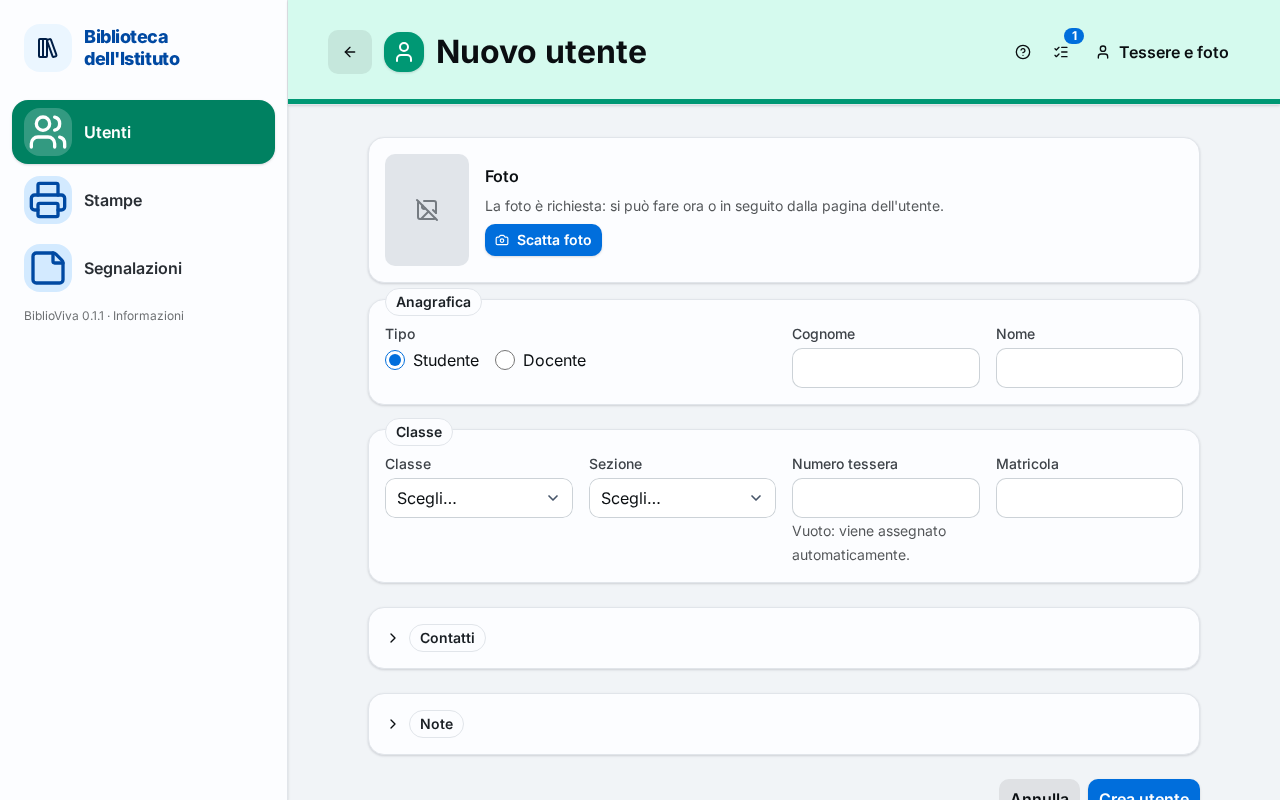
Figure 1. The New patron page with the Photo tab above the form -
Check that Student is selected in Type. It is the starting choice.
-
Write the surname in the Surname field.
-
Write the first name in the First name field.
-
In Class choose the student's year.
-
In the next field choose the section. After the year is chosen, the list shows only the sections of that year. The name of the field is the word the school chose for the class, normally Section.
-
Leave the Card number field empty: BiblioViva assigns the number by itself.
-
If needed, write the code of the electronic register in the Student id field.
-
If needed, open the Contacts part and write the address in the Email field.
-
If needed, open the Notes part and write a short notice in the Note for the circulation desk field. The notice appears prominently every time the student takes a book. Other remarks go in Internal notes and stay in the record.
Add the photo (optional)
The Photo tab is above the form. The photo can also be taken later, from the patron's record: see Take the patrons' photos.
- In the Photo tab press Take photo. The camera panel opens.
- Frame the student's face and press Take photo. Without a camera, or without Tailscale, press Upload file and choose a file with the photo.
- Drag the image to put the face in the vertical frame and, if needed, get closer with Zoom.
- Press Use this photo. The Photo tab shows the preview and the text "It is saved with the patron.".
To replace the chosen photo press Retake the photo; to discard it press Remove.
Save
- Press Create patron. The Patron record opens, with the name, the class and the card number.
Print the card
- In the Patron record open the Card tab.
- Press Print card and follow the window that opens. Cutting and folding are explained in Print the cards of a class.
- After printing press Mark as printed. Printing alone does not mark it.
Result
The student appears in Patrons: writing at least three letters of the surname in the Search by surname… field shows the row with the class and the card number. The Card tab shows the number and the barcode, and the text "Card not printed yet." until the card is marked as printed. With the card in hand, the student can borrow books at the desk.
Possible problems
- "A student needs a class (the level)." and "A student needs a section.": choose the year and the section before pressing Create patron.
- "Section not found among the active classes: classes are created in Administration → Configuration → Classes.": the class does not exist. Ask the administrator to create it, as explained in Set up the classes.
- "This section has no such class: choose a section of the class.": the year and the section chosen do not go together. Choose the section again, among those the list offers after the year is chosen.
- "Student id already assigned to another patron.": the student is probably already entered. Look for them in Patrons before creating them a second time.
- "The card number is or looks like a copy barcode: choose another number." or "Card number already assigned to another patron.": empty the Card number field and let BiblioViva choose the number.
- "Invalid email address.": correct the address or empty the field.
- "The camera only works over a secure connection (https)…": the installation without Tailscale cannot use the camera. Press Upload file and choose a photo already saved on the computer.
- "File too large…" or "Unsupported image format (use JPEG, PNG, WebP or HEIC).": choose another file.
- "The photo was not saved: take it again from the patron's page.": the student was created but the photo was not. Open the patron's record and press Photo.
- The Photo tab does not appear: the administrator has switched off the photos, as explained in Switch off the photos or the covers.