
Reports
The Reports page offers the library's statistics: loans per month, most borrowed books, copies never lent, patrons per class and others. Each report is a table, sometimes with a chart, that can be printed and downloaded. Use it to answer the school's questions (how many loans this year, which books never go out) without counting by hand.
The page opens from the Reports item of the menu (on a phone, in the bottom bar, under More) and from the dashboard. The accounts "Reports" and "Administration" use it. Some reports contain more sensitive data and are reserved to "Administration": the other accounts do not see them, while "Administration" sees them with the mark Administrators only. The procedure is in the guide Consult a report.
The page has two parts: the list of reports and the page of a report.
List of reports
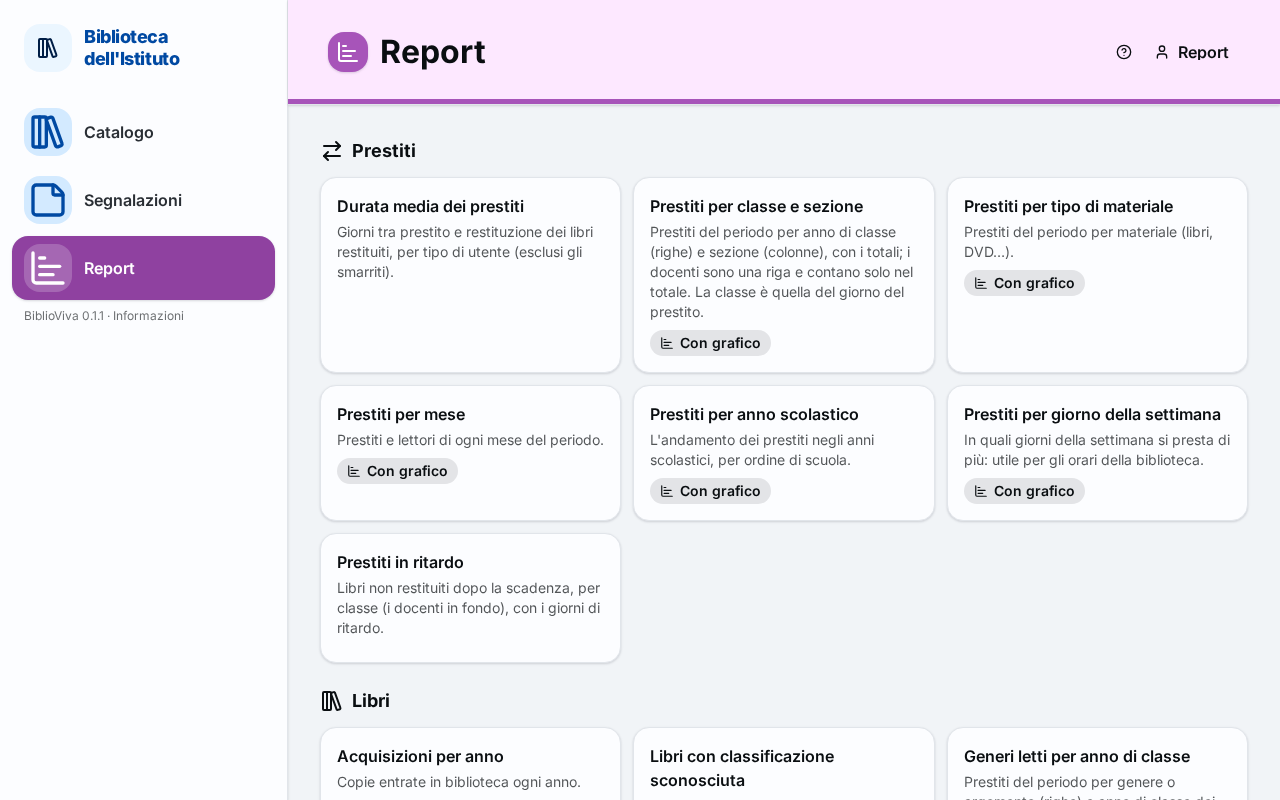
In the figure:
- The title of the category: Categories.
- The card of a report, with title and description: Report cards.
- The marks With chart, Administrators only and The school's: Marks.
Categories
The reports are grouped in four categories, each with its icon: Loans, Books, Patrons and Activity. A category with no reports does not appear.
Report cards
Each report is a card with the title and a short description. A click opens the report. Examples: overdue loans, most borrowed books, average duration of loans, copies never lent, holdings by classification, reading index by class.
Marks
Under the description marks may appear:
- With chart: besides the table, the report draws a chart (bar, line or pie);
- Administrators only: the report opens only with the "Administration" account;
- The school's: the report is not supplied with BiblioViva but was added or customised by the school (see Creating a report).
Report files not loaded
Only for "Administration": if a file of the school's reports has an error, at the top of the page a yellow box, titled Report files not loaded, explains: "These files of the reports folder have an error and are not listed:". Each row gives the name of the file and the reason.
Report page
The page of a report shows the title and the description, the parameters form and the result. The back button All reports returns to the list.
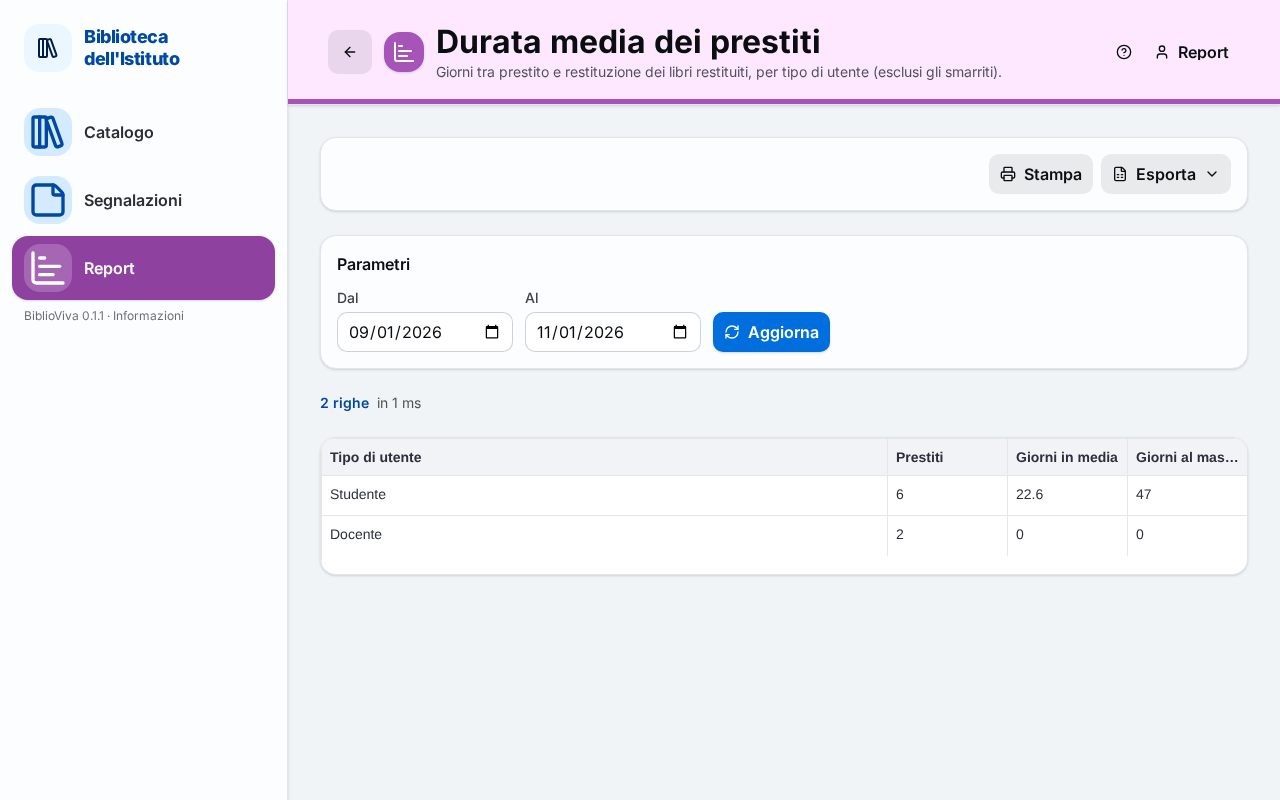
In the figure:
- The buttons Print and Export: Printing and export.
- The Parameters form and the Update button: Parameters.
- The number of rows and the time taken: Result.
- The chart, if there is one: Result.
- The table of results: Result.
Parameters
The Parameters box contains the fields the report provides, for example a period or a number. If the report has none, the page writes "This report has no parameters." and the result appears at once.
- Set the fields. A date is a single field; a period has two dates, written as "label (from)" and "label (to)"; a number and a text are typed by hand; a choice field offers the provided entries and, if optional, All; for the reports on patrons the choice can be Students or Teachers.
- Press Update. The table is recalculated with the values written.
The parameters are also written in the address of the page: saving or sending the link reopens the same report with the same values.
Result
Under the parameters, a line says "N rows" and "in N ms", that is how long the calculation took. Then, if the report provides it, a chart and always the table. The column headings sort the rows (not in summary tables, which keep the total at the bottom). If there is nothing, the page writes "No results with these parameters."
When the result is very long, the table shows only the first rows and the page warns: "Only the first N rows are shown: narrow the parameters to see them all."
Parameter messages
A badly written value blocks the calculation and a red box says which field must be corrected.
Missing parameter
"“label” is missing." The field is mandatory and must be filled in.
Invalid value
"The value of “label” is not valid." Correct the field, for example a date written wrongly.
Printing and export
- Print opens in a new browser tab the printable version of the report, with the line "Printed on" and the date, and the parameters used.
- Export downloads the table, with the parameters in use, in CSV (spreadsheet, text) or ODS (LibreOffice / Excel).