
Classify books
This guide explains how to give a book its genre or subject and, for fiction, its reading level: the call number, the pictogram on the spine band and the shelf depend on this choice. It is for whoever catalogues the books, both when saving and later, for the books saved with Classify later.
- Time: about 30 seconds per book.
- Account: "Cataloguing" (also "Administration").
- Requirements: the book, or at least title, author and subjects of the record.
The choice is one of two ways:
- fiction: a genre is chosen (a letter, for example
B) and, if the library uses it, a reading level (for example4); - non-fiction: a subject is chosen (a number like the Dewey ones, for example
590), looking for it in two levels: first the main subject, then a more precise subject.
The call number is the code printed on the label and on the spine band, which says where the book goes. It is derived
from the classification and from the first three letters of the author's surname. Examples: B 4 DEL is a novel of
genre B, reading level 4, by an author whose surname starts with DEL; B DEL is the same book in a library that does
not use levels; 590 ROS is a non-fiction book of subject 590 by an author whose surname starts with ROS. BiblioViva
suggests the call number by itself and it can be corrected.
The reading level is a code the library chooses for novels (in the starting configuration from 1 to 5) and does not
match the patron's class. If the level is assigned to each copy and not to the book, it is chosen in the form of the
copies, see Add a copy to a book already in the catalogue.
Procedure
Classify while cataloguing
-
In the form of the record find the Classification section.
-
Under "What kind of book is it?" press Fiction or Non-fiction.
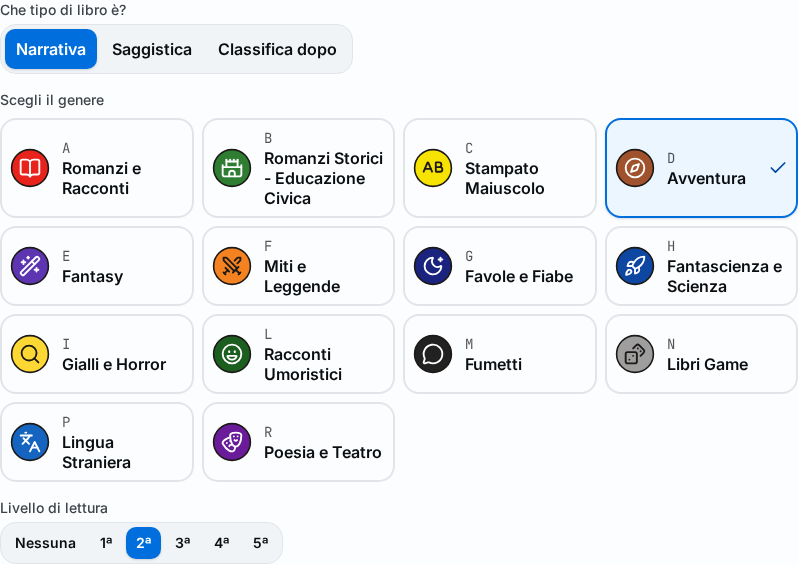
Figure 1. The classification picker in the form of the record -
For fiction choose the genre under "Pick the genre": each genre is a tile with the pictogram, the letter and the name.
-
For fiction also choose the Reading level, if it appears. None leaves the book without a level.
-
For non-fiction choose the main subject under "Pick the subject". If it has more precise subjects the list "Subjects of …" opens: choose one. To stop at the main subject press "Use … in general". To go back press Back to the main subjects.
-
If the record has a Dewey number, BiblioViva suggests the subject by itself ("Subject proposed from Dewey number …"): check it and change it if needed.
-
If it is not yet known how to classify the book press Classify later: the book goes to the list "To classify". Its copies are not lent and the spine band is not printed until it is classified.
Classify the books set aside
-
Open Catalogue and then the To classify tab. The list shows, oldest first, the books without classification, with the number at the top ("N books to classify"). The number is also in the Books to classify panel of the Dashboard.
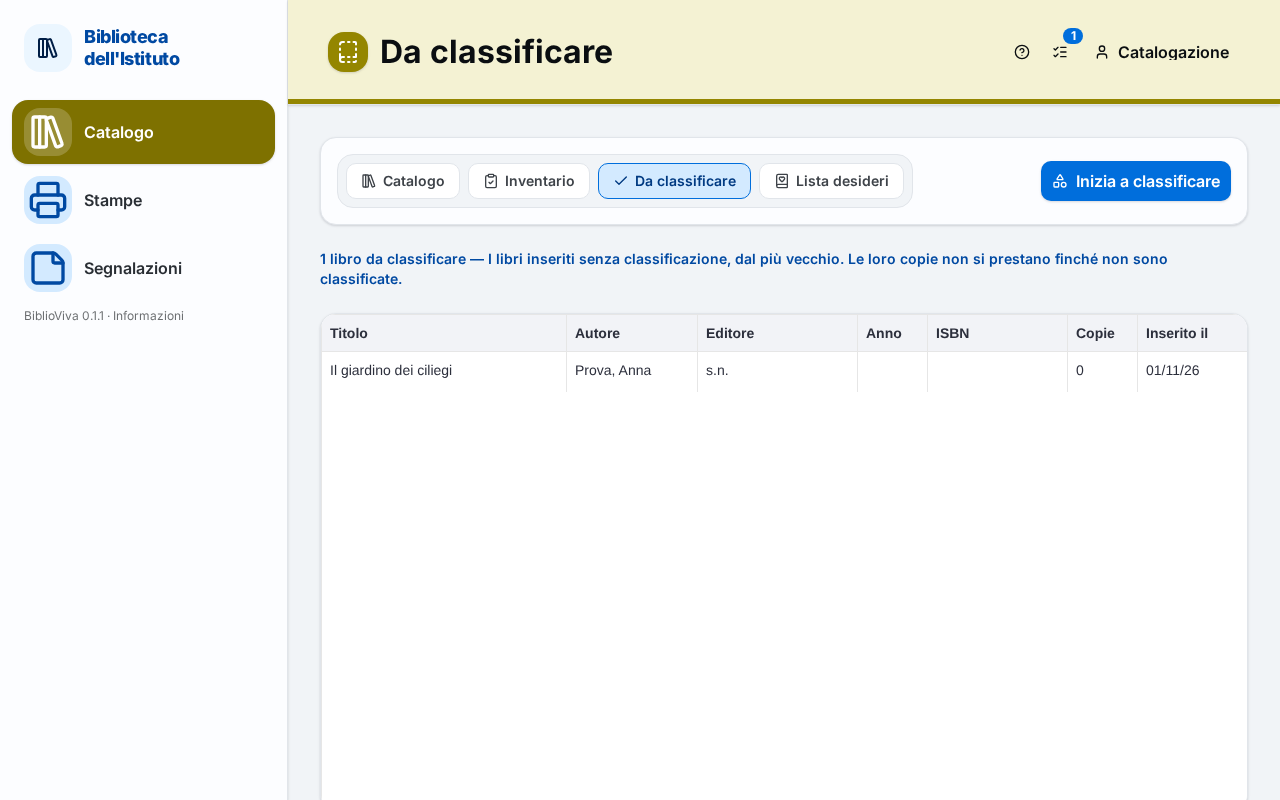
Figure 2. The list of the books to classify -
Press Start classifying. Classify the book opens on the first book of the list. To start from a specific book press its row, or Classify on its record.
-
Read title, author, publisher, subjects and notes of the book, with the cover if there is one. If the record has a Dewey number, "The Dewey number … points to the subject …" appears and the subject is already selected.
-
Choose genre or subject as above. As soon as the choice is made the Call number of the copies that the copies will receive appears.
-
Press Save and next. The notice "… classified" appears and the next book opens.
-
If the book cannot be classified press Skip: the book stays in the list.
-
At the end "There are no more books to classify in this round." appears. Press Back to the list.
Change the classification of many books together
- Open Catalogue and search for the books to reclassify, see Find a book.
- Select the books with Ctrl + click (or Shift + click for a group) on the rows.
- Press Reclassify. The "Reclassify the selected titles" window opens.
- Choose the Kind, then the Genre or the Classification and, for fiction, the Level.
- To update the call numbers of the copies too, tick "Rewrite the copies' call numbers from the new classification".
- Press Check. The window says how many titles change.
- Press Reclassify followed by the number of titles. A notice confirms "… titles reclassified, … call numbers rewritten". The spine bands (and the labels, if the call number has changed) go back among those to print: see Print book labels.
Result
The book has a genre or a subject, shown on the record and in the Classification column of the Catalogue, and its copies have the call number. A book just classified can be lent and its spine band can be printed.
Possible problems
- "Pick the genre" or "Pick the subject": saving requires the choice. Choose a genre or a subject, or Classify later.
- The reading level does not appear: the library does not use levels, or assigns them to each copy (see above). The administrator decides in Change the classification and reading levels.
- A book finds no place among the genres or subjects: choose the closest one and make a note of it. The list of genres and subjects is edited by the administrator.
- A record already classified must be moved: the Edit record form changes the classification but does not rewrite the call numbers of the copies. To update them use Reclassify as above.
- "This book is already classified." appears: someone else has classified it in the meantime. Press Skip.