
Take the patrons' photos
This page explains how to take the photo of the patrons who do not have one yet, one person at a time: class by class with the census, or from the record of a single patron. The photo appears on the card and in the record. To get the photos of a whole class from a single picture see Get the photos from a picture of the class.
- Time: about 15 minutes for a class of 25 students, about 1 minute for a single person.
- Account: Cards and photos (also Administration).
- Requirements: a camera connected to the computer, or files with the photos already saved on the computer.
- The camera works only over a secure connection, that is with Tailscale. In the installation on the local network only, the photos are uploaded as files.
- The administrator can switch off the photos. In that case the Photo census tab and the Photo button do not exist and this page is not needed.
Procedure
Photograph a class, one person after the other
-
Log in to BiblioViva with the "Cards and photos" account.
-
Open Patrons.
-
Open the Photo census tab. The page lists the patron lists and the classes, each with the numbers of the photos already taken, for example "12 of 14 with a photo". Only the classes and lists where at least one photo is missing are shown.
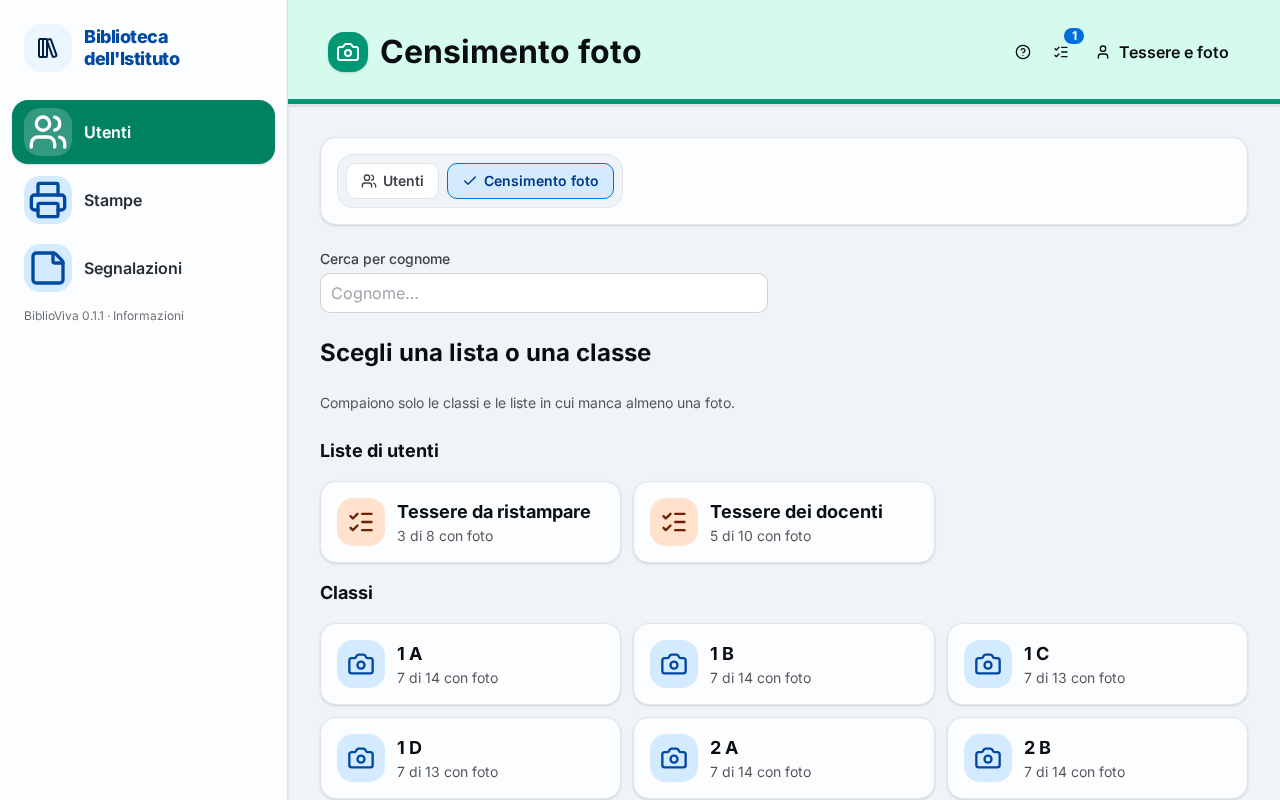
Figure 1. The Photo census page with the classes where at least one photo is missing -
Choose the class. To look for a single person, write the surname in the Find by surname field.
-
Under One person at a time press the name of the first person. A panel opens with the name at the top and the camera switched on.
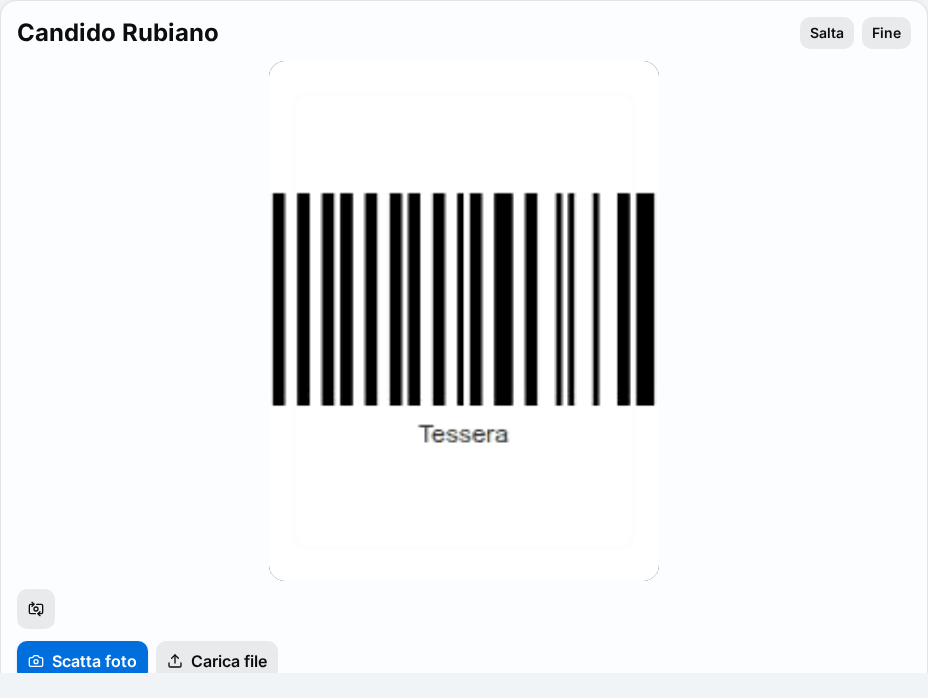
Figure 2. The census panel with the person's name and the camera switched on -
Frame the face and press Take photo. Without a camera press Upload file and choose that person's file.
-
Drag the image to put the face in the vertical frame and, if needed, get closer with Zoom.
-
Press Use this photo. The notice "Photo saved" appears with the name and the next person without a photo opens at once.
-
Repeat from the shooting step until the last person. To go to the next person without photographing this one, press Skip. To close the panel before the end, press Done.
If a student is missing from the list of a class, press New patron at the bottom of the class page, write Surname and First name and press Add and photograph: the student is added to the class and their photo is the next one.
Photograph a single person
-
Open Patrons and look for the person by writing at least three letters of the surname in the Search by surname… field.
-
Press the person's row. The Patron record opens.
-
Under the photo, or the grey placeholder, press Photo. The Photo panel opens.
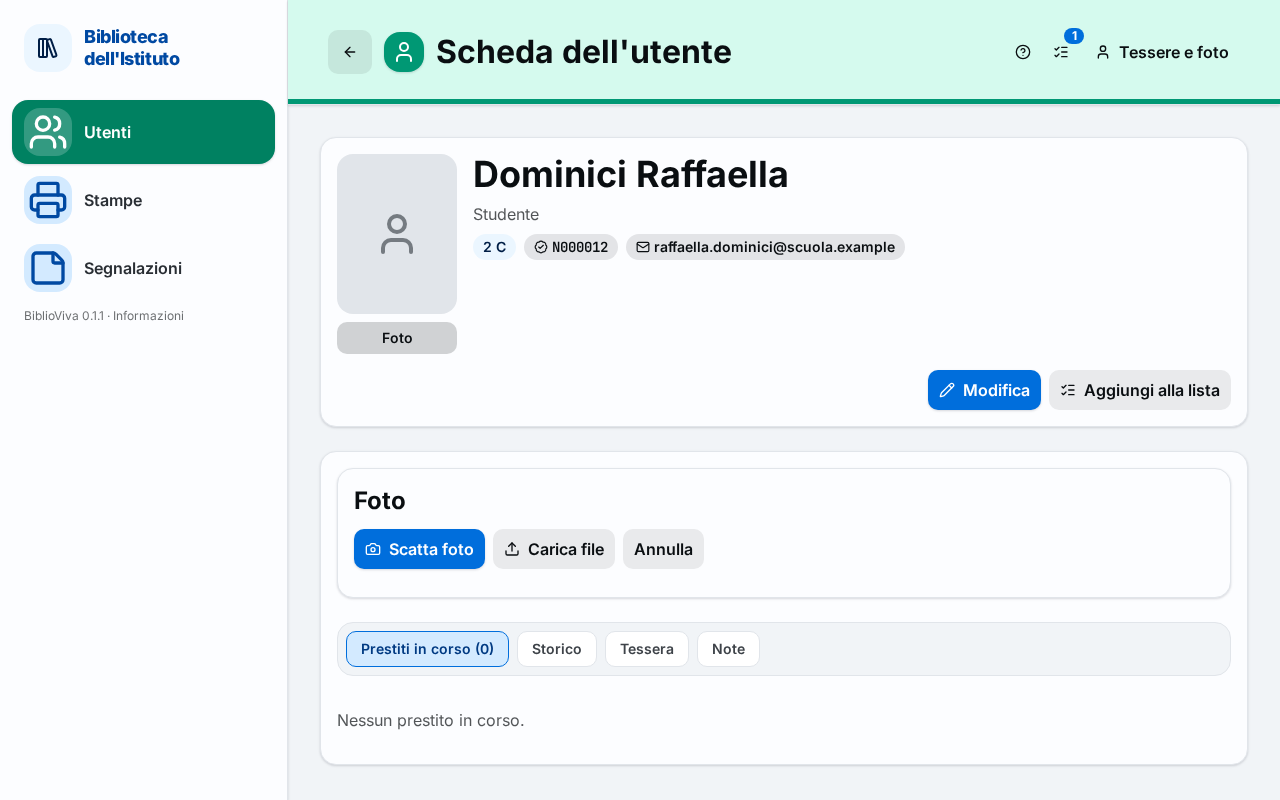
Figure 3. The patron record with the Photo panel open -
Press Take photo, or Upload file to choose a file.
-
Frame the face by dragging and with Zoom.
-
Press Use this photo. The notice "Photo saved" appears.
To change a photo repeat the same procedure: the new one replaces the old one. To remove it, press Delete photo and confirm with Delete photo in the "Delete the photo?" window.
With the phone (optional)
The phone is not needed. If the installation uses Tailscale, the census can also be done with the phone's camera: open BiblioViva from the phone and follow the same steps. On a phone the census panel fills the whole screen, so it can be used with one hand.
Result
In the census list the person has their thumbnail and the number "N of M with a photo" goes up. When everyone has a photo, "Everyone has a photo." appears. If the administrator has switched on the photo reminder, the "no photo" notice disappears from the row in the Patrons page and the Patrons without a photo number goes down on the Dashboard. The photo appears in the record and on the cards printed from that moment.
Possible problems
- A class does not appear in the census: all its photos are already taken ("Every class and list has its photos."). To retake a single photo use the patron's record.
- "The camera only works over a secure connection (https)…": the local network without Tailscale does not allow the camera. Use Upload file, or open BiblioViva from the Tailscale address.
- "Permission denied: allow the camera in the browser settings and try again.": open the site settings in the browser (the icon near the address), allow the camera and reload the page.
- "No camera found on this device." and "The camera is already in use by another app.": connect the camera or close the other program that uses it; otherwise use Upload file.
- "The camera did not answer…": the browser may still be asking for permission, or the permission was denied earlier for this site.
- "File too large: the limit is … MB.", "The file is not a readable image." and "Unsupported image format (use JPEG, PNG, WebP or HEIC).": choose another file.
- The Photo census tab does not exist: the administrator has switched off the photos, as explained in Switch off the photos or the covers.
Related pages
- Get the photos from a picture of the class
- Import the patrons' photos, for photos already stored in another program
- Print the cards of a class
- Photo census