
Add the cover
This guide explains how to put the cover on the record of a book: BiblioViva looks for it online by itself, and when it does not find it or it is wrong, a photo or a file is uploaded. It is for whoever catalogues the books.
- Time: less than 1 minute to download it, about 3 minutes to photograph it.
- Account: "Cataloguing" (also "Administration").
- Requirements: to download it, the Internet connection of the BiblioViva computer and a book that has the ISBN; to photograph it, the book and a camera (the phone camera, optional) or an image file.
Note. The administrator can switch covers off. In that case the record shows neither the cover panel nor the buttons of this guide: see Switch off photos or covers.
Procedure
Check the cover while cataloguing a book
-
Catalogue the book with New book, see Catalogue a new book.
-
Look at the Cover panel next to the form. BiblioViva looks for the cover online from the ISBN and writes the status: "Looking for the cover online…", then "Found on …: it is saved with the record." or "No cover found online: it can be photographed.".
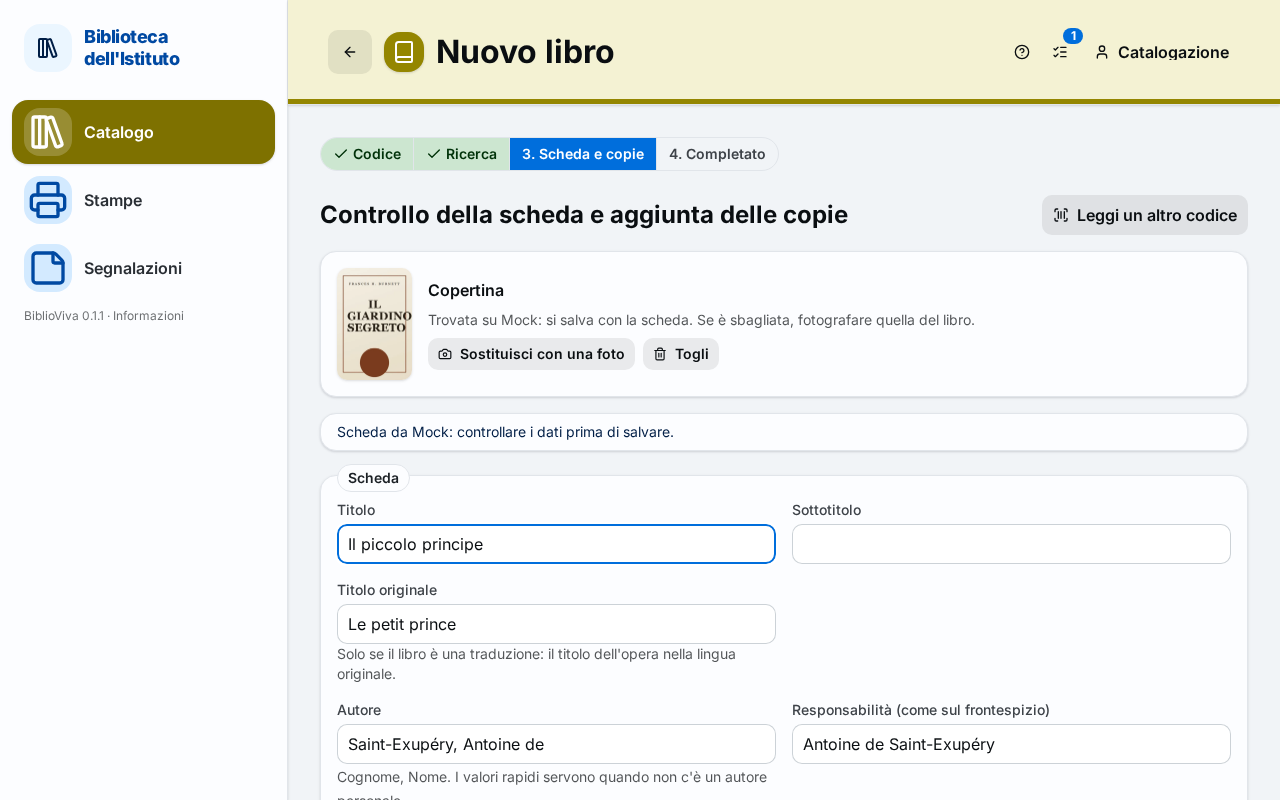
Figure 1. The Cover panel with the cover found online -
If the cover is the book's, go on and press Save record and copies: the cover is saved with the record.
-
If the cover is wrong, press Replace with a photo and follow the steps of Photograph or upload the cover. To remove it without replacing it press Remove.
-
If it was not found, press Photograph the cover.
Download the cover from a record already saved
- Open the record of the book from Catalogue.
- Under the cover image press Download cover. The button is there only if the record has an ISBN.
- Wait. A notice says "Cover downloaded from …" and the cover appears on the record.
Photograph or upload the cover
This method is for when the cover is not found online, is wrong or the book has no ISBN. If the book already has a cover the button is called Change cover.
-
Open the record of the book from Catalogue.
-
Press Photograph the cover. The Cover panel opens.
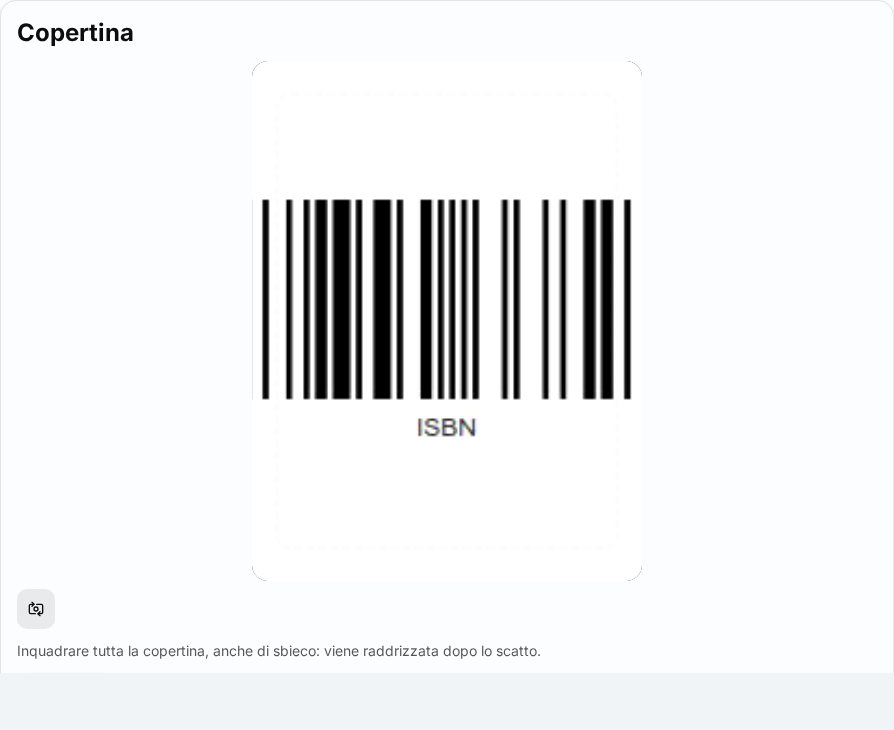
Figure 2. The panel to photograph or upload the cover on the record of a book -
Choose how to get the image:
- with a camera: frame the whole cover, even at an angle, and press Shoot;
- with a file already on the computer (for example a photo taken with the phone and transferred): press Upload a file. JPEG, PNG, WebP and HEIC are allowed.
-
Wait for the search of the edges: "Looking for the edges of the cover…". The first time the straightening program is downloaded and the wait is longer, while "Loading the straightening module…" is shown.
-
Check the four corners on the image. If they do not match the edges of the cover, drag them one by one onto the edges, as the notice says: "Drag the four corners onto the edges of the cover, then straighten.".
-
Press Straighten. Under Result the straightened cover appears.
-
If the result is right press Use this cover; otherwise press Retake and repeat from the check of the corners. The notice "Cover saved" confirms the saving.
The camera works only if BiblioViva is reached with Tailscale (HTTPS): see Choose the network. With the local network and without HTTPS, Upload a file remains.
Remove the cover
- Open the record of the book from Catalogue.
- Press Remove cover and confirm with Remove cover in the "Remove the cover?" window. The image is deleted from the server.
Result
The record of the book shows the cover to the left of the title.
Possible problems
- "No cover found online for this ISBN: it can be photographed.": none of the services consulted has the cover. Photograph it or upload a file.
- "The record has no ISBN: the cover must be photographed.": without an ISBN the online search is not possible. Photograph the book.
- "The camera only works over a secure connection (https)…" appears: BiblioViva is opened from the local network without Tailscale: use Upload a file.
- "Permission denied…" or "No camera found on this device." appears: allow the camera in the browser settings, or use Upload a file.
- "File too large" or "Unsupported image format" appears: the file exceeds the limit shown in the notice or is not JPEG, PNG, WebP or HEIC. Reduce the image or save it in another format.
- "The straightening module could not be loaded…": the computer did not reach the file of the straightening program. Check the connection and try again.
- The cover downloaded belongs to the wrong book: this happens if the ISBN of the record is the one of another edition. Replace it with Change cover.