
Mark closures in the calendar
This page explains how to consult the library calendar, how to add dates to remember (a reading in a class, a contest deadline) and how to mark the days when the library is closed, which move loan due dates. Dates to remember are written by whoever works at the desk; closures are marked by the administrator.
- Time: a few minutes.
- Account: to consult the calendar, any account. To add dates to remember, "Loan management" or "Administration". To mark closures, "Administration" only.
- Requirements: the dates of the school's closures (holidays, bridge days, days without lessons).
Procedure
Consult the calendar
-
Open Calendar from the tabs at the top of the circulation desk. The other accounts open it from the dashboard, in the Upcoming dates tile, with Open the calendar.
-
Read the school year shown in the title. To change year press the button with the previous or the next year, at the sides of the title.
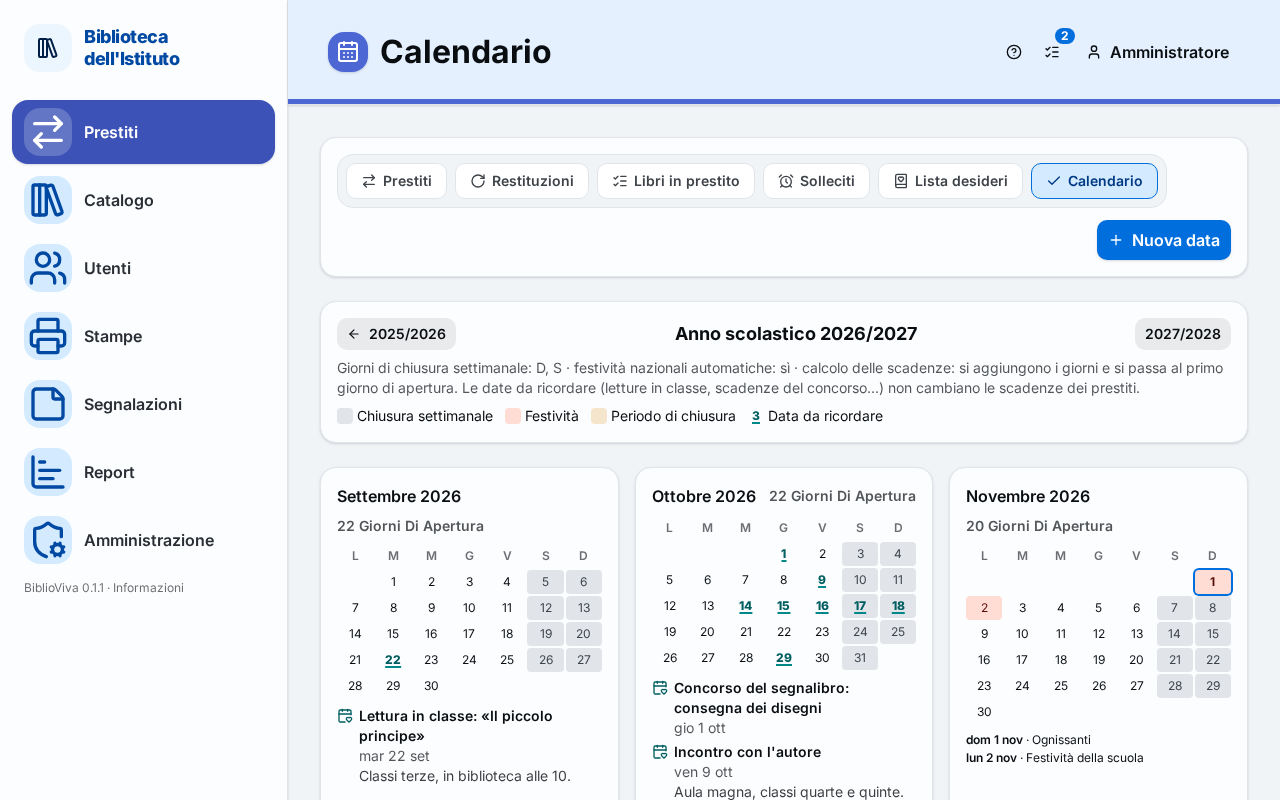
Figure 1. The calendar of a school year with closures and dates to remember -
Look at the months. Under each month appear the number of open days, the closures with their reason and the dates to remember. The colours and the text are read in the Legend: Weekly closing day, Holiday, Closure period and Date to remember.
Add a date to remember
-
Press New date. The New date window opens.
-
Write the Title, for example a reading in a class.
-
Choose the Day. For a period of several days also choose Until.
-
If needed, write a Note.
-
Press Save. A message says Date added and the date appears under its month, with the calendar icon.
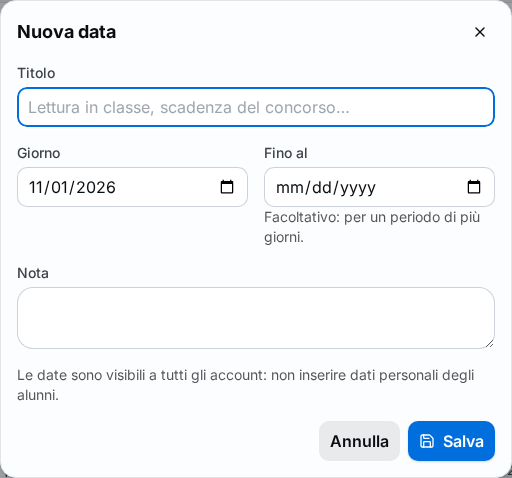
Figure 2. The New date window -
To correct a date, click its title, change the fields and press Save. To delete it press Delete and confirm.
Important. The dates are visible to all accounts: do not write personal data of pupils. Dates to remember do not change loan due dates.
Mark closing days (administrator)
- With the "Administration" account, open Administration, then Configuration, then Calendar.
- To close a day, click that day in the calendar of the Library calendar block. To reopen a day closed by hand, click again.
- To close several days in a row, press Add a period, choose From and To and write the Reason.
- Press Save. A message says Calendar saved.
The closing days of every week (Days closed every week) and the national holidays are already in the calendar. The details are in Set the school calendar.
Result
Closures appear in the Calendar with their reason. A loan whose due date falls on a closed day has its due date moved to the first open day and the desk says so in a message. Dates to remember also appear in the Upcoming dates tile of the dashboard, when at most thirty days are left.
Possible problems
Closures cannot be changed from the calendar
From the circulation desk the calendar does not change closures: the "Administration" account and the Administration → Configuration → Calendar page are needed.
Loans already recorded do not change due date
A loan's due date is calculated with the calendar of the day the book is lent: a closure added afterwards does not move the due dates of loans already in progress. To move a due date that falls on a closing day, renew the loan.
The date to remember does not appear in Upcoming dates
The dashboard shows the dates of the next thirty days: a more distant date appears later.
The title is too long or the period is wrong
The window marks the field: shorten the title, or choose an Until that is not earlier than the Day.