
Catalogue a new book
This guide explains how to add to the catalogue a book that has an ISBN: the code is read with the scanner, BiblioViva looks up the record in the national catalogue OPAC SBN, and the record is checked and saved together with the copies. It is for whoever catalogues the books.
- Time: about 2 minutes per book.
- Account: "Cataloguing" (also "Administration").
- Requirements: the book, the USB barcode scanner and the Internet connection of the BiblioViva computer, which is needed to look up the record and the cover. To print the labels: the printer with the adhesive sheets, see Print book labels.
Procedure
-
Open Catalogue and press New book. The New book page opens, with the steps Code, Lookup, Record and copies and Completed.
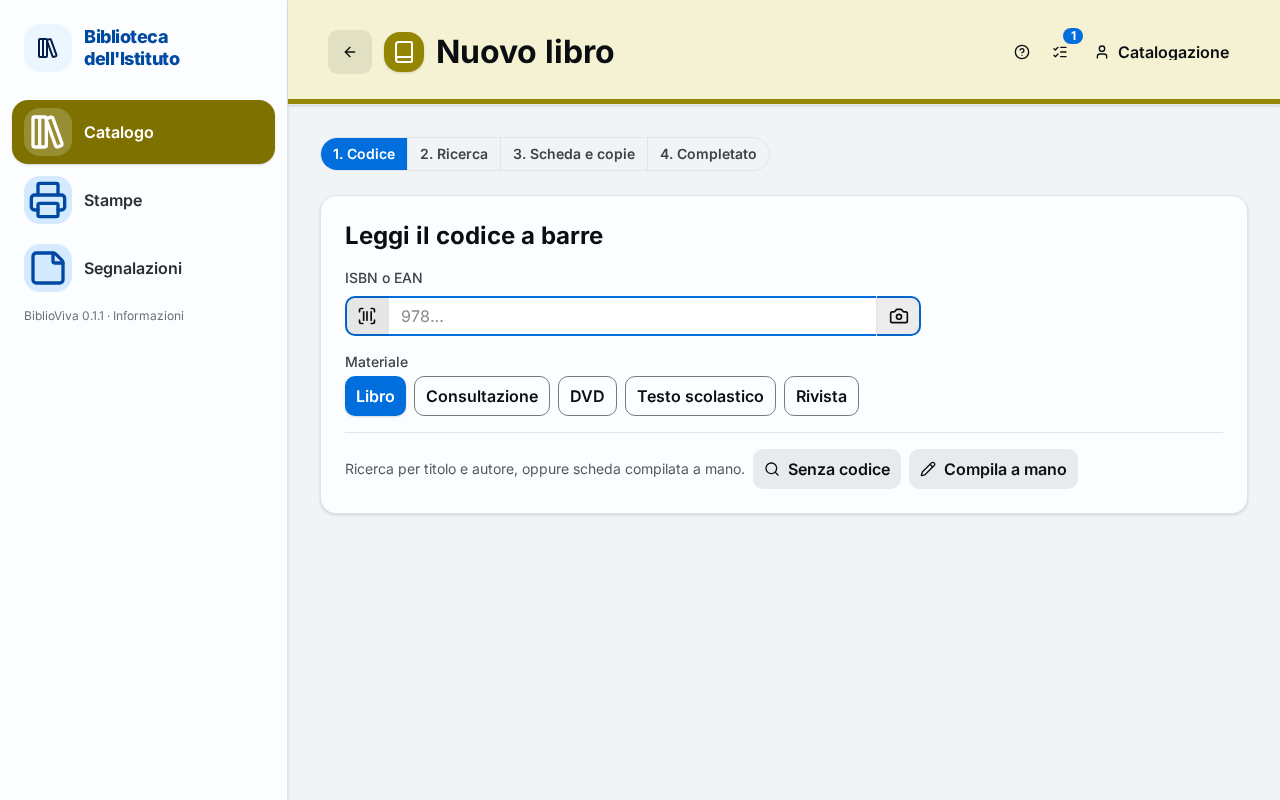
Figure 1. The New book page, ready to read the ISBN -
In Material choose the material of the copies, if it is not the one already selected (normally Book). The material applies to all the copies added with this record.
-
Read with the scanner the ISBN barcode, printed on the back of the book. The cursor is already in the ISBN or EAN field: the scanner enters the code and confirms by itself.
-
Wait for the lookup. BiblioViva queries OPAC SBN and opens the most complete of the records found. Above the record the notice "The most complete of the N records found. Check the year and the description against the copy." appears.
-
If the record is not the one of the book in hand, press Other records (N), choose another record and press Use this record.
-
Check the data in the sections Record and Publication, comparing them with the title page of the book: Title, Author, Publisher, Year and Physical description. Write the author as "Surname, Name".
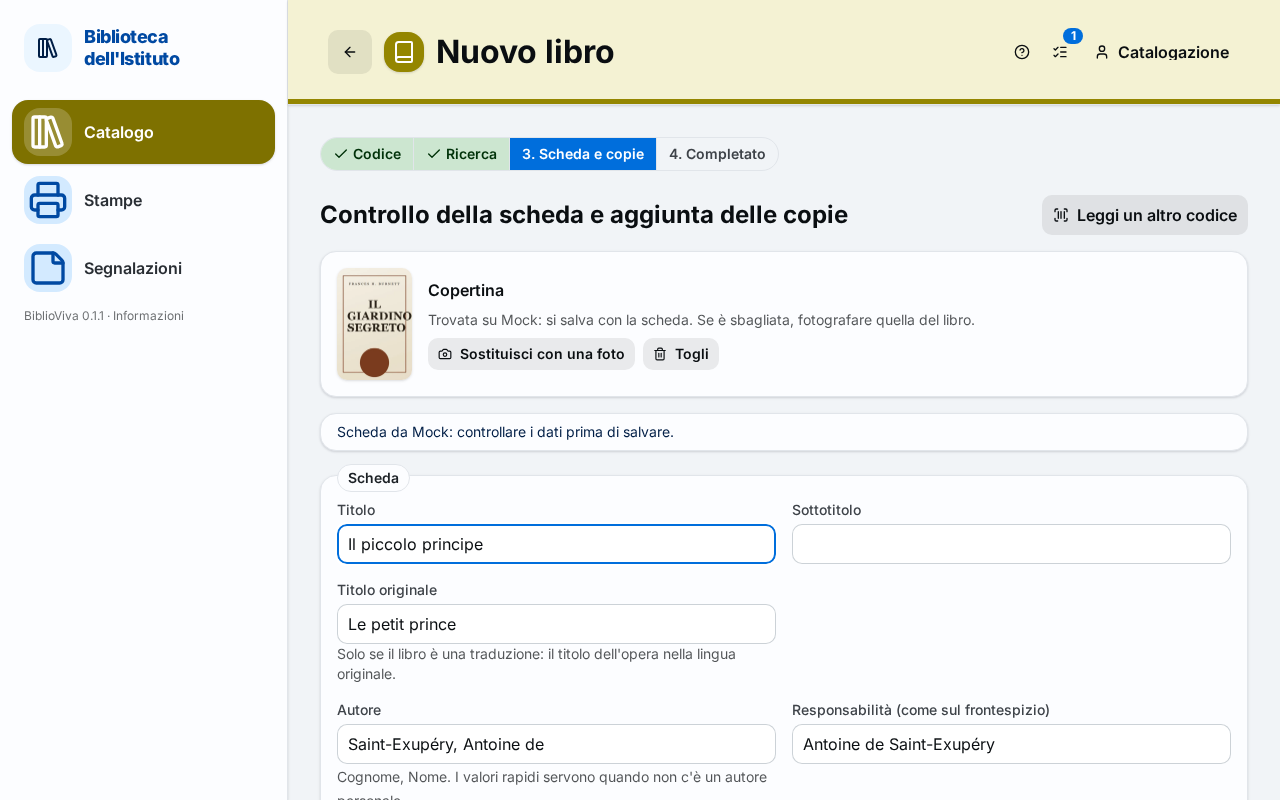
Figure 2. The record found by OPAC SBN, with the cover next to the form -
If the book has no personal author, press "Anonimo" or "AA. VV." under the Author field. If the publisher or the place is unknown, press "s.n." under Publisher or "s.l." under Place. Author and publisher are mandatory: they cannot be left empty.
-
If the book belongs to a series, write the name in Series and the position in Number in the series, for example "Harry Potter" and "3". While typing, the series already in the catalogue appear: choosing one avoids names written in two ways.
-
In the Classification section choose under "What kind of book is it?" Fiction or Non-fiction, then the genre or the subject. For fiction also choose the Reading level, if the library uses it. How to choose is explained in Classify books. If it is not yet known how to classify the book, choose Classify later.
-
In the Copies section write the Number of copies (from 1 to 100) and check the Call number, which BiblioViva suggests from the classification: for example
B 4 DELmeans genre B, reading level 4, author whose surname starts with DEL. The call number can be corrected. The Acquisition date is today's. -
If the library has covers switched on, check the Cover panel next to the form: BiblioViva looks for it by itself, and the guide Add the cover explains how to replace it with a photo.
-
Press Save record and copies. The confirmation "Record saved" opens, with the Copy barcodes (for example
2026-E0267): these are the codes the labels will carry.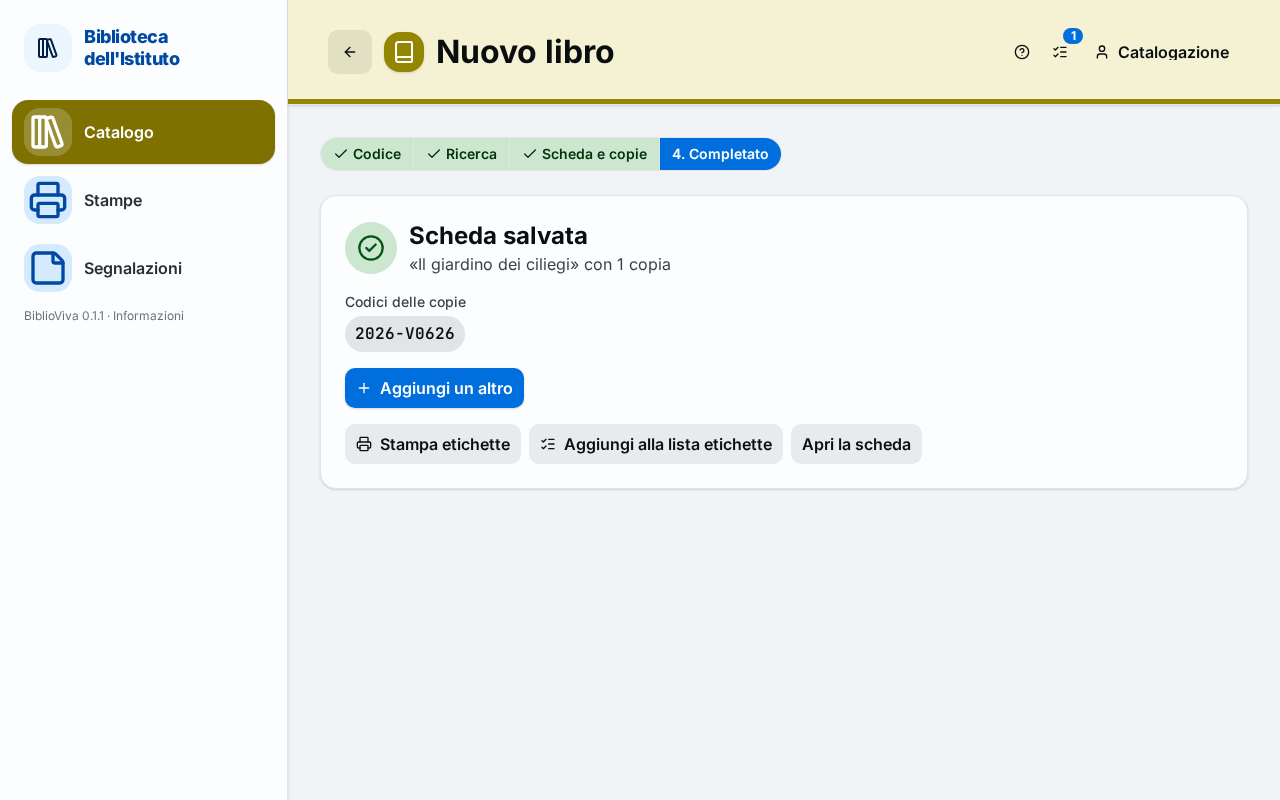
Figure 3. The confirmation after saving, with the copy barcodes and the buttons to go on -
Choose how to go on:
- Add another opens the page again for the next book: it is the normal choice when many books are catalogued in a row;
- Print labels opens the print window for the labels of these copies;
- Add to the labels list puts the copies in a print list, to print the labels of many books together;
- Open the record shows the record of the book just saved.
The labels can also be printed later: the copies without labels are counted on the Dashboard, in the Books without labels panel.
Optional: read the ISBN with the phone camera
The barcode scanner is the normal way of reading the ISBN. The phone camera is an alternative and works only if BiblioViva is reached with Tailscale (HTTPS connection), see Choose the network.
- Open New book on the phone.
- Press Camera next to the ISBN or EAN field.
- Frame the barcode of the book. When the code is read, the lookup starts by itself.
Book from the wishlist
- Open Catalogue, then the Wishlist tab.
- Press Catalogue it on the row of the book. New book opens with title, author and series already written.
- Go on as above. On saving, the wish leaves the list ("Wish removed from the list").
Result
The book has a record in the catalogue and one or more copies, each with its own barcode. The copies are available for lending when the book is classified; a book saved with Classify later appears in To classify and its copies are not lent until it is classified. The copies need a label with the barcode before going on the shelf.
Possible problems
- "This ISBN is already in the catalogue" appears: the book already has a record. To add more copies follow Add a copy to a book already in the catalogue.
- "The ISBN has a wrong check digit: check the digits." appears: the reading is wrong or the ISBN printed on the book is not valid. Read the code again; if the error remains, follow Catalogue a book without an ISBN.
- "The code read is neither an ISBN nor an EAN" appears: the scanner has read a code that is not the book's, for example the one of a label. Read the ISBN barcode, normally above the price.
- "No record found. The record can be filled in by hand.": OPAC SBN does not know the book. Press Search by title to search with title and author, or Enter by hand to write the record; see Catalogue a book without an ISBN.
- "The service cannot be reached. Check the Internet connection and try again later." appears: the BiblioViva computer cannot reach OPAC SBN. Check the connection and press Retry; alternatively press Enter by hand.
- Saving says "A record with this ISBN already exists": another book already has that ISBN. Open it from Catalogue and add the copy from there.
- Saving says "Pick the genre" or "Pick the subject": choose a genre (fiction) or a subject (non-fiction) in the Classification section, or Classify later.
- The record found has a year or a description different from the copy in hand: this happens when several editions of the same book exist. Correct the fields in the form before saving, or choose another record with Other records (N).