
To classify
The To classify page lists the books put in the catalogue without a genre or a subject, the oldest first. Use it to classify them one after the other: until a book is classified its copies are not lent and the spine band is not printed.
The page opens from the To classify tab of the Catalogue and from the dashboard box that counts the books to classify (it appears only if there are any). The accounts "Cataloguing" and "Administration" use it. The procedure is in Classify books.
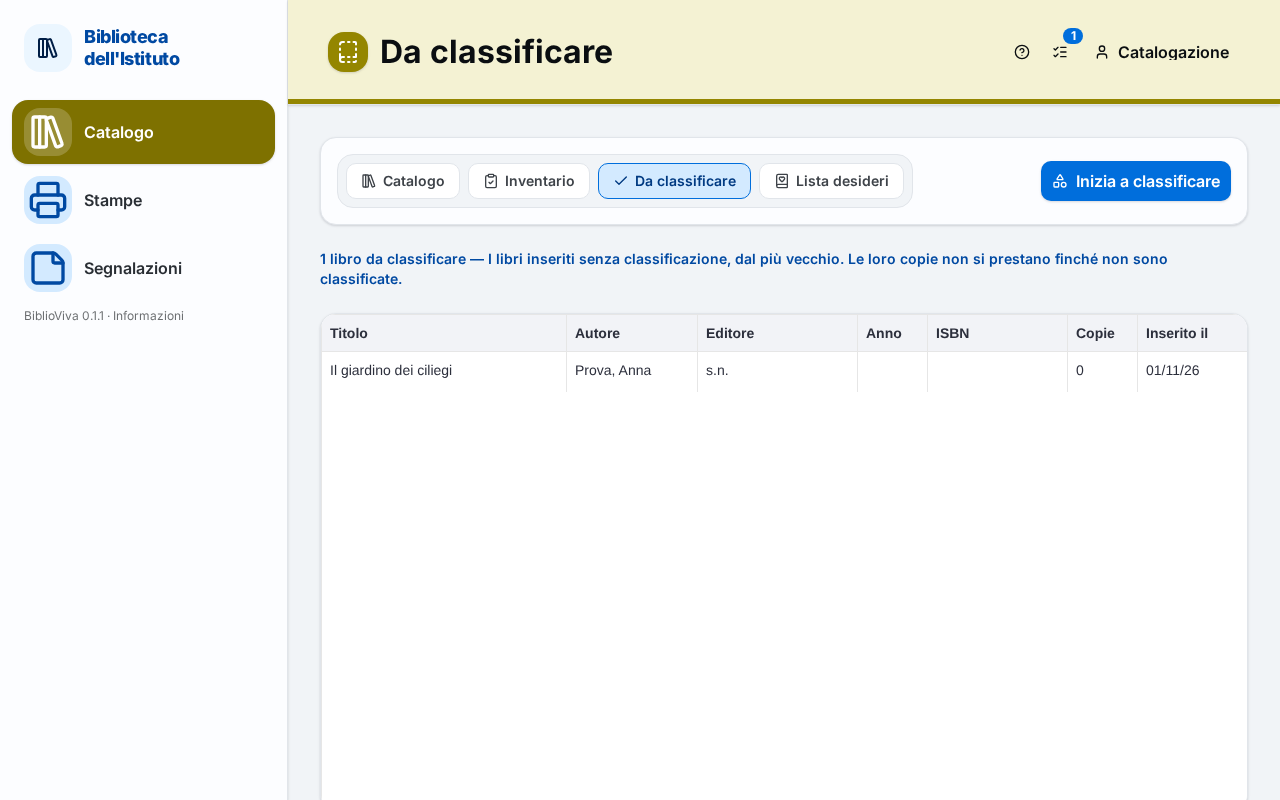
In the figure:
- The tabs of the catalogue area: List.
- The Start classifying button: List.
- The count and the explanation: List.
- The table of books: List.
List
At the top, next to the tabs of the area (Catalogue, Stocktaking, To classify), the Start classifying button opens the first book of the list, that is the oldest. Below, a line says "N books to classify" and reminds: "The books entered without classification, the oldest first. Their copies are not lent until they are classified."
The columns of the table are Title, Author, Publisher, Year, ISBN, Copies and Entered on. A click on a row opens the page Classify the book for that book.
When there is nothing left to classify, the page writes No book to classify and "Every book of the catalogue has a genre or a subject."
A book enters this list when it is saved with Classify later (in the book form, in New book or in the catalogue import) or when the import does not carry the classification.
Classify the book
The Classify the book page offers one book at a time. It opens from Start classifying, from a row of the list, from the Classify button of the Book record and from the circulation desk, when a copy was refused because the book is not classified. At the top the back button leads to the To classify list.
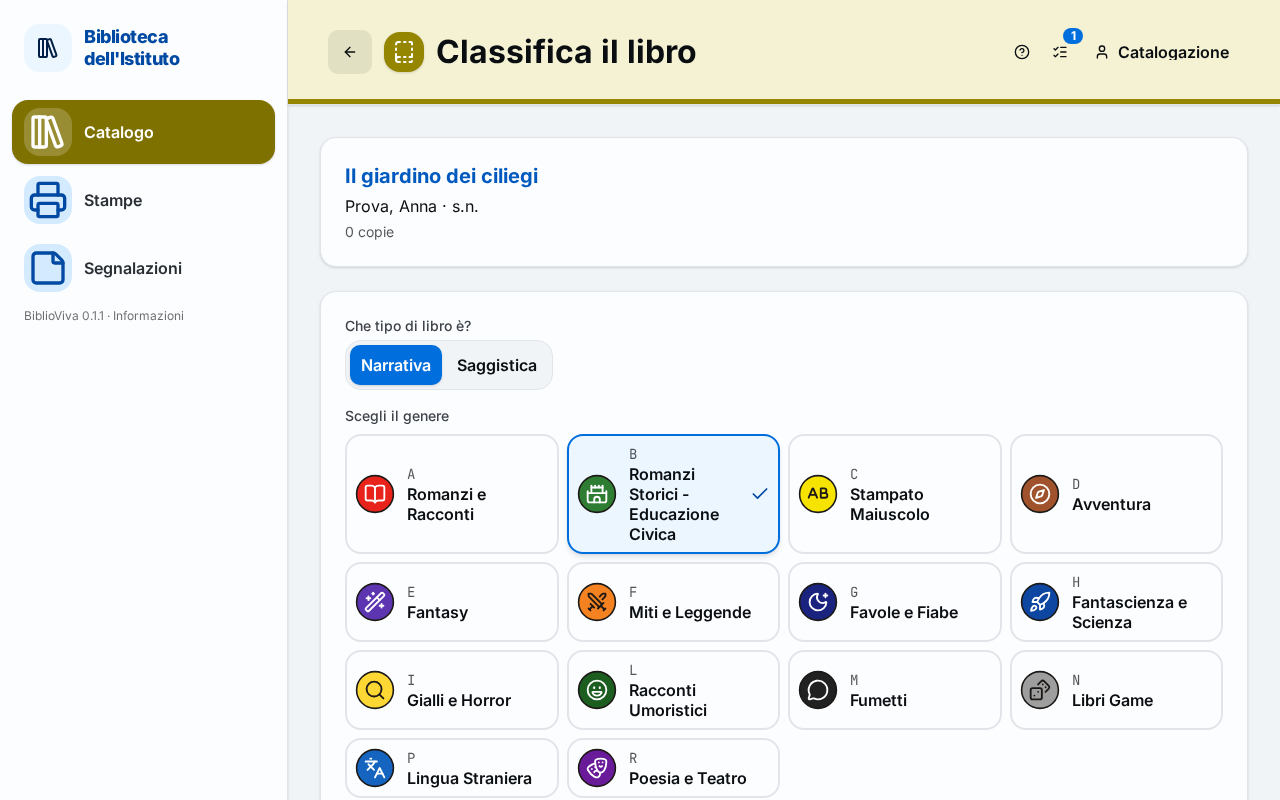
In the figure:
- The data that helps to classify: Book data.
- The proposal from the Dewey number: Proposal from the Dewey number.
- The choice of the kind and of the genre or subject: Choice of the classification.
- The call number of the copies: Call number of the copies.
- The buttons Save and next, Skip and Back to the list: Buttons.
Book data
The box at the top shows what is needed to decide: the cover (if covers are active), the title (a link to the record), the subtitle, the author, the publisher, the year, the series, the ISBN, the number of copies and, if present, the Subjects and the Notes.
Proposal from the Dewey number
If the book has a Dewey number, the page says "The Dewey number N points to the subject X" and chooses Non-fiction and that subject by itself. The choice can be changed.
Choice of the classification
The choice is the same as in the book form (see Classification section), without Classify later: Fiction with the genre (and the reading level, if used), or Non-fiction with the subject. Save and next stays off until a genre or a subject has been chosen.
Call number of the copies
As soon as the classification is chosen, the page writes Call number of the copies with the call number the copies will receive. The note explains: "The copies without a call number get this one; then the spine band can be printed."
Buttons
- Save and next saves the classification and opens the next book to classify. A message confirms "“title” classified".
- Skip leaves the book as it is and moves to the next.
- Back to the list returns to the To classify list.
When no more books remain, the page writes "There are no more books to classify in this round." with the Back to the list button.
Book already classified
If the page of a book that has meanwhile been classified is opened, the page writes "This book is already classified." and leaves only Skip and Back to the list.
After the classification the copies can be lent and the spine band appears among the labels to print.