
Patron record
The patron record gathers the data of a student or a teacher: the photo, the class, the card, the open loans, the history and the notes. Use it to correct the data, print or reassign the card, renew a loan and, when a patron leaves the school, remove them.
The record opens from a patron in the Patrons list, from the saving of a New patron, from Books on loan and from the print lists. The accounts "Cards and photos" and "Administration" use it. The commands to renew a loan and mark it lost appear only for the accounts that also have the circulation desk (normally "Administration"); removing a patron and exporting their data belong only to "Administration".
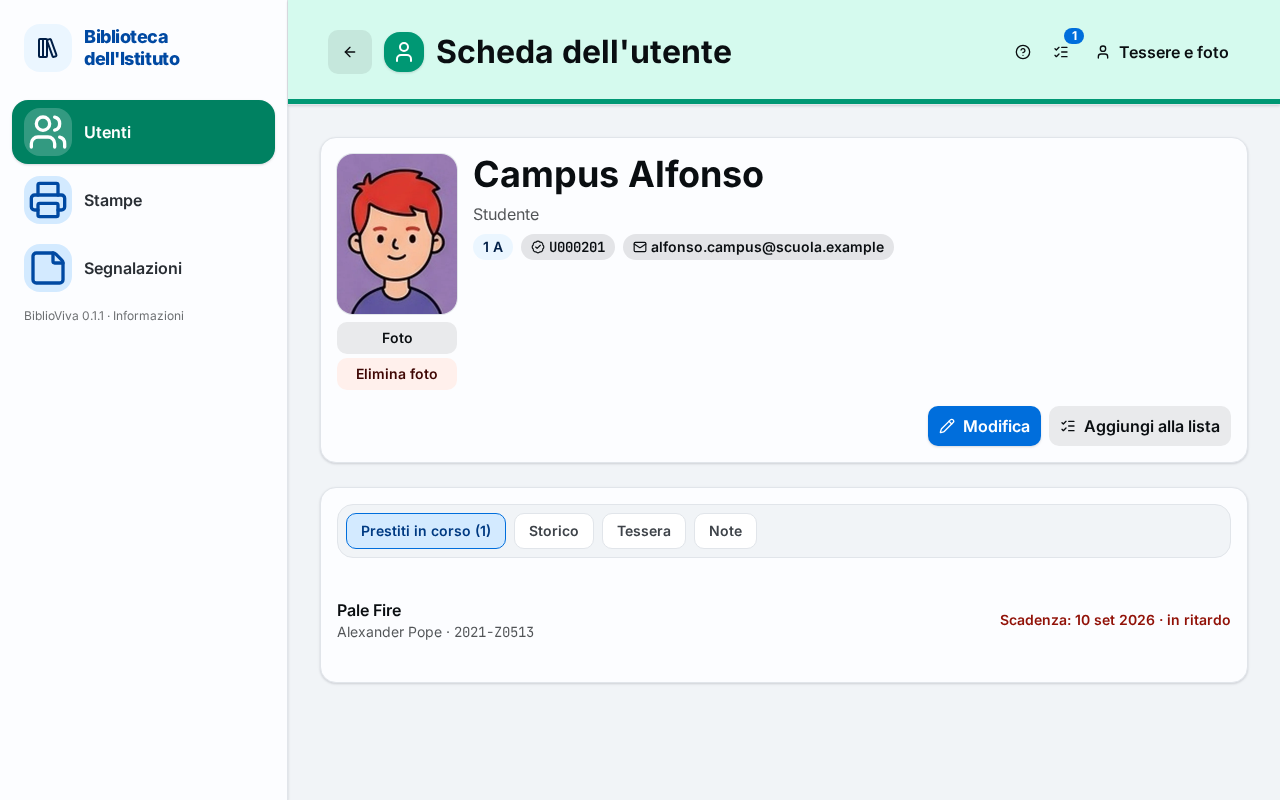
In the figure:
- The photo and the buttons Photo and Delete photo: Photo.
- The name, the type and the marks (class, card, email, desk note): Header.
- The action buttons: Record actions.
- The tabs Open loans, History, Card and Notes: Open loans, History, Card, Notes.
- The list of loans with the renewal and loss icons: Open loans.
Header
At the top are the surname and the name (in the form "Surname Name") and, below, the type (Student or Teacher). The marks are:
- Removed, when the patron has been removed (see Removing the patron);
- the class (
3 B), or Teacher for a teacher without a class; - the number of the card, or no card;
- the email address, if there is one: a click opens the mail program;
- "Removed on" and the date, for a removed patron;
- in orange, the note for the circulation desk, if there is one: it is the same that appears prominently during checkout.
Photo
If patron photos are active (the administrator can switch them off), on the left is the photo, or the placeholder "No photo". Under the photo are two buttons (not for a removed patron):
- Photo opens a panel to take the photo. With Take photo the camera of the device is used; with Upload file an image already prepared is chosen. After the shot, drag the image to frame the face, adjust the Zoom and confirm with Use this photo; Retake repeats the shot, Cancel exits. A message confirms "Photo saved". The camera is optional and works only with a secure connection (https), that is with Tailscale; uploading a file works everywhere.
- Delete photo (if the photo exists) asks for confirmation ("Delete the photo?") and deletes it from the server.
The photos of many patrons together are taken from the Photo census. The procedure is in the guide Take the patrons' photos.
Record actions
The main action is Edit. If the row is narrow, the others move into the More actions menu.
- Edit opens the form Edit patron.
- Add to the list puts the patron in a card print list (see Printing and Use the print lists). It is not available for a removed patron.
- Export the person's data, only for "Administration", downloads the data of that person, to answer a request for access to data.
- Remove student or Remove teacher (according to the type), in red, only for "Administration": see Removing the patron.
Open loans
The Open loans (N) tab lists the books the patron has on loan. For each loan the title, the author and the code of the copy are given, and "Due:" with the date; an overdue loan carries "overdue" in red. When there is no loan, the page writes "No open loans."
For the accounts that also have the circulation desk (normally "Administration") there are the following commands:
- Print a reminder, if at least one loan is overdue: opens in a new tab the reminder to hand over;
- Renew all, if there is more than one loan;
- the icon "Renew …" beside the loan, which renews that book;
- the icon "Mark … lost", in red, which closes the loan because the book cannot be found.
A refused renewal explains why with a message in the page, the same as at the circulation desk (see Refused renewals); for "Administration" the window Force the renewal? allows going on anyway with Renew anyway, by writing a reason.
Marking a book lost
The icon "Mark … lost" opens the window "Mark “title” as lost?". The loan closes and the copy shows as lost. If the book turns up, recording the return brings the copy back to available. The Reason (optional) field records why; Mark lost confirms ("“title” marked as lost.").
Lost books
Under the loans the Lost books section lists the books marked as lost while on loan to this patron, with the date. The note reminds: "If they come back, scan them at the returns desk."
History
The History tab lists all the loans of the patron, the most recent first: Issued on, Due, Returned on, Outcome, Title, Copy and Renewals. The outcome is Open, Overdue, Returned, Returned late or Lost. Above the list a line says "N loans in total" and the Export menu downloads the list as CSV or ODS. If there is no loan, the page writes "No loan recorded."
Card
The Card tab shows the number of the card, its barcode and whether it has already been printed: "Card printed on …" or "Card not printed yet." If the patron has no card, the page writes no card.
- Print card opens the Print cards window for this card alone (see Printing the cards).
- Mark as printed records that the card has been printed ("Card marked as printed").
- Reassign card gives the patron a new card, for example after a loss. The window "Assign a new card?" warns: "The current number is retired for good and the new card will need printing." After confirmation a message gives the new number ("New card: …"). The old card is no longer valid.
Important. The retired number is not reused. After Reassign card the new card must be printed. The procedure is in the guide Reprint a card.
A removed patron has no more print or reassignment buttons.
Notes
The Notes tab contains two texts: the Note for the circulation desk, which appears prominently at the time of the loan, and the Internal notes, which stay here. At the bottom "Created on" with the date can be read.
- Press Edit notes.
- Write the Note for the circulation desk (at most 500 characters) and the Internal notes (at most 2000).
- Press Save. A message confirms "Notes saved" (or "No change"). Cancel exits.
If there is nothing, the page writes "No notes."
Removing the patron
Remove student (or Remove teacher) opens the window "Remove name for good?". The first name and surname, the email, the student id, the notes, the card number (which is retired) and the photo are erased at once and for good; only the type, the class, the section and the loan history remain, for the statistics. The operation cannot be undone. The window shows two warnings when needed:
- "Has N open loans: they must be returned or marked lost first." A patron with open loans is not removed.
- "They were chosen for N photos in the class pictures (census from a picture): those frames are covered."
The confirmation button has the same name as the action. The procedure is in the guide Remove a patron. At the end a message says "Patron removed: personal data erased." and the record shows Removed.
Warning. Removal is immediate and irreversible: there is no waiting period. For the people who leave the school at the end of the year, the administrator's class upgrade is normally used (see Upgrade the classes).
Edit patron
The Edit patron page corrects the data. It opens from the Edit button of the record; the procedure is in the guide Edit a patron's data. At the bottom are Cancel and Save changes. Invalid fields are flagged under the field; the list of the wrong ones appears at the top under "Check the highlighted fields". The form is the same as New patron.
Identity section
- Type: Student or Teacher. Changing the type changes the fields of the next section.
- Surname and First name, mandatory.
Class section
For a student:
- Class: the year of study. If it is not chosen, the form answers "A student needs a class (the level).";
- Section: the section, chosen among the classes that host that year. The word can change in the school, because it is set by the school configuration. The classes are created by the administrator (see Set up the classes).
For a teacher Class is disabled and instead of Section appears Teachers group (normally "The teachers group").
The next two fields apply to all types:
- Card number: if empty, BiblioViva assigns it by itself ("Empty: assigned automatically.");
- Student id: the code by which the school identifies the patron, optional.
Contacts section
Closed on opening if there is no data already. It contains the Email: the address the school gives the student or the teacher, which will carry the notices.
Notes section
Closed on opening if there is no data already. It contains the Note for the circulation desk ("Shown prominently during checkout.") and the Internal notes.
Form messages
Invalid card number
"Invalid card number: digits, capital letters and dashes only, with the right check character." The number written does not respect the format of the cards, which contains a check character. The field can be left empty.
Card number already assigned
"Card number already assigned to another patron." Each card belongs to one person only. No card can have the number of a copy: "The card number is or looks like a copy barcode: choose another number."
Student id already assigned
"Student id already assigned to another patron."
Invalid class or section
For a student the section is mandatory ("A student needs a section."). The other messages say that the class does not exist or does not match the section: "Class not among the levels of the school.", "Section not found among the active classes: classes are created in Administration → Configuration → Classes." and "This section has no such class: choose a section of the class." A teacher has no class ("A teacher has no class.").
Invalid email address
"Invalid email address."
New patron
The New patron page enrols a patron. It opens from the New patron button of the Patrons list and from the quick action of the dashboard. The procedure is in the guides Enrol a student and Enrol a teacher. For many patrons together the administrator's import is better (Import the students, Import the teachers).
The form is that of Edit patron; the final button is Create patron, Cancel returns to the list. After saving, the record of the new patron opens.
Photo of the new patron
If photos are active, above the form is the Photo box, with the hint: "A photo is expected: take it now, or later from the patron's page." (or "The photo can be taken now or later from the patron's page.", according to the school's configuration). Take photo opens the camera: the photo is kept and saved together with the patron ("It is saved with the patron."). Retake the photo repeats the shot and Remove discards it. If saving the photo fails, the record opens anyway and a warning says "The photo was not saved: take it again from the patron's page."