
Do the stocktaking
This guide explains how to check with the scanner all the books on the shelves, in one or more days, to find out which copies are missing or out of place. It is for whoever catalogues the books and reviews the library.
- Time: from a few hours to several days, depending on the number of books. The work can be interrupted and resumed at will.
- Account: "Cataloguing" (also "Administration").
- Requirements: the USB barcode scanner connected to a laptop that can be carried along the shelves and that reaches BiblioViva with the browser, and all the books with the barcode label. Books without a label must be labelled first, see Print book labels.
During the work no copy is marked lost. Only when the stocktaking is closed do the copies never read become Lost. The copies expected on the shelf are those that are Available, Damaged or In repair: copies on loan, withdrawn, already lost or reserved for reference do not count among the missing ones.
Procedure
Open the stocktaking
-
Open Catalogue and then the Stocktaking tab. Or press Stocktaking in the quick actions of the Dashboard.
-
If there is no stocktaking in progress, "No stocktaking in progress" appears. Write the Campaign name (normally the one proposed, with the date) and press New campaign.
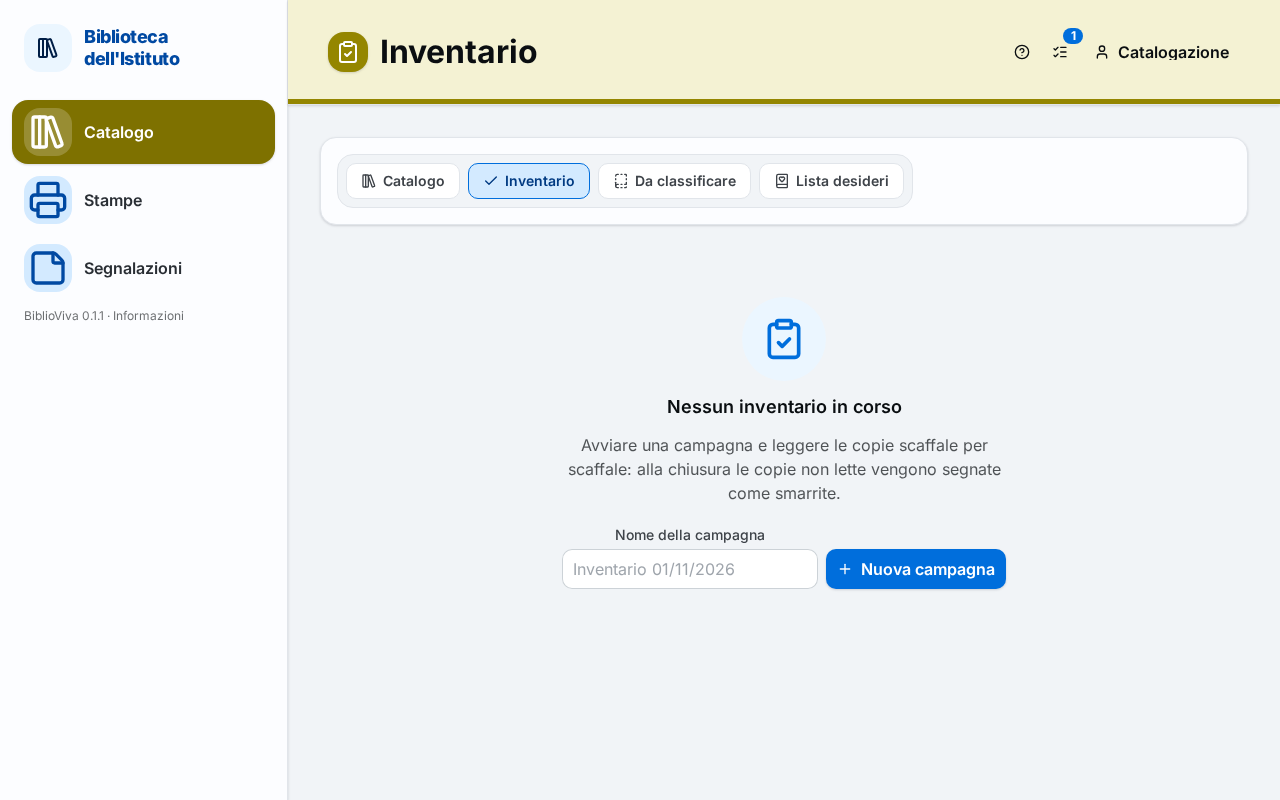
Figure 1. The Stocktaking page before starting the campaign Only one stocktaking can be open at a time.
Scan the copies
-
In the "Scan the copies" panel write in the Shelf field the code of the shelf being checked, for example
Bor590(the initial part of the call number). The copies that have a different call number will be flagged as out of place. The field can be left empty. -
Read with the scanner the barcode of each copy, in the order in which they stand on the shelf. The Copy barcode field already has the cursor and empties after each reading.
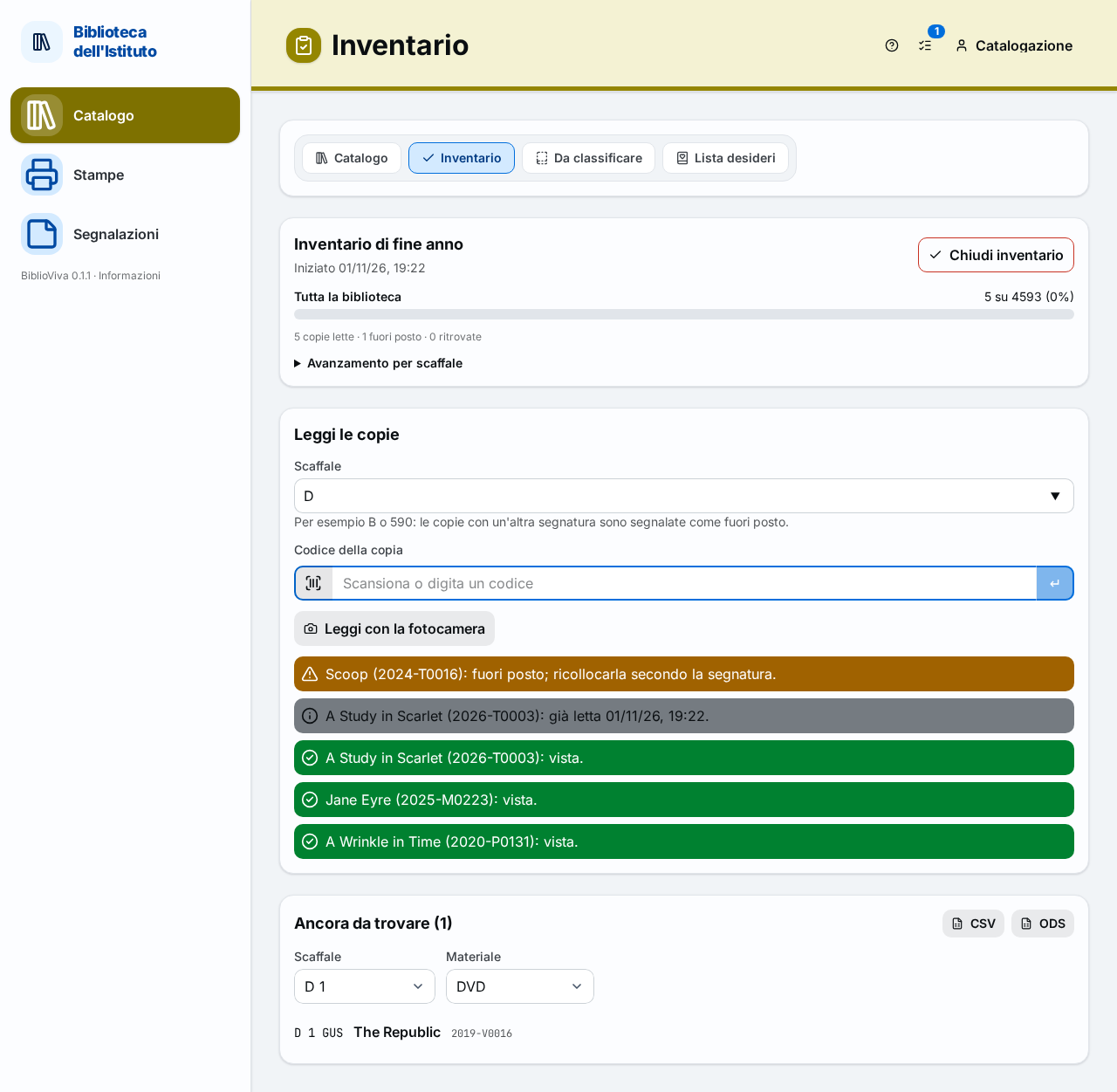
Figure 2. The panel to scan the copies, with the latest results -
After each reading look at the result line: they are the last five, each with colour, icon and text.
- "… seen.": the copy is in its place, nothing else is needed.
- "… already scanned …": the copy had already been read.
- "… on the wrong shelf; put it back as its call number says.": put the book back on the right shelf.
- "… it was lost and has been found; it is available again.": the copy becomes available by itself.
- "… on loan; register the return at the desk.": the book is on the shelf but the loan is still open.
- "… withdrawn copy, to be taken off the shelf.": the book is no longer part of the library.
- "…: no copy has this barcode.": the code read is not in the catalogue.
-
When the shelf changes, change the value of the Shelf field.
-
To interrupt the work, close the page or switch off the computer: the results read stay saved. To resume open Stocktaking again, or press Continue in the "Stocktaking" panel of the Dashboard, which shows the progress. The results of the previous days still count.
Follow the progress
-
At the top the Whole library bar says "N of M (P%)", that is how many expected copies have been seen. Below is the summary "N copies scanned · N on the wrong shelf · N found again".
-
Open Progress by shelf for one bar per shelf, with the copies without a call number under "No call number".
-
In the Still missing (N) panel read the copies not yet read, each with call number, title and barcode. The list is narrowed with Shelf (All shelves) and Material (All materials).
-
To get the whole list, even when it is longer than the one shown ("and N more"), press "CSV" or "ODS".
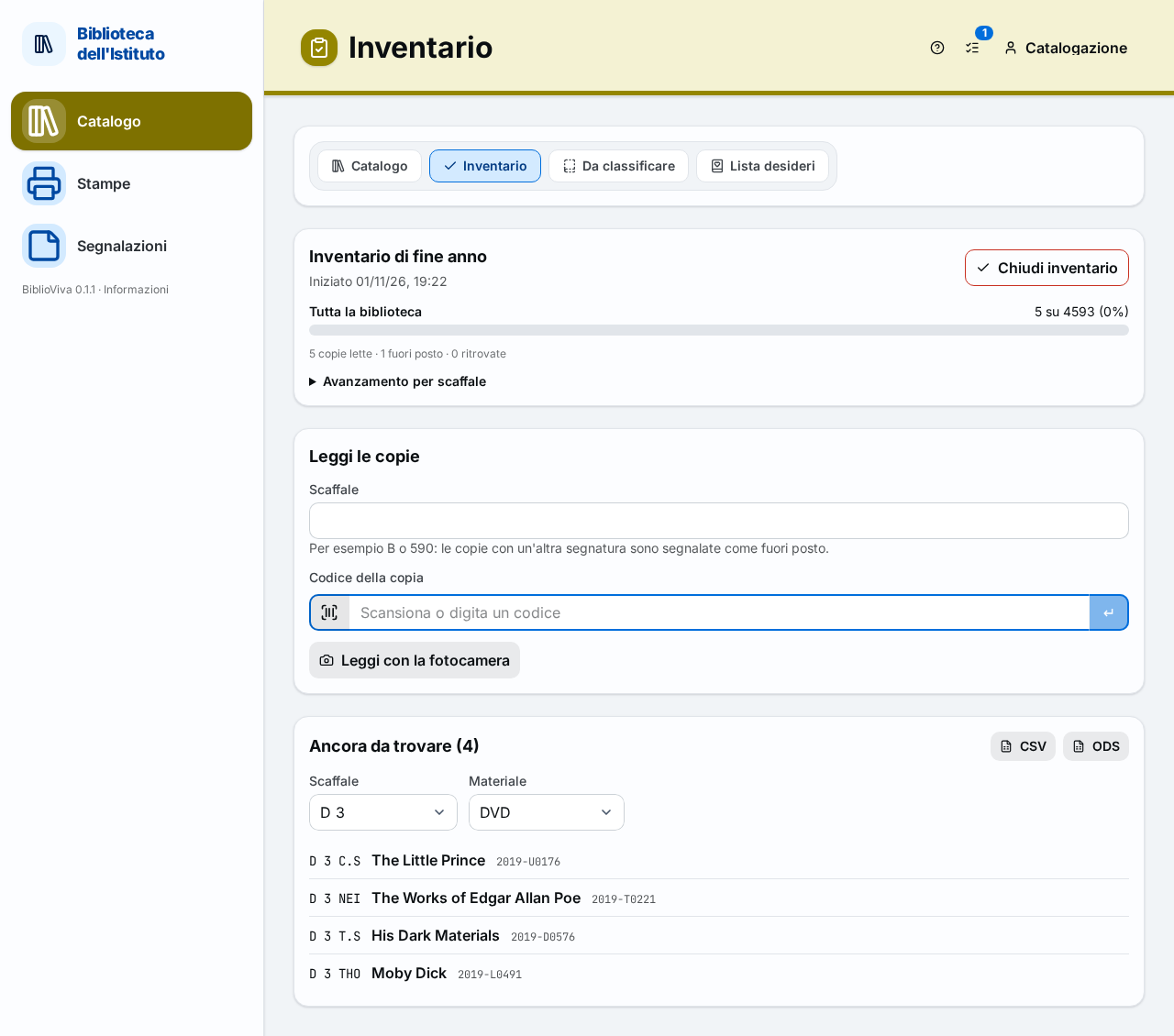
Figure 3. The progress of the stocktaking and the list of the copies still to be found
Close the stocktaking
- When all the shelves have been read, look calmly for the copies that still appear in the Still missing (N) list: each copy found and read leaves the list.
- Press Close stocktaking. The "Close the stocktaking?" window opens, which says how many copies never seen will become lost: "The N copies never seen will be marked as lost.".
- Press Close stocktaking in the window to confirm.
- Read the summary "Stocktaking closed": "N of M copies seen, N marked as lost, N found again, N on loan, N on the wrong shelf.".
Undo the closing
Within a week of closing, the stocktaking can be reopened, for example if it was closed too early.
- In the Past campaigns panel press Reopen on the row of the closed stocktaking. The button is there only within a week of closing.
- The copies that the closing had marked as lost go back to their previous status and the stocktaking is in progress again.
Result
The stocktaking is closed. The copies never seen are Lost, each with the reason "inventario" followed by the name of the campaign; the copies out of place have been put back; the list of the missing copies has been exported, if it was needed. A new stocktaking can be opened at any time.
Possible problems
- The code read says "no copy has this barcode": the book may have a label of another system or have been catalogued without a BiblioViva label. Catalogue it or print its label, see Catalogue a new book.
- "A stocktaking is already in progress." appears: only one campaign can be open at a time. Continue the open one or close it.
- "It can be reopened only within a week of closing." appears: the time has run out. The lost copies are set back to Available by hand, one by one or with a bulk change, see Withdraw a lost or damaged copy.
- A copy out of place gives "on the wrong shelf" but is on the right shelf: the Shelf field had stayed on the code of the previous shelf: change it and read the copy again.
- The computer switches off halfway through the stocktaking: nothing is lost, because the results read are saved. Open Stocktaking again.
- The copy on loan is shown as missing: copies on loan do not count among the missing ones. If the book is on the shelf record the return at the desk, see Return a book.
- The phone camera is wanted instead of the scanner: it is an optional alternative that requires Tailscale (HTTPS), see Choose the network. In the "Scan the copies" panel press Scan with the camera, frame the codes one after the other and press Done at the end.