
Correct a book record
This guide explains how to correct the data of a book already in the catalogue (title, author, series, classification…), how to change the data of a single copy and how to delete a record entered by mistake. It is for whoever catalogues the books.
- Time: about 2 minutes.
- Account: "Cataloguing" (also "Administration").
- Requirements: the book, to compare the data with the title page.
Procedure
Correct the data of the book
-
Open the record of the book from Catalogue, see Find a book.
-
Press Edit. Edit record opens, with the title of the book under the heading.
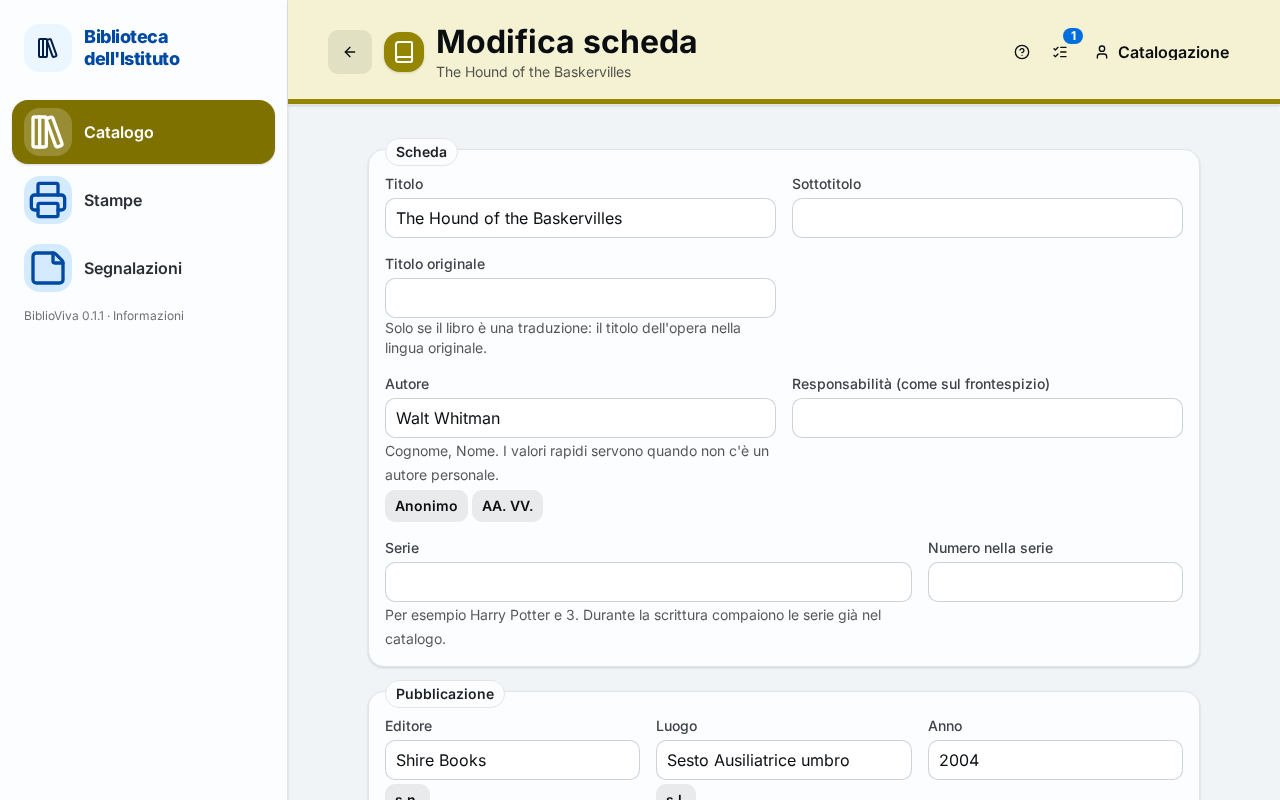
Figure 1. The Edit record page with the data of the book -
Correct the fields. In the Record section: Title, Subtitle, Original title, Author, Statement of responsibility (as on the title page), Series and Number in the series. In the Publication section: Publisher, Place, Year, ISBN, EAN (not an ISBN) and Physical description.
-
To correct subjects, notes or Dewey number open the More section.
-
To change the classification correct it in the Classification section; see below for the call numbers.
-
Press Save changes. The record of the book opens again, with the new data. Cancel leaves everything as it was.
Change the data of a copy
A copy has data of its own, distinct from those of the book: Material, Call number, Level of the copy, Volume / number, Acquisition date, Notes on the copy and Reference only (not lent).
- If the book has a single copy, the "Copy …" section is at the bottom of the Edit record page: its data are changed there and saved together with the record.
- If the book has several copies, open the record of the book and press the pencil icon on the row of the copy (the tooltip says "Edit copy …"). A window opens with the same fields.
- Correct the fields and press Save. A notice confirms "Copy updated".
To change the same datum on many copies, for example the acquisition date or the material, select the books in Catalogue and press Change the copies of the selection: see Withdraw a lost or damaged copy, where the tool is described.
After changing the classification or the call number
Correcting the classification in the Edit record page does not rewrite the call numbers of the copies already created. To rewrite them, and to put the spine bands back among the labels to print, use Reclassify, see Classify books. If the call number of a copy is changed by hand, BiblioViva puts the spine band and the barcode label back among the labels to print by itself, as after Reclassify: the copy reappears in the Books without labels panel of the Dashboard and they are printed again as described in Print book labels.
Delete a record entered by mistake
- Open the record of the book.
- If the book has copies, first delete the copies entered by mistake with the trash icon on their row. A copy already lent cannot be deleted: it must be withdrawn, see Withdraw a lost or damaged copy.
- Press Delete record (in the menu of the other actions if the window is narrow).
- In the "Delete the record …?" window press Delete record. A notice confirms "Record deleted".
Result
The record of the book shows the corrected data, also in the pages that list it. The barcode of the copies and the loans already recorded do not change.
Possible problems
- Saving says "A record with this ISBN already exists": another record has that ISBN, and the book was probably catalogued twice. Open the other record, add the copies there and remove the duplicate record.
- "Invalid ISBN (check the digits)", "Invalid ISSN" or "Invalid EAN": the digits do not add up. Compare them with the book and correct them, or leave the field empty.
- "Implausible year": write a year between 1450 and next year, or leave the field empty.
- Author or publisher cannot be left empty: use "Anonimo", "AA. VV.", "s.n." or "s.l." under the fields, see Catalogue a book without an ISBN.
- "The record still has N copies: withdraw or delete them first." appears: the record cannot be deleted while it has copies. Follow the second point of the last procedure.
- "The copy has recorded loans: withdraw it instead of deleting it." appears: a copy already lent stays in the loan history: change the status to Withdrawn.