
Loans
The Loans page is the lending desk: it is used to register the books that a patron takes away. Work is done with the barcode scanner: first the card is read, then the barcodes of the books, one after the other. The page is opened by the accounts that have the loans permission ("Loan management" and "Administration"); for "Loan management" it is the page that opens right after signing in. From the other accounts it is reached with Loans in the side menu (in the bottom bar on the phone) or with the Loans button of the dashboard.
The page is part of the circulation desk, which has six tabs: Loans, Returns, Books on loan, Overdue notices, Wishlist and Calendar. For the step-by-step procedure see Lend a book.
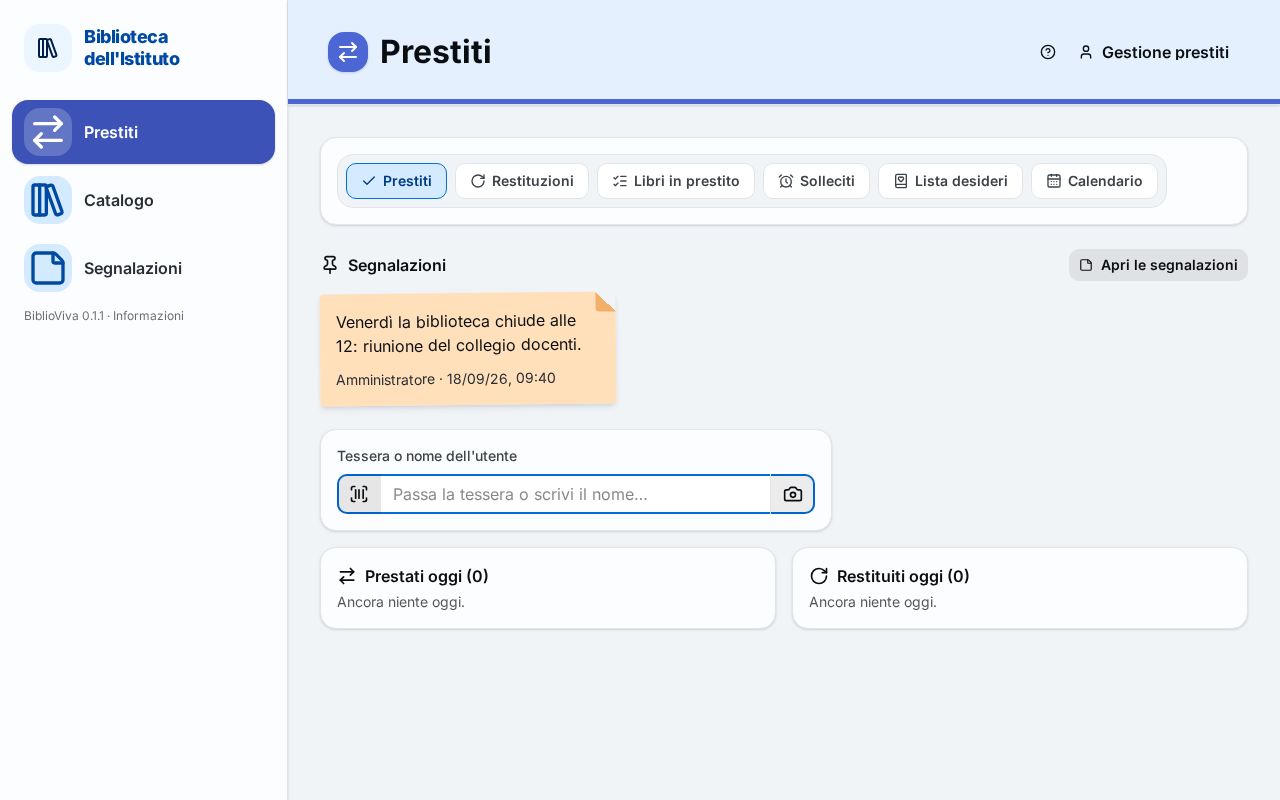
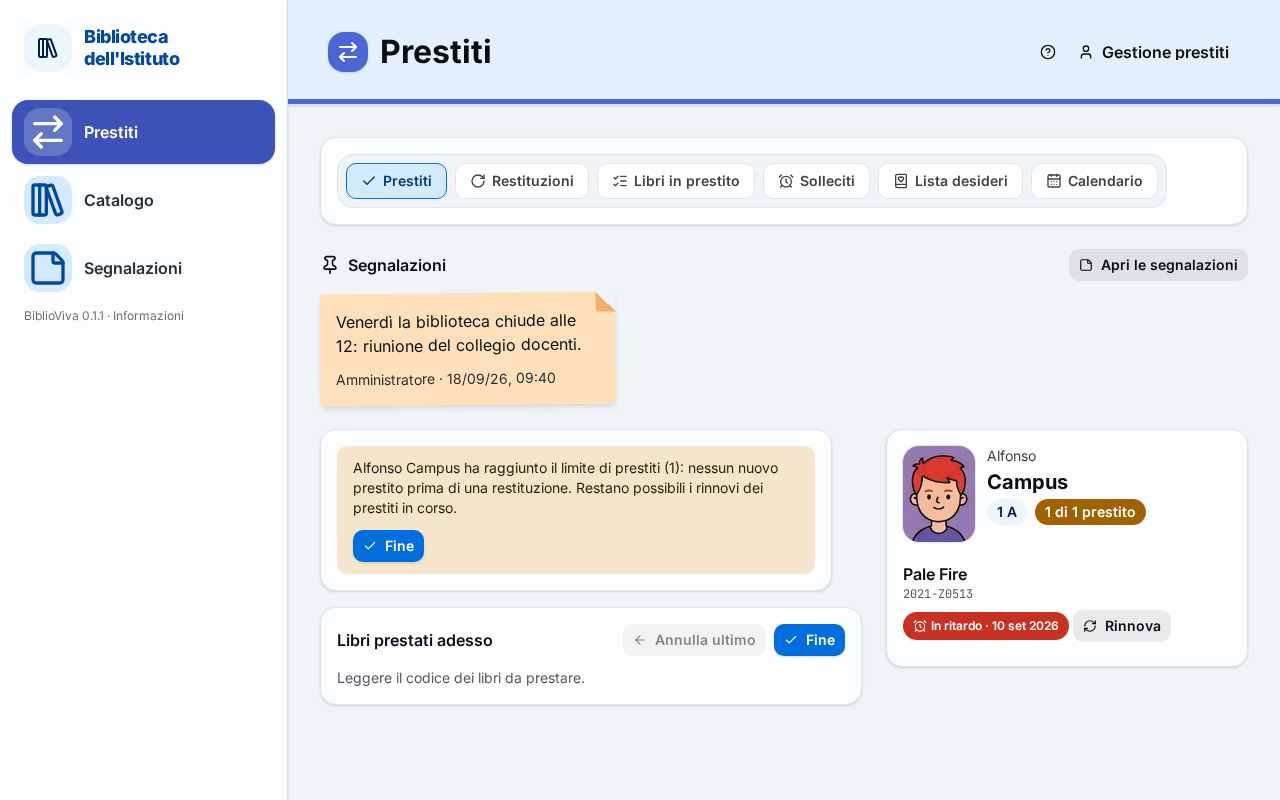
- Book field.
- Desk messages: the result of the last scan.
- Books lent now, with the buttons Undo last, Print receipt and Done.
- Patron card.
Desk tabs
Just under the title are the circulation desk tabs. Pressing Loans again while already on this page closes the operation in progress and returns to the patron field.
Pinned notes
Accounts that open the desk directly, such as "Loan management", do not see the dashboard: the notes that the administrator has pinned therefore appear here, in a strip above the field. The Open the notes button leads to Notes. Without pinned notes the strip does not appear.
Patron field
In the first phase the field is called Card or patron's name. There are two ways to choose the patron:
- read the card with the barcode scanner: the scanner sends the code and the Enter key, and the patron is chosen;
- type part of the name in the field: from the third letter a list opens with the matching patrons (also for similar names), with the class and, if photos are on, the photo. Choose with the arrows and Enter, or by pressing the name; the Esc key empties the field.
The Camera button next to the field reads the code with the phone's camera. It is optional and works only if BiblioViva is opened over a secure connection (https, that is with Tailscale): the barcode scanner remains the normal way.
The field can also be filled by opening the page from Returns with the button Go to Loans with this patron: the patron is already chosen.
Today's loans
As long as no patron is chosen, two tiles side by side appear under the field, Lent today and
Returned today, with the time, the patron's name and the title of each operation of the day. If the day is empty:
"Nothing yet today." If there are more than six items: "and <n> more".
Book field
After the patron is chosen the field changes its name to Scan the book, with the hint "One book after the other: its barcode, scanned or typed." Every code read registers the loan at once; the field stays ready for the next book. There is no search by title: books are read from the barcode of the copy (on the spine, in the label) or typed by hand.
When the patron has reached the loan limit, the field gives way to a yellow notice: "<name> has reached the loan
limit (<n>): no new loan until a book is returned. The open loans can still be renewed." The Done button closes
the operation.
Desk messages
Under the field appears the result of every scan. Every message says what happened and what to do, has a colour, an icon and the text (colour is never the only sign) and, when needed, one or more buttons. Red: the operation was not done; yellow: to be checked; light blue: information; green: operation succeeded. The desk makes no warning sounds.
The messages are described below, each with its exact text. In the texts, <title>, <name>, <date> and the like
stand for the real data; long titles are shortened to 40 characters.
Confirmations
Loan registered
Lent: “
<title>”, due<date>
The book has been lent and appears in Books lent now. The due date follows the library's loan rules and the calendar. No action is required: scan the next book, or press Done. If the due date was corrected, one of the notices described in Notices after a loan follows immediately.
Loan renewed
Renewed: “
<title>”, new due date<date>
The loan was renewed with Renew (in the patron's card or in the message Book already on loan to the same patron). No action is required.
Renewal of several loans
<n>of<total>loans renewed.
Appears after Renew all. If <n> is lower than <total>, the message is yellow and under it appears, for each
loan not renewed, the reason (see Refused renewals).
Refused loans
Book scanned without a card
The book “
<title>” was scanned without a card. Scan the patron's card first; for a return, open Returns.
The code of a copy was read when no patron was chosen yet. If the book was to be lent, read the patron's card and then the book again. If instead the book is being returned, press Go to Returns: the page opens with the code already in the field, to be confirmed with Enter.
Code not found
Code
<code>not found. Check that the scanner read it correctly or type it: book codes look like<copy example>, card numbers like<card example>.
The code read matches no card and no copy. The message shows, as an example, the form of the codes adopted by the library. What to do: press Try again and scan again, or type the code by hand; if the book has no code (lost label), press Search by title, which opens the catalogue, and see Lend or return a copy without a label. The card of a removed patron is no longer recognised and gives the same message.
If the typed text has the form of no code, a notice also appears under the field: "Code not recognised: make sure the scanner reads Code 39 and Code 128."
Code with a wrong check character
Code
<code>looks mistyped (the check character does not match). Scan it again or type it.
The last letter or digit of the code serves to check that the scan is right, and here it does not match: usually the label is dirty or the scanner misread. Press Try again and scan the code again. A notice also appears under the field: "The copy barcode has a wrong check character: scan it again." (or "The card number has a wrong check character: scan it again.").
Card and copy code together
An old number may coincide with that of a card and with that of a copy. On the Loans page no message appears: with no patron chosen the code is treated as a card, with the patron chosen as a book. The Card / Book choice message appears only in Card and copy code together.
Card of a removed patron
This card belongs to a removed patron and is no longer valid.
Appears in the rare case where the patron was removed while their card was open at the desk. A removed patron cannot have loans: press Done and choose another patron.
Loan limit reached
<name>already has<n>book(s) on loan (<titles>); the limit is<max>. For a new loan, first register a return on the Returns page.
The message appears in the middle of the page, in a window titled Loan limit reached, when a patron who already has the maximum number of books is chosen or when an attempt is made to lend one more. The limit depends on the type of patron (student or teacher) and, for some types of material, on the material. It cannot be forced, not even by the administrator. What to do: ask the patron to bring back one of the books listed; press Go to Returns and register the return by reading the code of that book, then go back to Loans. Press Close to close the window without doing anything else; renewals of the open loans remain possible from the patron's card.
Book already on loan to the same patron
“
<title>” is already on loan to<name>since<date>. Renew the loan?
The patron already has this copy: probably they bring it to keep it longer. Press Renew to renew the loan ("Renewed: …" appears) or Cancel to leave things as they are.
Book on loan to another patron
“
<title>” is on loan to<other patron>since<date>. Register the return on the Returns page first, then come back here for the new loan.
The copy is registered as lent to another person: usually it was returned without reading the code. Press Go to Returns: the page opens with the code already in the field, and the return is confirmed there with Enter; the Loans page does not register it by itself. Then go back to Loans and lend the book.
Book not yet classified
“
<title>” is not classified yet and is not lent. It must be classified first: genre or class.
The book has been catalogued but does not have its classification yet: as long as it is missing, it is not lent. The account with the catalogue permission sees the Classify button, which opens the book's record in To classify; the others ask whoever catalogues. It cannot be forced.
Reference-only copy
“
<title>” is a reference copy and is not lent.
The copy is marked as excluded from lending. Press Cancel to close the message. Only the administrator also sees Force (admin only): the window Forcing a loan opens.
Copy that cannot be lent
“
<title>” is<status>and cannot be lent. If the book is available again, update its status from its page.
<status> is one of "in repair", "lost" and "withdrawn" (a damaged copy is still lent). If the book has really come back to the library,
press Open the copy and correct the status in the book's record (see Book record). The
administrator also sees Force (admin only), except for withdrawn copies, which are never lent.
Loan refused because of overdue books
<name>has<n>overdue book(s):<titles>.
Appears in red, without buttons, only if the administrator has switched on the setting No new loans with overdue books: the loan is not registered and the patron must first return the books indicated (see Returns). Without this setting the same text is a simple notice, described in Patron with overdue books.
Book already in the list
“
<title>” is already in the list of this loan.
The same copy was read twice in the same operation. The loan is already there, once only: scan the next book.
Notices after a loan
These messages appear under the confirmation "Lent: …", because the loan was registered but with something to know.
Patron with overdue books
<name>has<n>overdue book(s):<titles>.
The message is yellow and has the Print a reminder button, which opens in a new tab the printable reminder of that patron's overdue books. The loan is already registered; remind the patron to bring back the books indicated.
Due date moved because of a closure
The due date fell on a closed day and was moved to
<date>.
The calculated date fell on a day when the library is closed, and BiblioViva moved it to the first open day. No action is required; the right date is already in the confirmation. Closing days can be seen in the Calendar.
Due date limited to the end of the year
The due date was limited to
<date>, the end of loans for this year.
The administrator has set a date after which no loan can fall due. No action is required: remind the patron to return the book by that day.
Refused renewals
A renewal that the rules do not allow is explained by a red message with the Return button, which opens Returns with the book's code in the field. The administrator also sees Force (admin only), except for the latest due date: the window Forcing a renewal opens.
Renewal limit reached
“
<title>” has already been renewed<n>times, the maximum. It must be returned.
The book has already been renewed as many times as the rules allow. What to do: have the book returned (Return).
Renewal blocked by lateness
“
<title>” is<n>days overdue and the rules do not allow a renewal.
The library's rules do not allow renewing a book that is already overdue. What to do: have the book returned (Return).
Renewal beyond the latest due date
“
<title>” cannot be renewed: it is already due on<date>, the last loan day of this year.
The latest date for loans leaves no room for a renewal. What to do: have the book returned (Return). This refusal cannot be forced.
Other messages
Session closed for inactivity
Nothing done for
<n>minutes: the loan of<name>was closed. Scan the card again.
After a certain time without scans the page becomes ready for a new patron, so that the next patron's books do not go by mistake to the previous card. Loans already registered remain. What to do: scan the card again. The time can be set by the administrator (Loans desk idle time (seconds), normally 120 seconds).
Loan undone
Undone: “
<title>” is no longer on loan to<name>.
Confirms the Undo last button. The book is available again and the loan is deleted (the deletion stays in the log of operations). No action is required.
Books lent now
The Books lent now section lists the books lent in the operation in progress, the last one on top, each with its due
date ("due <date>"). While it is empty: "Scan the barcode of the books to lend." Three buttons:
- Undo last: undoes the last loan of the list; pressing it again undoes the one before. The message Loan undone appears. It is for a book scanned by mistake.
- Print receipt: opens in a new tab the printable receipt of the books in the list. It appears only if the administrator has switched on the Loan receipt setting.
- Done: closes the operation and returns the page to the patron field, ready for the next. Press it when the patron has finished.
Patron card
To the right of the field, for the whole operation, the card shows the chosen patron:
- the photo (if photos are on), the name, the class or Teacher for teachers;
- the loan counter, for example "2 of 3 loans": it turns yellow when the limit is reached;
- the Note for the desk notice, when the patron has a circulation note;
- the list of the books they already have on loan, each with the code, the title (on mouse hover) and the due date; the due date is accompanied by the sign "Open" or, if it has passed, by "Overdue" in red with the icon;
- next to each book the Renew button; when there is more than one book, below the list also Renew all. If no book is on loan: "No books on loan."
These buttons allow renewing without going through the returns page. The results are described in Confirmations and Refused renewals.
Forcing a loan
The window Force the loan? opens only for the administrator, after Force (admin only) in a message that allows it. It asks for the Reason ("It stays in the loan's log."), of at least three characters, and has the buttons Lend anyway and Cancel. The loan limit and a book on loan to another patron can never be forced.
Forcing a renewal
The window Force the renewal? works in the same way for a refused renewal: Reason, then Renew anyway or Cancel.